The Analog Synth Corner Hardware Is Ready

This slightly faded photograph from the eighties shows my just-completed analog synth corner in the studio.
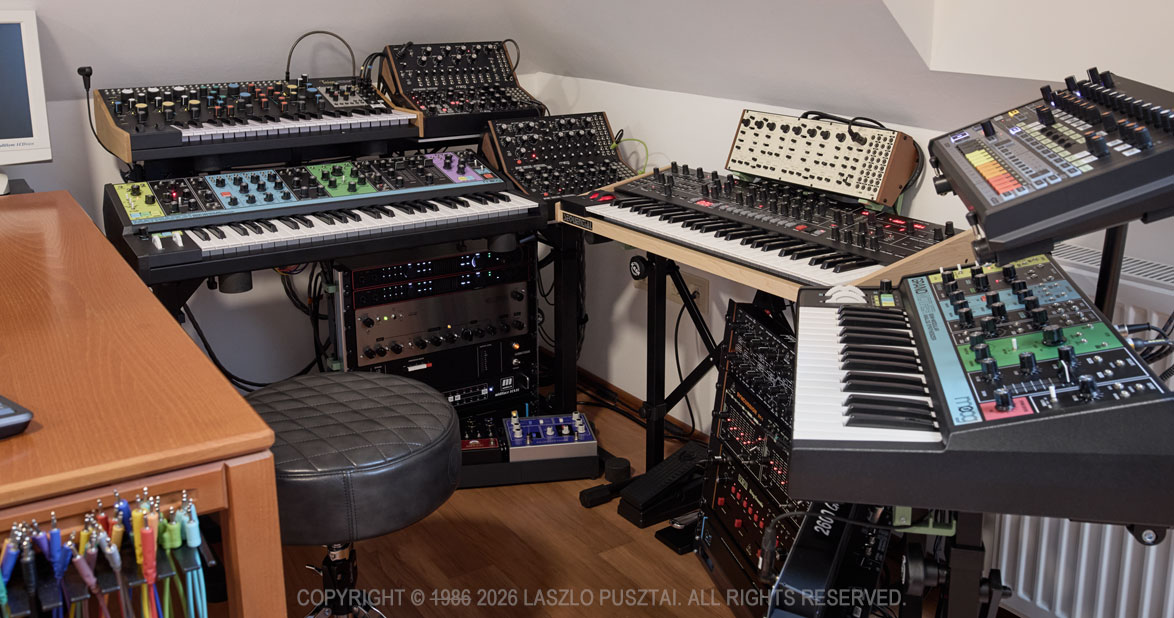
The hardware is finally complete and functional – and ready to roll!

Well, okay, it’s not from the 80s, but the synth corner is nevertheless ready for fun.

It took me two years to arrive at this point. 19 months of which had been spent on procurement and evaluation of not just synths, but all the required support gear. In mid-January this year it was time to hit the workshop to begin making all the required parts and cabling. The final assembly and testing was completed earlier this week.

I do find “studio tours” an immensely useful source of tips and tricks, and I hope mine will help out somebody somewhere. During the project I had encountered quite a few interesting challenges that nobody seems to talk about. I’m planning to go into detail of these in subsequent posts – this is being a global overview.

My initial goal with the synth corner was just to make a sonic playground. But in matter of weeks it became clear that I will need to develop custom parts and software to fill the gaps I was unable to cover with off-the-shelf solutions… And you know what an entrepreneur does in a situation like this: starts to make a slew of products. The first of which, the Mother Global Settings app, is available since last fall. Several more will follow later this year.

I also wanted to limit the space allocated for the synths and associated gear. Mainly to be able to keep everything wired in all the time and within reach. The space limit also helped to avoid boundless gear acquisition to some degree.

Enough introduction, let’s get down to the real stuff! I’m going to talk about four of the six tenets I consider when building a studio – acoustic treatment and software will be covered in later posts sometime.

Power

How you power your audio gear will have significant impact on sound quality. Fortunately the house I’m living in have rather clean power and great grounding, but short outages are quite frequent. So everything – including my Mac and monitor – is connected to a CyberPower CP1500EPFCLD UPS. Using a UPS also guarantees that all the devices are connected to the same wall outlet, so I haven’t experienced even the slightest ground loop issue from the power side of things. The whole setup idles at around 250W, and I rarely if ever go over 50% of the CyberPower’s maximum load.

Three CIOKS DC7 isolated power supplies and a CRUX extension provide ultra-clean power for synths and pedals where they are appropriate. For more power-hungry stuff I’m using a bunch of Moog’s new power bricks – those that ship with new devices post InMusic acquisition. There are a few cases where I’m using the original power supply shipped with the product: like the Taiga requiring 15V and the RD-8 requiring 18V at a higher power draw than CIOKSes can reliably provide. Another oddball exception is the Wellspring: to have a five year warranty, the included power supply must be used. Fortunately it is a good one.

Audio

A pair of Focusrite Scarlett 18i20 4th gen audio interfaces provide me 16 channels of 24bit / 192kHz audio. I’m used to the wonderful and spacious sound that 192kHz recording can provide in my former field recording experience, so that was something I definitely wanted here. All my synths and effect units have 100% analog signal paths, and these interfaces allow me to keep all the nuances in their output. The Scarletts have always-on, pretty transparent preamps on each channel. This is a huge space and cost saver, as some of my synths have a weaker output and benefit from a little boost.

Unfortunately 16 channels isn’t that much. To alleviate this problem, the Behringer modules (in racks below the Trigon-6 and the Grandmother), are connected to the Taiga’s otherwise unused right channel through a Nano Modules MAR mixer hosted in the Taiga’s Eurorack bay. This also gives me the flexibility to patch some of these synths directly to override the Taiga’s channels bypassing the mixer when needed.

You may have noticed that I don’t have a centerpiece patch bay. The Scarletts have 4 front overrides, and combined with the MAR mixer, this provides me enough flexibility.

But what about the effects? – you might ask.

I have three digitally routed effect loops. The main stereo loop hosts a chorus, a phaser, a delay and a reverb – in this order. The second one is just for the Spectravox. And the third one is for ad-hoc connected guitar pedals. Routing is done in REAPER with the appropriate delay compensation. This gives me the flexibility to separately record dry and wet, and to send already recorded material to the effects. At 24bit / 192kHz I haven’t noticed any audible difference between this approach and a fully analog signal path.

Monitoring is done through a pair of Genelec 8030C speakers, connected to the Scarlett’s monitor output. So there’s no direct analog monitoring, but I actually prefer to hear what I’m going to work with later on.

In case I need a real string sound, my guitar gets wired to one of the front hi-z inputs of the Scarletts. I usually put guitar pedals between the Strat and the Scarlett.

And finally, the elephant in the room: cabling. I prefer to use Vovox’s sonorus protect and sonorus direct cables wherever I can. But they are quite stiff, expensive and ordering custom lengths can take months. As a result I started to make my own cables. I literally spent days on auditioning different materials, and finally settled on using some of Sommer Cable’s fine cables, such as the Spirit LLX, Spirit XS. Surprisingly, I prefer to have some synths connected via the Onyx Tynee – despite this one doesn’t have the expansive sound stage of the former ones. Plugwise Neutrik and Sommer Hicon only.

Control (MIDI)

A Miditech midiface 16×16 gives me 16 DIN inputs and 16 DIN outputs. Which is plenty right now. The interface has a low-latency USB3 connection directly to my Mac Studio. I avoid USB MIDI because it doesn’t provide galvanic isolation and is a source of lots of nasty noise.

On the cabling front, just like with audio, I use a cable that is appropriate for the task at hand. This means a mixture of Roland RMIDI-G, Cordial ED and self-made (Sommer Goblin cable with Neutrik REAN plugs) cables.

Stands and Racks

Several K&M Omega and 18826 stands form the base of the support. The racks are open frame MikroTik SolidRack 10s.

You may have noticed little pistachio green things here and there on the photo. They are the top on an iceberg: I have dozens of 3D printed and aluminum extension parts to these stands and racks. There are additional shelves (like the ones under the Moog modules), stiffener bars, cable guides, even a pedalboard. Some of these are general things that I’m thinking of bringing to the market, and some are manufactured to my specific use case.

One thing you won’t find in the synth corner is cable clutter. I’m allergic to it. A bunch of 3D printed cable holders and guides help me keep everything organized and to keep power, control and audio at a safe distance from each other to avoid interference.

Next Up…

There is one specific device, one that I consider being a must for anybody working with synths or other audio gear. It is the subject of my next post.

Another consequence of the synth corner hardware being ready is that I can now focus on the software projects waiting for this to happen. There are no less than four new apps I’m working on right now. This is going to be a fun / busy / interesting year!
ShutterCount 7 Released

Preamble

This year’s macOS and iOS releases are my least favorites of all time. Apple’s 1984-esque push to make everything look like translucent goo that can’t stay put is one thing. Although it’s a big thing. It puts way more cognitive load on users as text on translucent surfaces can be extremely hard to read. The general lack of contrast also amplifies this. And unnecessary, battery-draining animations and lighting effects sometimes cause nausea. I find it very depleting to use these new operating system versions.

But these aside, the bigger issue is that the compatibility layer for apps built for previous operating system releases is severely broken, which forced us to move forward to goo-land.

Vive la Résistance!

Since we value our user’s time, and frown upon conformity, the decision was to push back. We do prioritize our design language and don’t want our apps look like ghosts. So we carefully examined each interface element and each use case to keep usability-compromising things out of the apps. There’s some degree of “blend-in” for a seamless user experience where appropriate – this reduces cognitive load. Sometimes the workarounds we applied to stock elements are subtle, but even those proved to significantly lessen the overall visual stress.

Our apps will definitely look different. But being different is a good thing.

Given the sheer amount of our apps, this is still a work in progress. We do release those we are satisfied with one-by-one. And here is the earliest bird…

ShutterCount 7

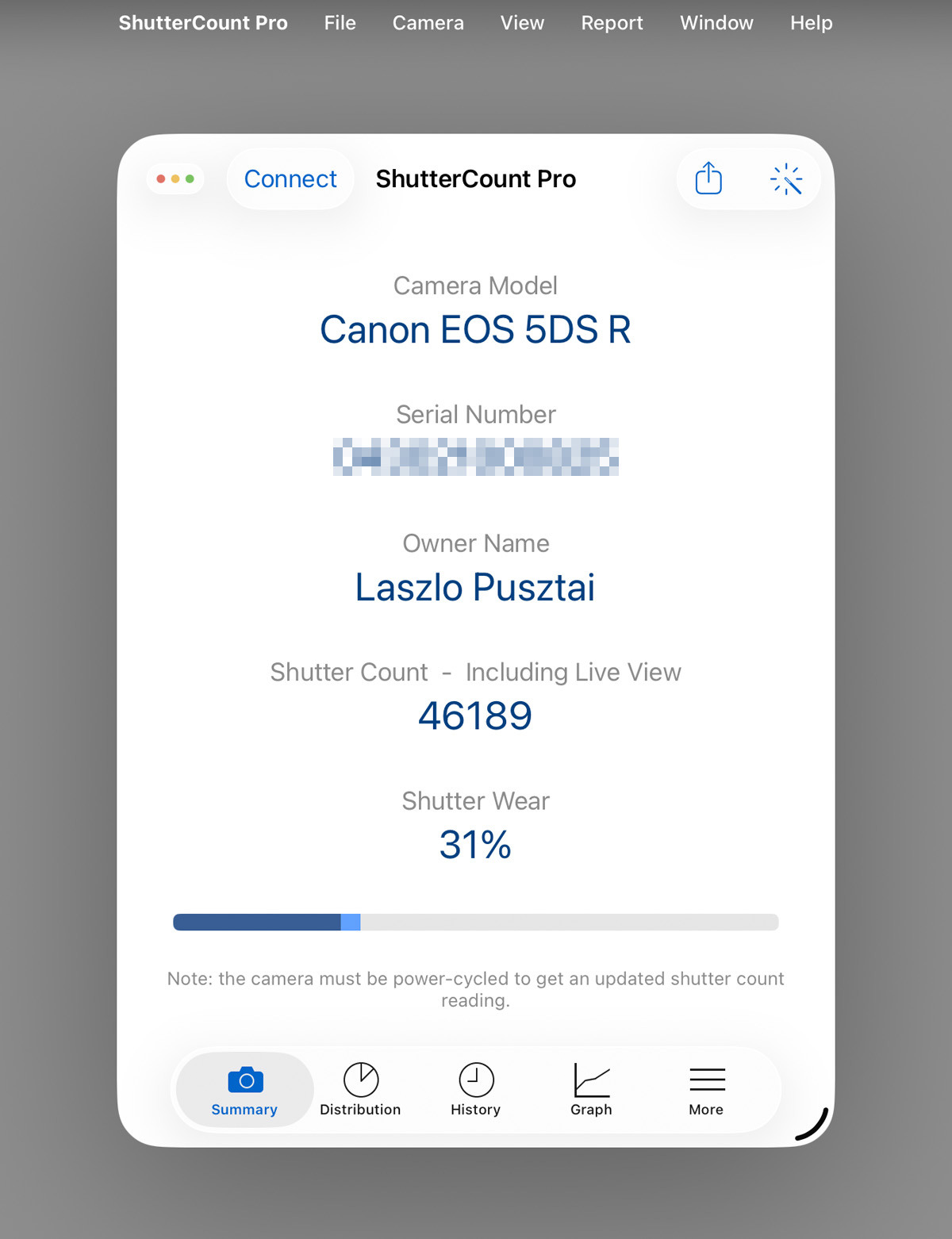
The most prominent change you’ll encounter is on the iPad. With the new windowing mode ShutterCount became strikingly similar to the Mac variant.

Menus are almost identical to the Mac – as well as keyboard shortcuts. If you are using the iPad with a keyboard and mouse, you’ll find the app quite easy to use. Combined with the fact that iPadOS has a much better USB camera connectivity than contemporary macOS, I wouldn’t be surprised to see iPadOS becoming the premier platform for this app.

The iOS variant retains the former interface even on the iPad. We don’t like to change things around for the sake of change. It upsets professional users. So now you have multiple ways to access the same features: the original touch-oriented ones plus through the menu bar.

Version 7 is a free update to all previous ShutterCount owners. New users can download it from the respective App Store.

Introducing Mother Global Settings

I started exploring the realm of electronic music a couple of years ago. And I was fortunate enough to dive into the depths of synthesis with a Moog Matriarch.

The Matriarch is still one of my favorites – and my most used synth by far. Besides its main function it serves as a controller (both MIDI and modular), and sometimes slips into the role of a guitar effect pedal.

In addition to what you can access on the panel, it sports 60+ (you read that right, more than sixty) hidden settings. The majority of which is accessible on the synth itself via a global setting editing mode clearly inspired by the Roland 303’s sequencer (a.k.a. the sequencer from hell), while you can only change the remaining few via MIDI. To add insult to injury, there is no way to check the current value of these settings.

So some important parameters – like arperggiator/sequencer gate length or swing – are a pain to change. Good luck trying to adjust swing with the built-in global setting editing mode while playing, for example.

Moog does not provide any software for the synth, and professional quality 3rd party options are pretty much nonexistent.

And this is where my story begins.

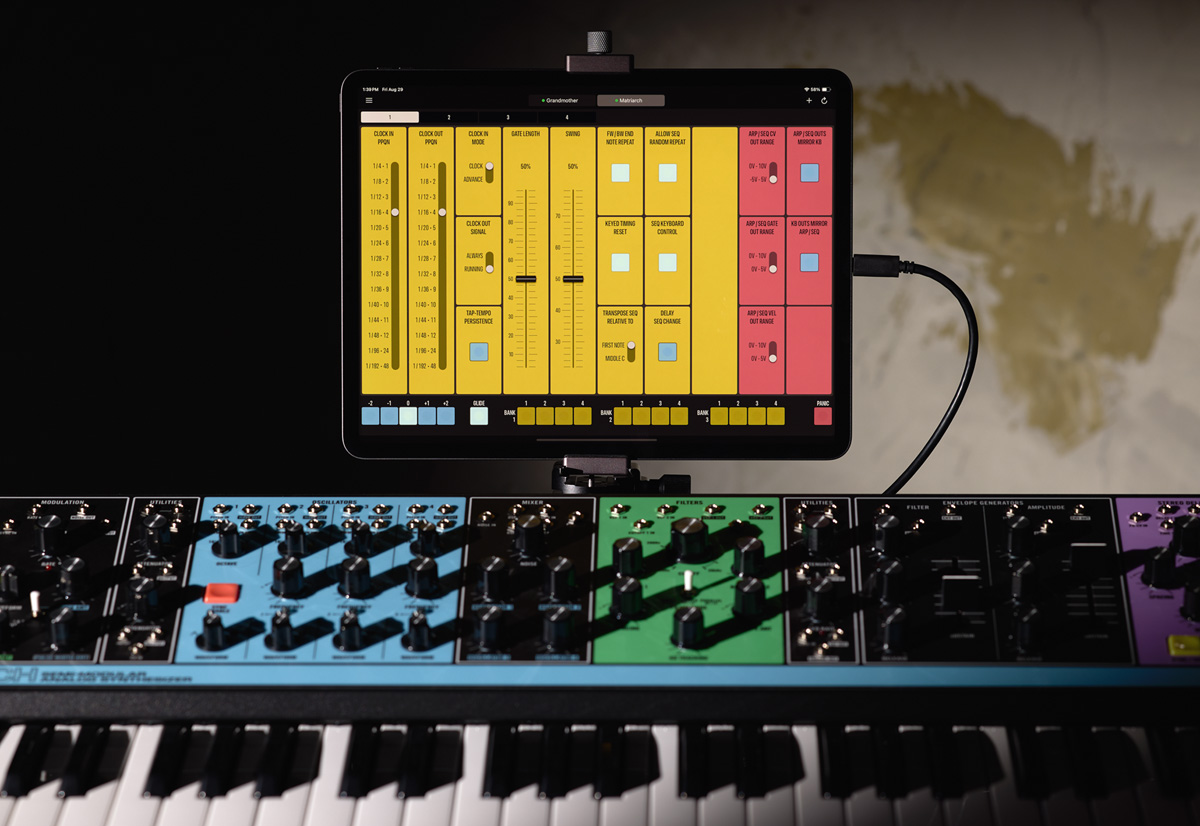
What we developed is a proper editor app for the Matriarch – and its sibling, the Grandmother. It works on Mac and iPad. The latter is eminently suitable to be used as a panel extension to the synth.

The app – Mother Global Settings – places all the hidden settings within reach with two clicks/taps maximum. Given the sheer number of settings, they are grouped into four pages in case of the Matriarch, and two pages in case of the Grandmother. Every single setting has its own button, switch or slider.

We also added a bunch of convenience controls – they are at the bottom of the screen. An octave switcher so you don’t have to fiddle with the synth’s switching. A button to instantly disable glide (while the pot remains at its current setting), a panic button, and sequence selector for the Matriarch.

Of course you can also save the global settings as presets to recall them as needed. Please note that these presets only include the hidden settings, so they are not “patches”.

The app is now available on Apple’s App Store for an introductory price.

An Offbeat Book Recommendation

Housekeeping isn’t a topic that I’m talking about a lot publicly. But today I’m going to step off the beaten path and focus on a book dealing with this area.

And doing so not because the cover is my work, or for the reason that I was the editor – but on the ground that Essential Oils for a Sparkling Home is good.

The cover image was made with my trusty Canon EOS 5DS R, the wonderful Zeiss Apo Sonnar T* 2/135 and of course Kuuvik Capture. This is an ideal setup for all kinds of product photography.

Agnes is my business partner and I have the privilege to be able to use her recipes and mixtures for a very long time. And, you know, I’m a perfectionist and only use stuff that works very well.

Essential Oils for a Sparkling HomeYes, the book isn’t just for the ladies.

A real man keeps his quarters and tools clean and tidy. His house, his workshop or even his boat. It is a requirement to be able to consistently perform on a very high level, and puts him ahead of the vast majority of his competition in all aspects of life.

Fortunately, it hasn’t been easier than these days: you have machines from robot vacuums to dishwashers, and plenty of useful information on how to do it effectively.

But some of those tips and how-tos use chemicals that would rather belong to the warfare than to the household.

Agnes’ recipes are all natural and non-toxic. Which doesn’t mean that they are not effective: you can still hurt yourself with these mixtures if you are stupid, so common sense applies here as well.

And the scope of applicability is much broader than your household.

For example, I regularly use the “disinfectant blend for the kitchen” to terminate ecosystems that would otherwise flourish on the bottom boards of my jon boat below the floor grid – before they could surprise me with various kinds of infection.

This mixture is a perfect fit, since Lake Tisza is a nature reserve and using harsh chemicals is a no-no at this place, plus these chemicals could also damage sensitive parts of my cameras and lenses.

So grab a copy of the book, and be creative with the application!

Canon EOS R1 Support in ShutterCount and Kuuvik Capture

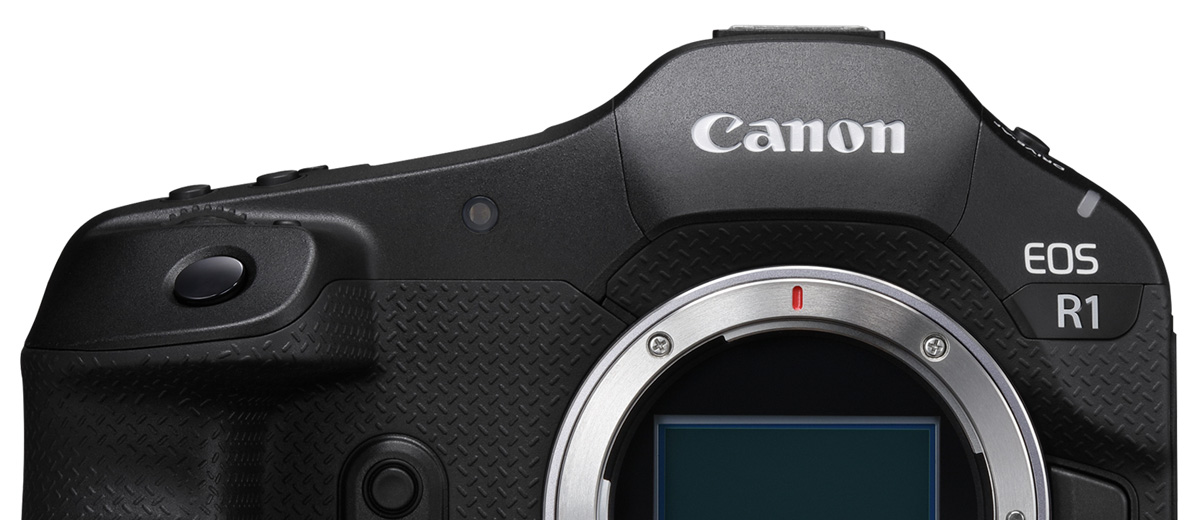
ShutterCount 6.7 and Kuuvik Capture 6.7 had been released on Friday with Canon EOS R1 support.

ShutterCount is a step-up from the camera’s rudimentary built-in shutter counter available in the menu: the app provides usage logging even in the standard version; but if you have the Live View Pack or ShutterCount Pro, then you’ll be able to see the number electronic shutter actuations as well on the Distribution Chart.

On the other hand, Kuuvik Capture is not simply a “step-up” from EOS Utility: its in a completely different universe. You’ll want to try this app if you do product photography or need to cull thousands of images (which the R1 will undoubtedly produce for you).

The updates for both apps are free for existing users. They are available in the respective (Mac and iOS) App Store.

Kuuvik Capture : macOS Integration Improvements

There are two macOS integration bits in latest Kuuvik Capture releases I haven’t talked about yet. They proved to be very valuable time savers in my own workflow.

Recents on the Dock Menu

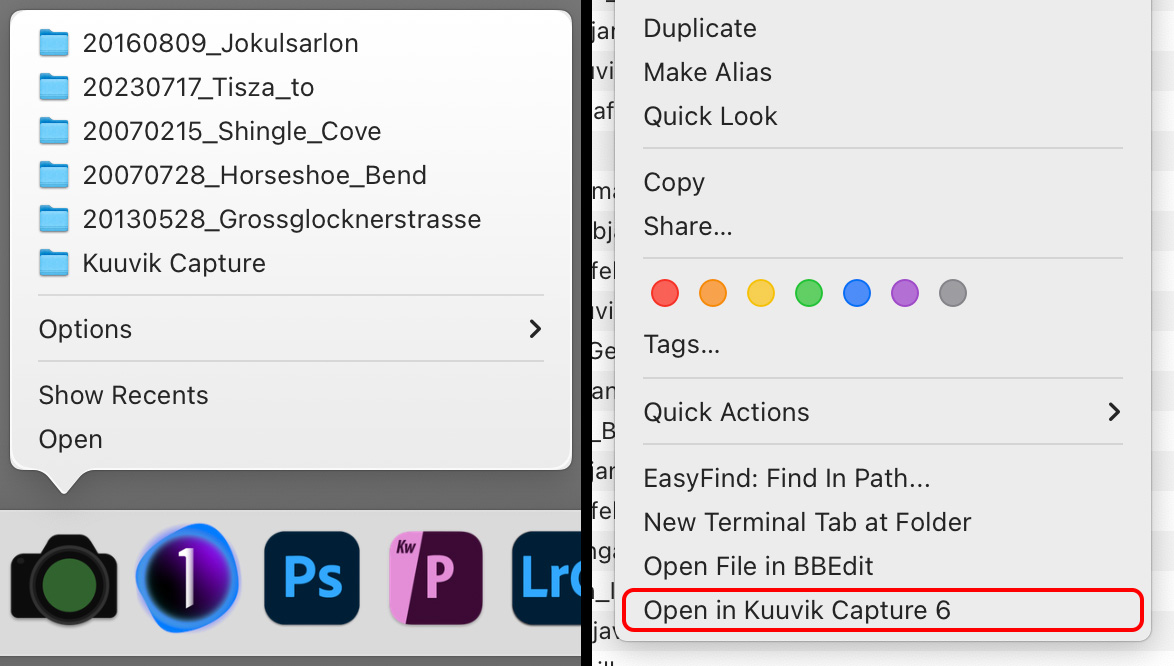
This is available in Kuuvik Capture 6.6 and later. If you are like me, and keep Kuuvik Capture on the Dock, it is a lightning fast way to get into your recent sessions. As expected, it even works when Kuuvik Capture is running.

Note that only newly opened or created sessions are added to this list, previous recents are not migrated.

Left: recents menu on the Dock, right: service on Finder context menu

“Open in Kuuvik Capture 6” Service in Finder

To keep things simple, Kuuvik Capture sessions are regular folders. Beginning with version 6.5, the app adds a service to folders in Finder, which lets you open any session folder directly in Kuuvik Capture right from the Finder context menu.

This transformed my shoot ingest workflow substantially. Now I go into the storage location for the shoot, create a new folder in Finder, right click it and choose Open in Kuuvik Capture 6, then do a memory card import. Somehow I find it way faster and intuitive to create the folder for the shoot in Finder than doing the same in the New Session dialog in Kuuvik Capture.