Kuuvik Capture 6.1 Available Now

We’ve released a minor update to Kuuvik Capture earlier this week. It brings Canon EOS R7 support and mostly OS compatibility updates.

On the Mac the app follows the system-wide renaming of Preferences to Settings in macOS 13. Plus, you can now set the app’s appearance (that is, light or dark) independent of your Mac’s system setting.

The new Appearance setting in the Mac version

On iPadOS 16 this release restores the ability to use the actual device name during pairing.

In the new operating system Apple finally fixed the severe issues that plagued multi-touch in iPadOS 15, so we’ve updated our touch detection code to take advantage of the corrected behavior.

The iPadOS bug where the OS may fail to properly close the app before updating it, and subsequently, not knowing which one to run, greets users with a pitch black screen, affects Kuuvik Capture as well. The fix is quite easy: force quit and restart the app (both copies) to wipe corrupted state information. See our knowledge base article for detailed instructions.

The update is free for existing users, and is available on the respective App Store.
Ultralight Tethering with Kuuvik Capture

With the release of Kuuvik Capture for iPad, a decade-old dream started to unfold: enjoying all the benefits of tethered shooting out in the field without the burden of carrying around a notebook.

Once the very first beta of the app was ready, a quest for the optimal iPad size and a lightweight mounting solution had begun. It took several weeks of research to arrive at a solution that I’m using for the last year.

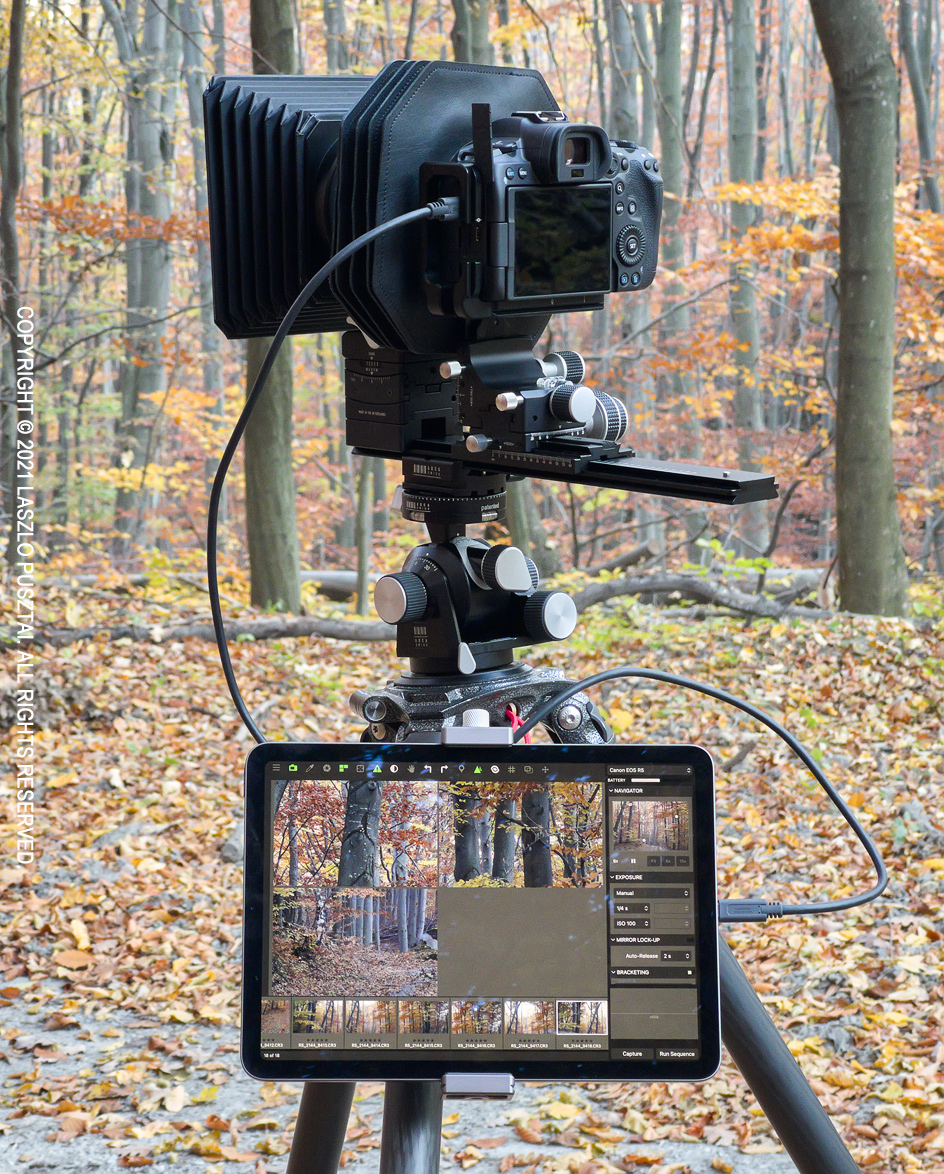
My Cambo Actus digital view camera with the Canon EOS R5 acting as the recording medium controlled by Kuuvik Capture running on an iPad Air 4. The image shows one of the app’s unique features: multi-point simultaneous live view.

The iPad had to have a USB-C port and large enough screen while keeping the weight down. Quite early during the development we’ve realized that the sweet spot is the ~11″ size. At the end I chose the Air 4 as it weighs a little less than the Pro, costs less, and for a dedicated tethering controller the Pro doesn’t provide anything worthwhile over it.

Storage-wise 64GB is plenty for me, especially since I don’t have to shoot a myriad of images to compensate for possible errors. With Kuuvik Capture I only keep the perfect ones. 64GB also turned out to be more than enough for a 5-hour Perseid shooting session, where I shot a ton of long exposure images.

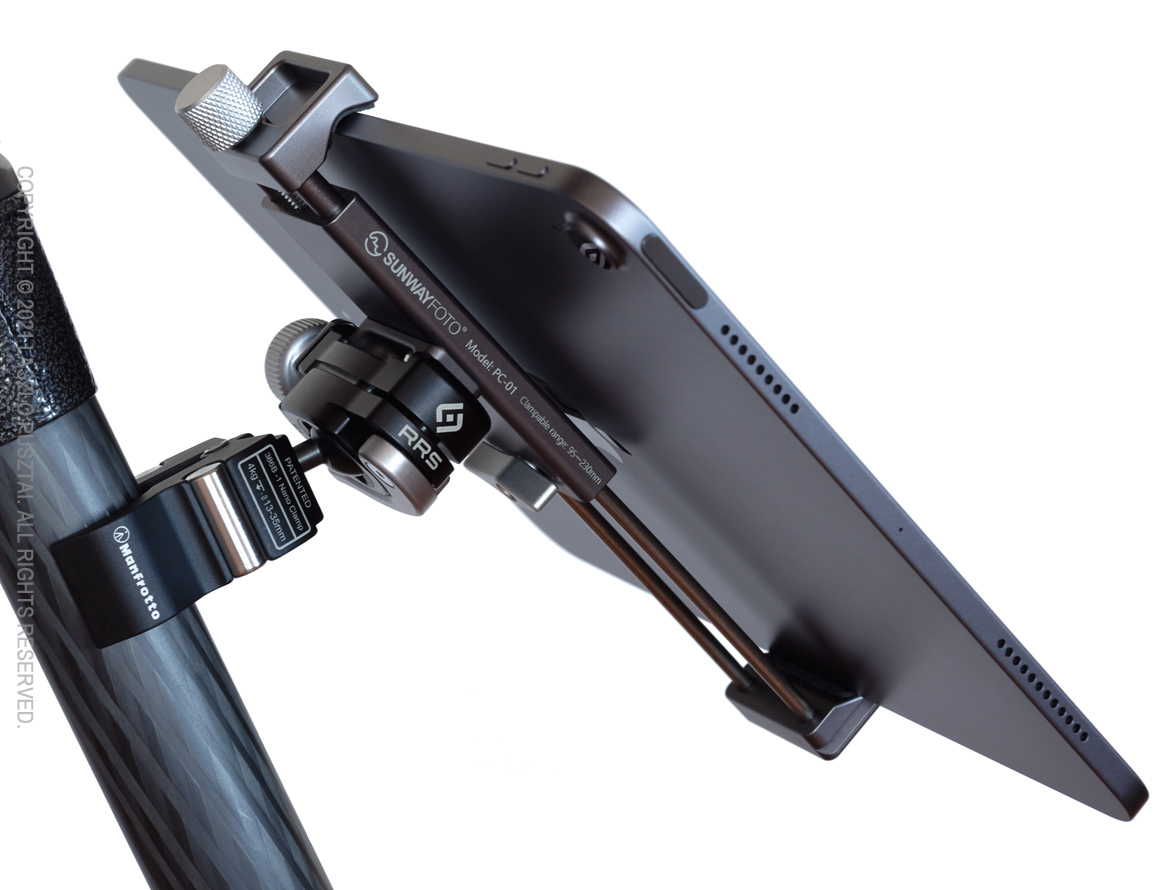
Mounting the iPad was a headache, though. Generally I’m not happy with buying stuff made by Chinese copycats, but it turned out that nobody else makes any competent iPad holder… So I ended up getting a Sunwayfoto PC-01 tablet bracket.

Attaching the iPad bracket to the tripod was an easier job to accomplish with products from reputable European and US manufacturers: my choices being the Manfrotto 386B-1 nano clamp and RRS’ BC-18 micro ball head.

You can see the completed mounting solution below.

The lightweight mounting solution.

The torque the whole iPad assembly exerts on the ball head’s screw is significant, and could easily loosen it from the Manfrotto clamp. So a drop of Vibra-Tite Blue 121 or Loctite Blue 242 removable threadlocker is highly recommended to avoid issues down the road.

You don’t want your iPad to land on a sharp rock after all…

Another possible source of inconvenient moments is the nano clamp itself. If you don’t tighten it enough. Or if it breaks… iPad meets a sharp rock situation again.

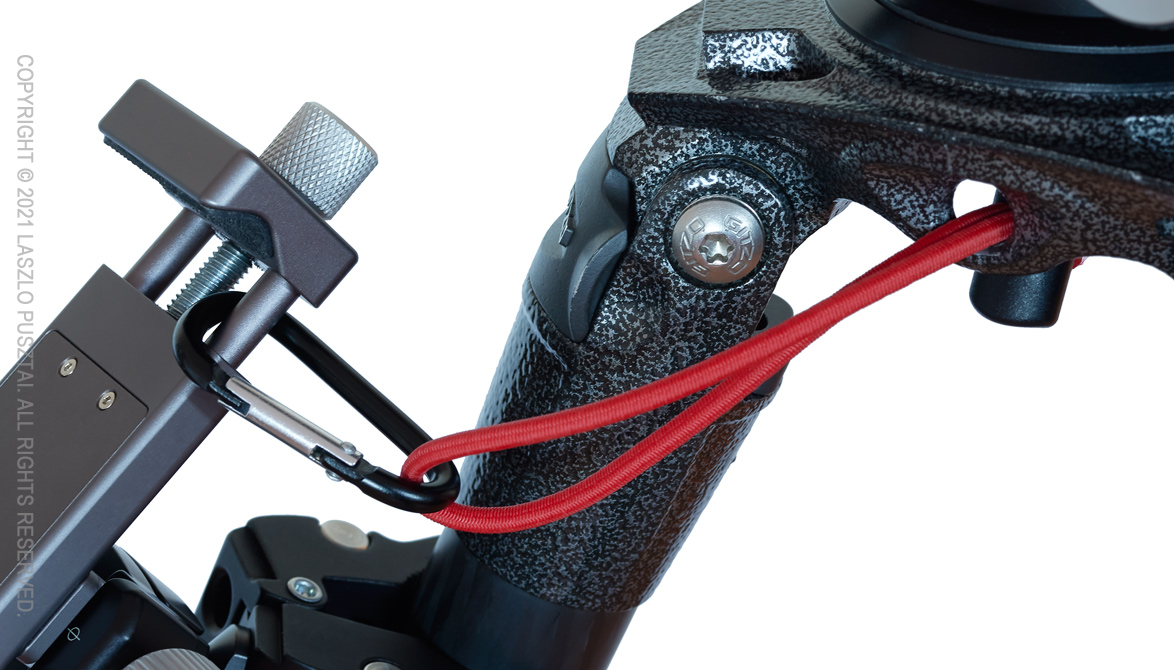
To mitigate this risk, I’m using a simple security tether between the tripod and the iPad bracket.

Security tether.

It is just a Think Tank Red Whip and a small carabiner.

Speaking of tethers, I have to talk about the cables that connect the iPad with my cameras. In plural, since I’m using a 5DS R and a R5 for tethered shooting, both having different USB connectors.

We learned through the years of supporting camera connectivity apps that you should avoid cheap Chinese junk cables and adapters. They are unreliable and most of the time do not work at all. We maintain a list of certified cables and adapters, and can’t stress enough the importance of high quality cabling.

With the R5 I’m using the cable that was included in the box, and with the 5DS R Cable Matter’s 1m long USB-C to Micro B 3.1 cable is my preferred choice.

Why not Wi-Fi? Well, Canon’s Wi-Fi connectivity implementation is a pain to use and is significantly slower than USB. Not to mention that I prefer not to be surrounded by Wi-Fi smog while enjoying nature.

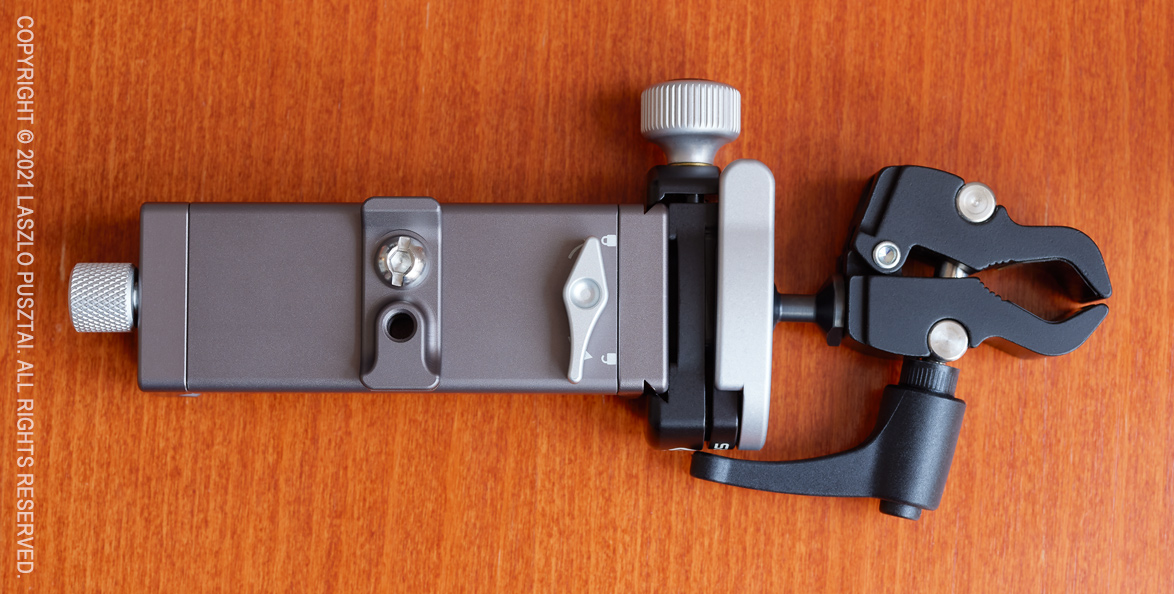
The whole mount packs relatively flat, which I can slip into an outer pocket of my backpack or shooting vest. Even the iPad fits easily into a side pocket of my old Domke vest.

iPad holder and mount packed flat.

How light it is?

The holder and the mount (as shown above) plus the security tether weighs 357 grams. Add 458g for the iPad Air 4 and 83g for the two cables. 898g in total. Not bad for a pro-level tethering solution.

You may have noticed, but I’d like to mention it explicitly: with Kuuvik Capture you don’t need additional boxes, batteries, etc. Just the iPad and a USB cable. Or the camera’s built-in Wi-Fi in case wireless floats your boat.

I’m really happy with this solution, which perfectly augments the app’s ease of use.

Honestly, I feel like I’m cheating when shooting with this rig. It’s so easy to accomplish previously complex tasks, such as obtaining perfect focus with high-megapixel cameras or exposure evaluation. Not to mention the sheer joy of seeing just-captured images on a large screen.

  ☕ ☕ ☕

Did you enjoy this post? Consider buying me a coffee if so.

Privacy Issue With Canon Copyright Info Setting

I work with Canon cameras a lot as a developer, and sometimes discover nasty things in their firmware. Most of the time these are just annoyances that delay or block some feature’s availability, but what I recently found may have a serious impact on every Canon EOS camera user’s privacy.

To demonstrate the issue I’ll use my ShutterCount app, which among many other things, can display camera data in question.

The Problem

You are a photographer who cares about intellectual property rights and thus properly set up copyright info in the camera. This consists of four fields: owner name, artist name, copyright and (on newer pro cameras) IPTC info.

Now, you are also privacy-conscious, and delete these before selling a camera to a used equipment dealer. You use the camera’s Delete copyright information menu item, thinking that it will remove everything. Unfortunately this isn’t the case. Besides not touching owner and IPTC fields at all, it only replaces the very first character of the author name and copyright fields with a zero, leaving your previously set copyright information in the camera.

ShutterCount‘s new Raw Copyright Information feature reveals deleted data.

Moreover, setting a shorter-than-previous author or copyright using the camera’s menu will just overwrite the newly entered characters, leaving part of the previous longer text unmodified.

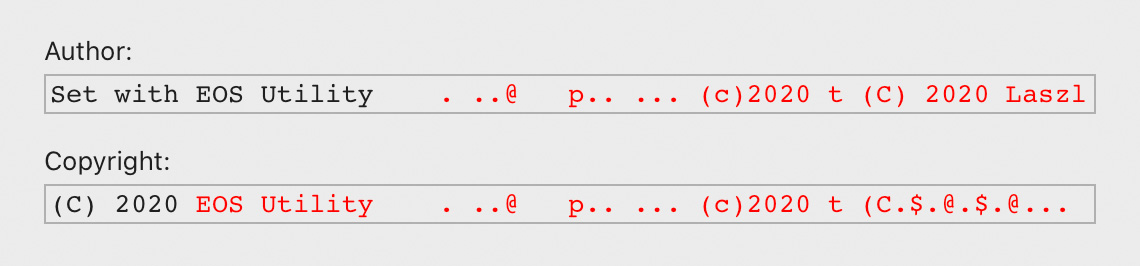
Red characters mark the leftover, black characters are legitimate, currently active text. Zero memory values are displayed as spaces for better legibility.

Leftover after setting shorter text in-camera.

The remote control interface is also affected. Using EOS Utility (and possibly many other remote control apps) will fill the remainder of these fields with arbitrary memory contents of the camera. Actually this is what triggered my research into the issue: I saw part of my address from the IPTC info in the author field.

The garbage EOS Utility leaves. Note parts of the previous values!

As far as I know, this behavior is exhibited by every single Canon EOS digital camera model announced since 2007.

Consequences

Your identity may be exposed to anyone who buys your camera through a used equipment dealer. I don’t know about you, but the idea that some camera-illiterate idiot will bug me after buying my old camera through a shop makes me uncomfortable.

Or worse, your long-sold camera may be found on a crime scene, and CSI finds the copyright info that accuses you being connected with the crime. Creepy, isn’t it?

Yeah, private information leaks are creepy. But this bug is double-edged sword, and may be terribly useful every once in a while.

Suppose your camera was stolen, and the thief deleted your copyright with the aforementioned menu command. Law enforcement will be able to reveal that it actually belongs to you.

Used equipment dealers may also benefit from it, being able to double-check the camera’s owner.

Mitigation

There’s a zero-cost method, which takes some time, but there’s also an automated method, which costs a few bucks.

The zero-cost method is to first delete both the owner and and IPTC info with EOS Utility, then go into the camera’s menu and completely fill the author and copyright fields with spaces, or X characters (or anything you would like), and save them. Then use the Delete copyright information menu item.

If you prefer the automated method, ShutterCount‘s Wipe Personal Data command will securely wipe all ownership and copyright information from the camera. This feature is available in the Pro version, or after you purchased the Plus Plack in the regular version.

I’d like to mention that the Copyright Information Template in both my ShutterCount and Kuuvik Capture apps will set the author and copyright fields properly, removing any previous leftover.

Ultimately I hope Canon will step up and address this issue by properly zero-padding the author and copyright fields, regardless of whether they were set in-camera, or remotely.

Exploiting It for Good Purposes

As you know by now, ShutterCount can reveal the extraneous information contained in the author and copyright fields, and can be used by anyone who has a reason to peek into that. It displays the dialog box what you see on the screen shot above.

I’m sure used camera shops and law enforcement agencies will find this feature rather useful. And hope that camera shop personnel will go through their used assets now, wiping personal data from every single one of them as a courtesy to previous owners.

The mentioned features are available in ShutterCount 4.7 or later. The Raw Copyright Information and Wipe Personal Data commands are on the Camera menu on macOS and under Camera Settings on the More tab on iOS.

Notes on CFexpress

I’m gearing up for the arrival of the Canon EOS-1D X Mark III, and the first thing to consider was memory cards. My goal was to find the fastest card with the smallest size. At the moment 64GB is my preferred cards size with CF/CFast/SD, but since 64GB CFexpress cards are much slower than 128GB, I went ahead and bought a 128GB SanDisk Extreme Pro. Since a camera is a good month away, I did some preliminary testing with computer transfers.

USB 3.1 Gen 2 is Not Fast Enough

When it comes to USB, manufacturers always advertise physical link speeds, which is rather misleading to the customer. For example USB 3.0 and 3.1 Gen 1 is advertised being 5Gb/s, but the usable data link speed is just 4Gb/s (or 500MB/s) since it uses a 8-bit to 10-bit encoding to have a desired balance of 0 and 1 bits on the wire. USB 3.1 Gen 2 is a bit better with 128 to 132 encoding, so the data link speed is 1.21GB/s (and NOT 1.25).

Every single CFexpress card is advertised to have at least “up to” 1.5GB/s read speed. So if you want to utilize the highest possible download speed of a CFexpress card, you need something faster than USB 3.1 Gen 2. The sole option at the time of writing is Thunderbolt 3.

To continue the never-ending stream of marketing lies, Thunderbolt 3 is usually advertised as a 40Gb/s line. Thunderbolt carries up to 4 PCI Express 3.0 lanes, plus video. So the maximum data link speed is 3.94GB/s (and NOT 5GB/s), period. This may be even lower if you connect your reader to a Thunderbolt 3 port whose controller is shared with your monitor(s), or depending on the actual controller chip to port mapping. But if you don’t connect a high resolution monitor to the same controller as the reader, you are guaranteed to have 2 PCI Express lanes, which is 1.97GB/s. CFexpress also uses 2 PCIe 3.0 lanes, so this is a perfect match. Bingo, go for a Thunderbolt 3 reader!

While quite a few companies are selling their (as we learned by now) inadequately slow USB readers, there’s only one Thunderbolt 3 device. The big and heavy AFT Blackjet TX-1CXQ. It is much larger and heavier than my ProGrade Digital CF & SD reader, not to mention the minuscule Wise WA-CR05 CFast reader I use (both of these are USB 3.1 Gen 2 readers, which is mandatory to utilize a full bandwidth of a CFast card). So I bought the Blackjet.

“Up To”…

On paper the 128GB SanDisk sports up to 1.7GB/s read and 1.2GB/s write speeds. Of course you have to deduct bandwidth consumed by file system and block device access protocol overhead, so you’ll get smaller numbers in real world scenarios.

I did measure average read speed around 1.45-1.47GB/s, which is acceptable compared to the advertised 1.7GB/s. Oh yes, you’ll need a rather fast PCIe SSD in your computer to be able to download these cards at full speed. Plus macOS 10.13 or later is required to work with CFexpress cards.

Write speed is a completely different story, however. Blackmagic Disk Speed Test measured speeds fluctuating between 800 and 1100MB/s, and it suddenly dropped to 430MB/s.

Head scratching, and consulting with both AFT and SanDisk (AFT’s support is first class, but I’m still waiting for SanDisk to reply)… Switching benchmark software to AJA System Test Lite… And presto, the truth started to reveal itself.

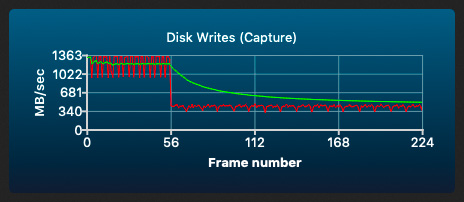
The following is a write graph generated by AJA System Test. Just ignore “frame numbers”, as since it was a 4GB write test, vertical blue lines indicate gigabyte boundaries.

So the card is quite speedy with 1.1-1.2GB/s average for the first gigabyte, then drops to 430MB/s. This might be thermal throttling, but since it always happens after the first gigabyte, it might well be due to the internal architecture of the card. I don’t know, and still waiting for SanDisk to comment. This is the first time I saw such a thing with a memory card.

If you let the card sit idle and cool down a bit, you’ll again get 1.1-1.2GB/s for the first gigabyte. But if you keep pushing data, it will stay at 430MB/s. For short bursts, say 256MB or so, with a little time between them, write speed stays around 1.1-1.2GB/s.

But how much write speed do you actually need? The CFast cards I’m using in the 1D X Mark II have 400-410MB/s average write speed, and I can shoot RAW continuously until the card is full. CFast and CFexpress card prices are almost identical (although the 128GB CFexpress SanDisk is significantly cheaper than the CFast). So for less money, I get 3x faster download speed, with a little bit faster worst case and almost 3x faster best case write speed.

I’m going to use the 1D X Mark III almost exclusively for stills. 1GB is about 40 images = 2 seconds at 20fps before throttling kicks in (not counting the camera’s buffer). It may fare very well, but video guys might need to look elsewhere. Larger cards, more suited for RAW video footage, might also behave differently.

What About Other Brands?

Finding a trusted memory card vendor isn’t an easy task. During the last 18 years I grown to trust SanDisk (used lots of CF cards from them and still are my favorite SD card vendor), and Lexar for CF and CFast before they went Chinese with unknown quality. I don’t buy anything from Sony given how they ignore customer security (think firmware updates requiring root permissions). I have zero experience with Delkin, ProGrade or Wise cards, and a little bit reluctant to begin experimenting with expensive cards.

So it’s basically SanDisk only at the moment. Canon is also pushing SanDisk, so I suspect that these products were tested together and will provide the promised performance. The above results did cast a little shadow on this, but only time and further in-camera testing will tell. I’ll let you know.

  ☕ ☕ ☕

Did this post help you? Consider buying me a coffee if so.

iPhone 11 UWA Camera : Disturbing Discoveries

After just spending a day’s worth with the iPhone 11 Pro ultra wide angle camera, I’ve discovered a few things everyone should be aware of. I’m rather tired of Apple’s half-assed approach to everything photography related. This is not a whining of a 20-something reviewer. This is from someone who wasted months of his life to transform Apple’s incomplete, amateurish APIs to something suitable for professional photo apps, and wrote exposure calculation, image encoding/decoding/display and color space transformation code along the way.

To anyone reading this at Apple: I’m open to provide you with consultancy to help get your act together and make a truly pro-level camera device / API.

No RAW

Take a look on any JPG file from the ultra wide camera. You’ll see heavy smearing and exaggerated chromatic aberration as you approach the corners. These are telltale signs of distortion correction going on (I have quite a lot of experience in this since I wrote the world’s first wide angle converter real-time distortion correction code on iOS for the Mark II Artist’s Viewfinder six years ago).

Which means that the laws of physics still apply, and supports my suspicion that the ultra wide angle camera in fact has a pretty awful tiny lens, with huge amount of distortion. And Apple doesn’t want to advertise this, so rather turned RAW capture completely off for this camera. Why? Leica, Nikon, Panasonic all do software distortion correction for expensive lenses, and the photographer at least have the freedom to correct it or leave the distortion in place for artistic purposes. (That I would never buy a 5 grand lens that require distortion correction is a tale for another day.)

The professional approach would be to provide RAW capture, and include distortion correction data inside the DNG so that RAW converters could pick it up (with the WarpRectilinear opcode).

2-3 Stop Vignetting

iPhone 11 Pro Max ultra wide camera vignetting

Now seriously. When one does distortion correction, why vignetting correction isn’t in place is beyond me. The above shot is just a wall shot under daylight, and not something suitable for exact measurements. I might do it later on, but currently this is enough to illustrate how much vignetting the image suffers from.

Again, the professional approach would be to correct this in JPG images and live video stream (or even better, provide an API to be able to control the correction), and include the necessary correction data inside the DNG files (FixVignetteRadial opcode).

No Focusing

This camera has a fixed focus lens. Read: no focusing of any kind. With such an ultra wide lens, the lack of focusing ability is mostly disguised by huge depth of field. But don’t expect to use it for ultra wide closeups.

Conclusion

Anyone touting this camera as a professional grade, DSLR (or even medium format) contender must live in a reality distortion field, powered by a huge marketing budget. Over-processed Apple JPGs suck. They always sucked. Not having proper RAW capture on the ultra wide camera is a huge drawback of the iPhone 11 series, hindering their usability for professional image capture.

  ☕ ☕ ☕

Did you enjoy this post? Consider buying me a coffee if so.

The EOS R Diary : RF 50mm f/1.2L USM

As I did mention in the first installment of this diary, one of my reasons to get an EOS R was the RF 50mm f/1.2L USM lens. You might have read in other reviews that it’s worth to buy an EOS R just to be able to use this lens. Well, this isn’t an exaggeration. On my subjective lens quality scale it scores great.

My subjective lens quality scale have eight levels: awful, weak, mediocre, decent, good, great, excellent, and exceptional. To put you in perspective, I consider the Zeiss Otus 1.4/28 and Rodenstock HR Digaron-S 100mm f/4 to be exceptional. The Zeiss Otus 1.4/55, the Zeiss Apo Sonnar 2/135 and Rodenstock HR Digaron-S 180mm f/5.6 are excellent. The Canon EF 400mm f/4 DO IS II USM and EF 500mm f/4L IS II USM scores great. And the Canon EF 35mm f/2 IS USM gets a good rating. Keep in mind that these are subjective ratings, and sometimes a lens moves from one class to another in my view. But generally everything at great or above have very good image quality and is a joy to use.

Compared to the Otus 1.4/55

The 50/1.2 is roughly as big, as heavy and almost as expensive (2000 vs 2700 EUR net) as the Otus 1.4/55 – one of my all time favorite lenses. Let’s first see why I think that the Otus is a better choice if you don’t need autofocus.

Must be careful with strong backlighting

Two things. Well, actually three. The first is that the 50/1.2 is rather susceptible to flare, while you can basically shoot into the Sun with the Otus with zero flaring. It was quite shocking to realize this after all those years spent with flare resistant Zeiss glass. So you have to be careful when shooting backlit scenes with the 50/1.2. But this explains the oversized lens hood…

The second is very strong vignetting. It is easily correctable in post-processing, though. But keep in mind that vignetting is visible even at f/8.

Last, and maybe most importantly, the 50/1.2 breathes like hell. This practically renders the lens unusable for near-to-far focus bracketing. In comparison, the Otus breathes way less, but still exhibits some image size change.

Focus breathing refers to the image size change when focusing distance changes. All lenses breathe by default – unless they are corrected for it. The 50/1.2 doesn’t seem to be corrected much.

Why Does One Want the 50/1.2?

Simply put, this is the finest 50mm autofocus lens I have ever used. Focus acquisition is quick, despite the motor has to move 340g of glass and metal around. But this snappiness is not a surprise since the the focusing motor is borrowed from the new 400 and 600mm super telephoto lenses. The only issue is that Dual Pixel AF systems are totally blind to horizontal detail, and you’ll have problems focusing on the edge between the ocean and the sky, for example.

Of course one wants an f/1.2 lens for bokeh. And the 50/1.2 will not disappoint here. Although depth of field is razor thin, and you’ll end up stopping down a bit. But in any case, out of focus areas are rendered in a creamy smooth way, with nice transition between sharp and unsharp. This reminds me how German glass renders, and not typical for Canon. Out of focus areas are also free from contamination (colored haze, chromatic aberration, etc).

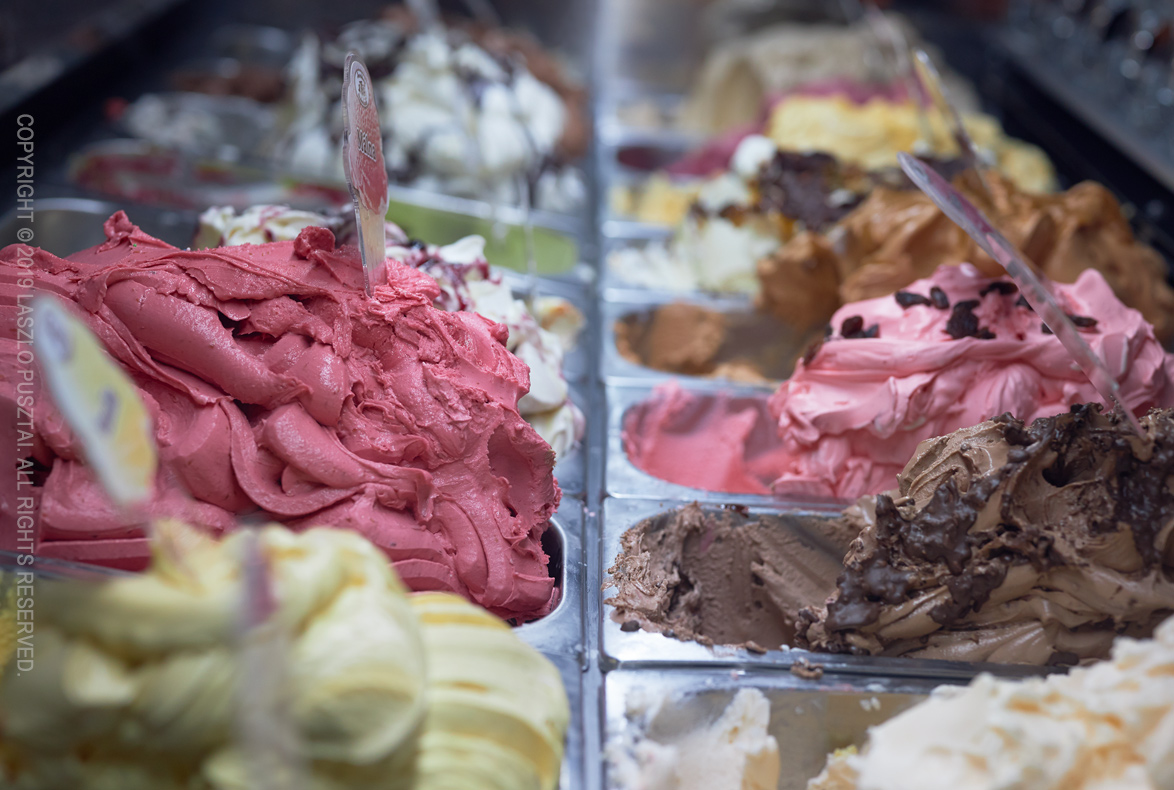
Nice creamy bokeh

The image above was shot for my favorite confectionery, and shows not just the beautiful bokeh, but the high degree of freedom from aberrations (look at how the metal bowls are rendered, despite being shot through the side glass of the fridge and under spiky, cold fluorescent light).

This freedom from aberrations is what I want in a lens these days. This ensures a transparent, airy rendering of the scene. Just the way I see it.

Colorwise the 50/1.2 has bit warmer atmosphere than I would prefer (like the 500/4). I do prefer the colder images Zeiss glass produces. I sincerely hope that Canon will finally introduce some consistency into how its lenses render. The Zeisses I use are consistent, but Canons are all over the place. The 50/1.2 would be a good reference rendering style for future Canon lenses.

With that said, I do like the images from this lens. They look natural and are full of detail. And yes, we arrived to one of the prominent features of the 50/1.2 – its high resolving power. While the EOS R isn’t a very high resolution camera, the 50/1.2 is in the same league as the Otus 55 and HR Digaron-W 70 on this body. Image field also seems to be rather flat (unlike the Otus, and most Zeiss lenses, where you should be very careful with focus placement).

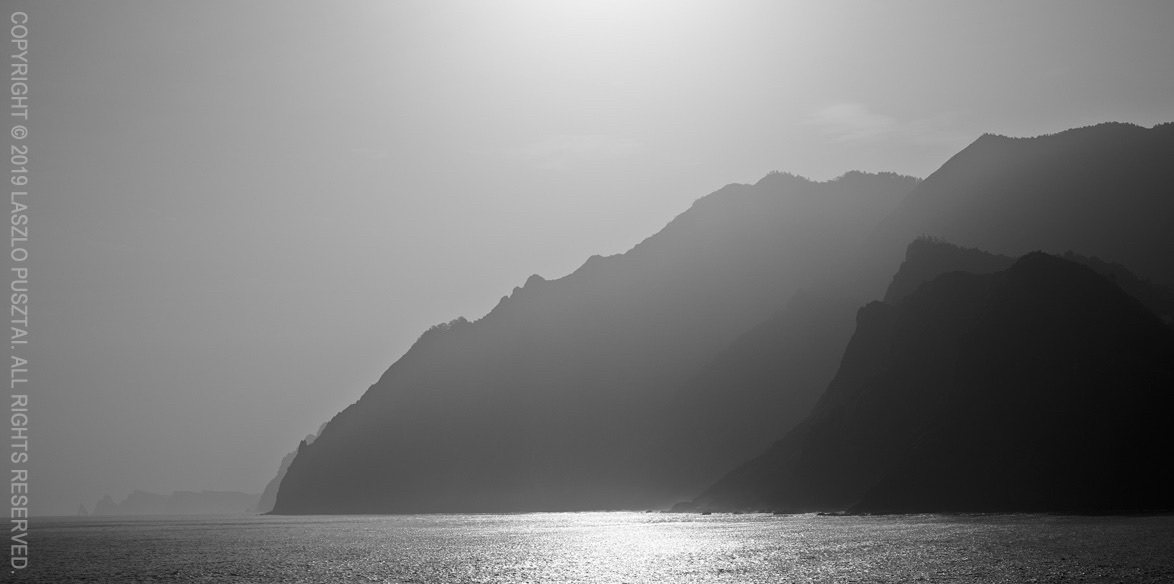
The following image is just a handheld shot, with no tripod and focusing at the center. It had to be corrected for vignetting, though. It was shot at f/8, as the EOS R is a medium resolution camera and you don’t have to worry about diffraction. Which makes the EOS R and 50/1.2 combination a very easy to shoot one.

Natural color and plenty of detail

Construction and Handling

It is a large lens. Thicker than the Otus 55 because of the focus motor. Thicker than it would be convenient even for my large hands. But you’ll get used to it. I did. And the lens hood is humongous… At least it’s a constant diameter design, so no extra space is needed for the hood in your bag.

Fortunately inner focusing is employed here, as I have severe aversion to protruding lens designs. But the front of the lens is not weather sealed, meaning that a 77mm protector is advised to be used is inclement weather conditions.

Speaking of inclement weather. My very first shot with the Otus happened on a cold November morning. My hand literally froze to the lens (and I was wearing a light glove). So the use of plastic as the exterior is very welcome on the 50/1.2.

As I did mention in my EOS R customization post, focus ring rotation behavior on my EOS R (ill-named as sensitivity in the menu) is linked to rotation degree, resulting in 360 degree focus ring rotation, which is quite nice for manual focusing. I still think that rotation speed sensitive behavior is useless.

It’s Almost Always in My Bag

When I shoot from a car or boat, and have capacity to carry a secondary bag, then the 50/1.2 and the EOS R comes with me. It was rather surprising, since the 5DS R and Otus combo is a much better one. Well, except that the R system is way easier to shoot, and reach for it when I have no inclination to set up a “proper” camera.

All in all, if you can live with its shortcomings, the Canon RF 50mm f/1.2L USM could be a very nice and high performance addition to a serious photographer’s toolkit.

  ☕ ☕ ☕

Did you enjoy this post? Consider buying me a coffee if so.