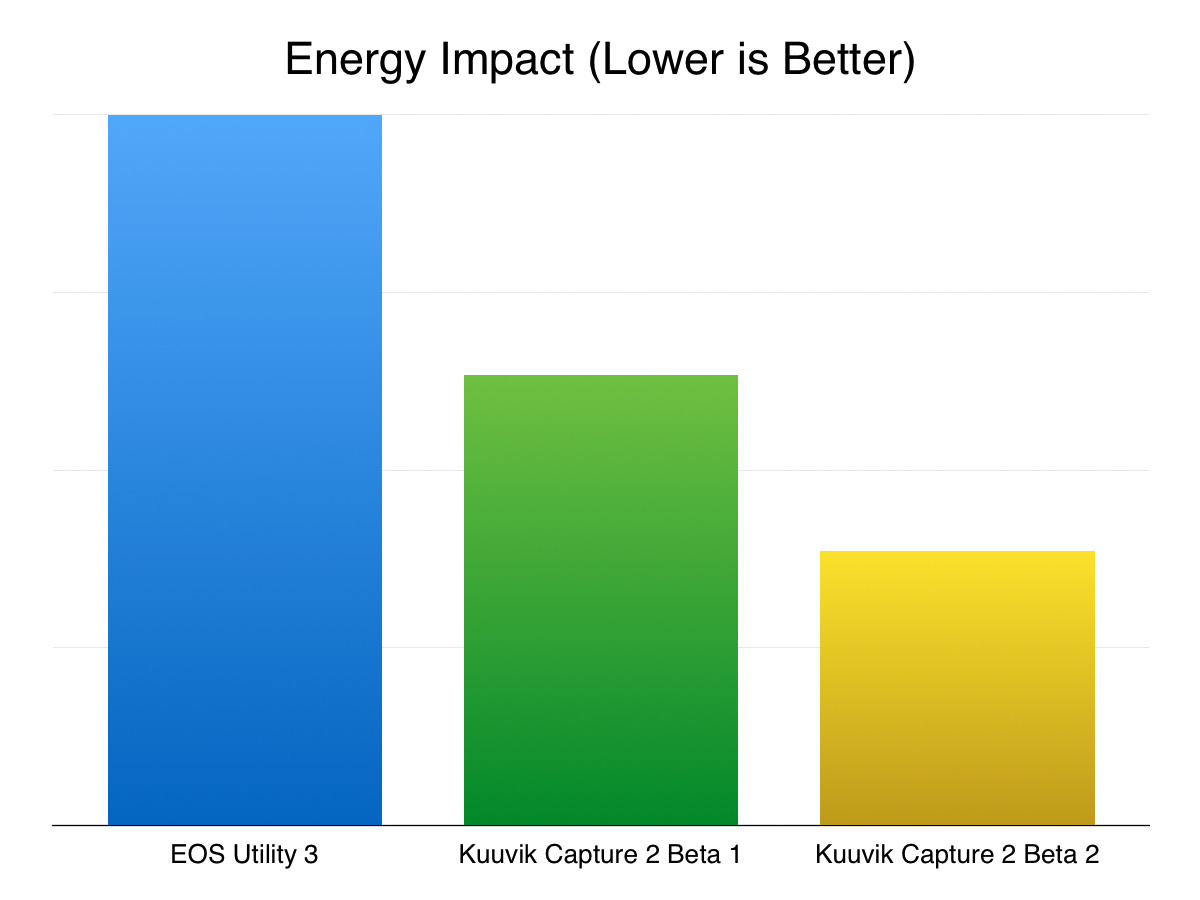
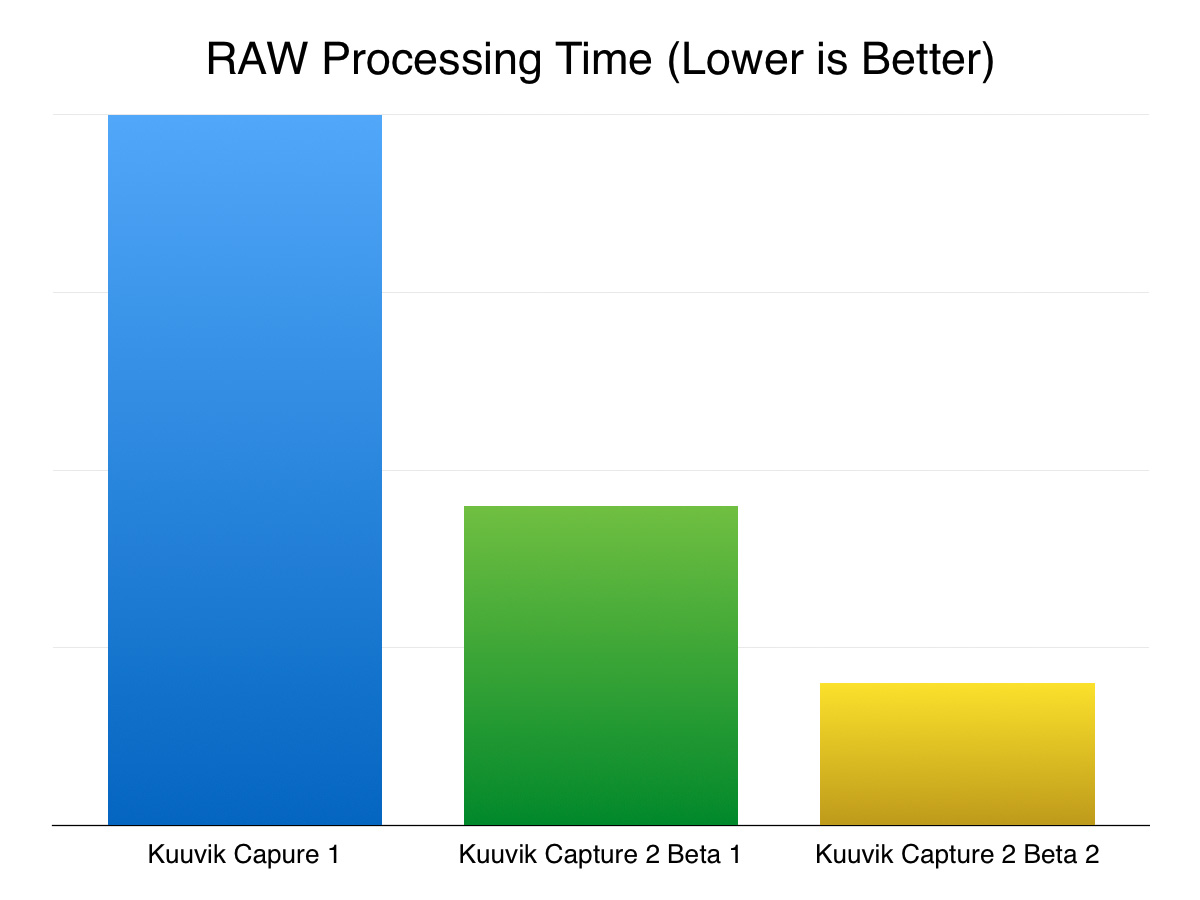
Kuuvik Capture 2.2 Released with Wi-Fi Support

The latest update to my Kuuvik Capture camera remote control app went online earlier today. Although it looks like a small update on the surface, there’s a huge change under the hood. This version contains the 3rd generation of my digital camera library – with full Wi-Fi and Ethernet connection support.

You may remember that we had dropped the network camera option during the beta, because Apple’s PTP-IP (the protocol used to talk to the camera over Wi-Fi and Ethernet) implementation turned out to be unreliable under heavy load. Not to mention the side effect that Image Capture started every time we connected a camera.

So I took the challenge and developed a completely new PTP-IP transport component, debuting in Kuuvik Capture 2.2. If you think that it’ll appear in other apps in the future, then you’re on the right track… But let’s concentrate on Kuuvik Capture now.

Connecting your camera via Wi-Fi (or Ethernet)

First of all, you’ll need either a Wi-Fi equipped camera (6D, 70D), a built-in Ethernet socket (1D X, 1D C) or a separate Wireless File Transmitter (5D Mark III, 5DS, 5DS R, 7D Mark II, 1D X, 1D C) for this to work. Only Canon’s transmitters are supported, third party Wi-Fi remote control boxes will not work. Please check the tech specs for the full list of compatible equipment.

Canon cameras provide connectivity in several ways. The most complete is the EOS Utility connection mode. For this mode a camera needs to be paired to a given app on a given computer. Using two apps on the same computer? You need to pair the camera to them separately, and only one can be active at a time.

The computer side of this pairing process is dramatically simplified in Kuuvik Capture 2 compared to both version 1 and Canon’s EOS Utility.

Kuuvik Capture now needs to be “pairing mode” to accept a pairing request coming from the camera. This mode is accessible through a new menu item (or by pressing F2).

networkPairing

Pairing can be initiated from the menu.

Kuuvik Capture displays the pairing window (shown below) while in pairing mode. This window also shows your computer’s name, which will appear on the camera’s LCD during the last pairing step, so you can double-check that you are pairing to the computer you were intended to.

networkPairingWindow

The pairing window. Kuuvik Capture is ready to accept pairing request only when this window is displayed.

And that’s all you need to do on the Mac.

Once in discoverable state, you can start the configuration process on your camera. The process consists of three large steps:

  1. Choose a connection mode.
  2. Configure your network.
  3. Do the actual pairing.

They are documented in your camera’s or wireless transmitter’s user manual, but there are a few important points to consider.

First, please don’t start any Canon app that may be mentioned in the manual. You are now pairing to Kuuvik Capture, and not to Canon’s apps.

For step 1, you must use the Connection Wizard on cameras where it’s available (e.g. 5-series, 7-series with the external brick), otherwise you won’t be able to complete step 3. On the 6D and 70D choose the Remote Control (EOS Utility) mode. On other cameras choose EOS Utility mode in the Connection Wizard.

In step 2, the camera will ask for network specific parameters (whether it’s wired or wireless, plus various options and a password specific to your network). This is the most complicated part of the entire process, but Wi-Fi setup is such a thing… I’d recommend to study the camera/transmitter manual beforehand.

Out in the field with no network to connect to? My previous post shows you how to create a fast and secure Wi-Fi network on your Mac!

The last step is the actual pairing. As the LCD indicates, this is your last chance to put Kuuvik Capture into pairing mode. It may take up to 1.5 minutes for the camera and your Mac to find each other.

camerapairing1

This is how the camera’s LCD will look like as soon as they found each other:

camerapairing2

Pairing should be done once (unless in the meantime you paired your camera to another app, another computer, or used another network). To deal with these different scenarios, the very last screen in the process (after clicking that OK button) lets you save up to 5 (3 for 6D/70D) setups into your camera’s memory. But if nothing has changed, Kuuvik Capture will find your camera automatically the next time you turn it on and connect to the network, so the pairing is not necessary every time you want to use a Wi-Fi or Ethernet connection.

When pairing has successfully completed, the camera’s LCD will turn black, the pairing window will disappear, and the camera’s name will show up in Kuuvik Capture’s camera selector.

Notes on Wi-Fi speed

It seems that Canon implements one of the lowest speed classes for each of their Wi-Fi implementations. This is 150mbps for the external 802.11n bricks (using only one spatial stream), and a shockingly low 60mbps for the 6D and 70D (despite they advertise it as 150). So don’t expect miracles and be prepared for 12-15 second downloads on these slower cameras. On the other hand, the external bricks are fast enough to be perfectly usable when the network signal is good.

Well, speaking of bad, flaky networks. While I absolutely hate to add new configuration options (one more thing for you to deal with), this time it was a must.

Wi-Fi networks can become unbeliveably slow (think longer distances and/or interference), causing the camera to disappear from Kuuvik Capture. A longer network timeout (a longer time allowance for intermittent network errors to clear) may solve this, but at the expense of delaying the detection of actual issues (such as when the battery dies). So the Preferences window now has an option to control this.

ntoPreference

The default is 10 seconds, which we found to be suitable for most Wi-Fi networks. You can go as low as 5 seconds or as high as 30 seconds. My personal preference is to go with the lowest number, and raise it in the presence of connectivity issues.

Other new features

There are two of them. Customers have asked for more, longer time options for mirror lock-up auto-release. So we’ve added 8s, 10s and 15s to the palette. Also the new white priority white balance mode introduced with the 5DS/R is now available on the white balance control.

Availability

The update is free for existing Kuuvik Capture 2 customers. New users can download Kuuvik Capture 2 from the Mac App Store.

For more information about the app, please visit it’s microsite, or check out my posts.

Creating a Wi-Fi Access Point on OS X

With Kuuvik Capture 2.2 around the corner, I’m going to post a few short tutorials on wireless “tethering” setups. Yes, the wireless connection option will make a return in version 2.2!

So let’s start with a solution to one of the most aching issues.

Imagine the following situation: you are out in the field, photographing an old castle. You want to place the camera on a crane to photograph from a high vantage point. The crane is higher than your longest USB cable can reach, so wireless connection would be the most appropriate solution.

First obstacle: all Canon Wireless File Transmitters (both built-in ones and external bricks) require an existing network to connect to in EOS Utility mode. Yes, it’s utterly stupid, since in other modes they can operate as an access point and create their own network. But other modes simply suck in terms of remote control features.

Back to our example: there’s no phone coverage (for the Personal Hotspot trick), there are no nearby networks of any kind to connect to. You could create an ad-hoc wireless network on your Mac, but setup is complicated and error prone (needs manual TCP/IP configuration on both the computer an on the camera), and in the last few versions of OS X there’s no way to create a secure Wi-Fi network (another utter stupidity). The lack of security is a total showstopper, so this isn’t the appropriate way to make the connection work.

There’s a neat trick, however. OS X has a built-in Internet Sharing feature that practically creates a Wi-Fi access point to share an existing network connection. The next obstacle is that you need the network you want to share to be in the “connected” state (think cable plugged in both to the computer and into a router). Unfortunately the built-in loopback interface (which is always connected and provides access to the local computer only) is not accessible from the Network preference pane in System Preferences (one more stupidity).

The key to the trick is to make the loopback interface appear in the Network pane. Actually, it’s pretty straightforward: launch the Terminal app and copy & paste the following two commands (working on both Yosemite and El Capitan):

sudo networksetup -createnetworkservice Loopback lo0
sudo networksetup -setmanual Loopback 172.20.42.42 255.255.255.255

Enter your password to allow these modifications if OS X asks for it.

Now your Network preference pane should list the brand new Loopback service:

network-loopback

It’s still listed as “not connected”, but don’t worry, that’s just a bug.

Side note: if you use multiple “network locations”, you need to repeat the above commands for each location. If you just use the Automatic location, then you can move to the next step.

Go to the Sharing preference pane, and on the list of services click Internet Sharing. If the service is already on, turn it off. Choose the Loopback service as the one you want to share your connection from. And share to computers using Wi-Fi.

sharing-1

You can set up the shared Wi-Fi network (the network we’ll connect the camera to) by clicking the Wi-Fi Options button. Here is the Wi-Fi Options screen:

sharing-2

The network name is your computer’s name by default, but I’d recommend to enter a simple alphanumeric name (containing no special characters), as Canon cameras have issues with displaying characters outside of the simple letters and numbers range.

All other options are the usual Wi-Fi setup options. A few notes though. Channels 1-11 use the 2.4 GHz band, while 36-48 use the 5 GHz band. Transmitters in the 70D and 6D only operate on the 2.4 GHz band, while the external WFT-E7 brick operates on both. The 5 GHz band is faster and generally has less interference from other networks and appliances operating in the crowded 2.4 GHz band. For security, choose WPA2 Personal (the other option is None, which is unacceptable).

Once the Wi-Fi options are entered, you can start the sharing service. To do it, click the check box in front of its name in the list. OS X may ask to turn on your Wi-Fi radio if it was off, and will ask your confirmation to start the sharing service. After the service has been successfully started you’ll see a screen similar to the one below:

sharing-3

IMPORTANT: due to an OS X bug, your selection in the share from list may change to another (random) network service. So you must check whether it still shows the Loopback service after each start!

The Wi-Fi icon on the menu bar will change to the sharing icon once the sharing service is ready to accept connections.

sharing-on

And that’s it! Your personal access point is now ready. The steps to configure your camera will be discusses in an upcoming post.

  ☕ ☕ ☕

Did this post help you? Consider buying me a coffee if so.

Viewfinder 4.4 with 3D Touch and iPad Pro Support

Version 4.4 of the Mark II Artist’s Viewfinder is now available on the App Store.

Besides the usual bunch of new wide converter profiles and cameras (detailed in the release notes), the two main new features are 3D Touch and iPad Pro support.

I already wrote about 3D Touch home screen Quick Actions in a sneak peek.

On the iPad Pro front, the app now takes advantage of the entire, huge screen. User interface elements remain the same size as on all full-sized iPads. This is to let the content occupy the majority of the screen real estate.

vf-ipad-pro

We also checked all the wide converters we have on the Pro, and were able to mount the Moment wide lens (both the iPad Air 2 and iPhone 5s clips fit). So this version adds support for the Moment wide lens/iPad Pro combination. More wide converters will be supported as their manufacturers come out with iPad Pro compatible versions.

Speaking of wide converters. Schneider is lagging behind again with iPhone 6s/6s+ support. We were able to use the 6 case on the 6s, so that’s in this release. But there’s no 6s Plus case yet.

Version 4.4 is a free update for existing Mark II Artist’s Viewfinder owners. Users of former Viewfinder Basic/Pro/Cine editions can upgrade for a reduced price.

Sneak Peek: Viewfinder 3D Touch Shortcuts

Earlier this week I have received both the iPhone 6s and 6s Plus – the latter of which is the phone I’m using now. So immediately started working on updating the Mark II Artist’s Viewfinder. I find the 3D Touch feature a great addition, especially home screen shortcuts speed up my everyday life with the phone. And as you can see below, Viewfinder 4.4 will sport a home screen shortcut menu.

3D Touch shortcuts in the upcoming Artist's Viewfinder 4.4

3D Touch shortcuts in the upcoming Artist’s Viewfinder 4.4

The menu includes the three last recently used virtual cameras (and the option to create a new one if there are less than three recently used cameras), and a shortcut to quickly access the album.

I’ve also completed the bench measurements of the two phones plus the iPad mini 4, along with olloclip 4-IN-1 and Moment wide converters on the two phones.

More to come, so stay tuned!

Mark II Artist’s Viewfinder 4.3 Released

The latest update to my Mark II Artist’s Viewfinder app is now available on the App Store. The highlights of this update are improved iOS 9 compatibility and new wide converter lens support. While the former doesn’t need more explanation, let’s dive into the latter.

vf43widesThis is a screen shot made on my iPhone 6 Plus. You can see that Schneider iPro lenses are now supported, but the bigger news is Moment Wide lens support across the board.

The Moment Wide lens is a high quality 0.65x-class converter. It’s so well corrected that there’s no need for distortion correction in the software. It’s not a surprise that support for this lens was the most often requested feature.

The only thing that prevents it from becoming my favorite is the rather crappy attachment plates. The lens bayonet is simply sub par, and I don’t want to glue anything to my phone. So gaffer tape was used extensively during measurements and testing of this converter. Their case is light years ahead of the plates, but only available for the iPhone 6 at the time of writing.

The Moment Wide lens is now supported on iPhone 4/4s/5/5s/5c/6/6+, iPad Air 1/2 and iPad mini 1/2/3.

The complete release notes is available here, and through the “What’s New in This Release?” menu item from within the app.

Version 4.3 is a free update for existing Mark II Artist’s Viewfinder owners. Users of former Viewfinder Basic/Pro/Cine editions can upgrade for a reduced price.

What about the iPhone 6s and 6s Plus?

Since version 4.1 new devices are supported automatically using iOS provided angle of view data, so you don’t have to wait for us to complete the bench measurements. Sure, measured angle of views provide better precision, but you need to wait for that – as well as for wide converter support.

We have no early access to new hardware and must wait for general availability like everyone else. In our country the new phones just became available yesterday – and I had already ordered both. They are expected to arrive by the end of next week. Olloclip and Moment declared their clips as 6s/6s+ compatible, Schneider promised to say something by mid-October.

So you’ll have to wait for wide converter support on the new phones until the dust settles and we complete all the measurements.

Kuuvik Capture 2.1 Released

Version 2.1 of Kuuvik Capture is now available on the Mac App Store. This update brings a handful of new features and a few fixes. Let’s start with the new features.
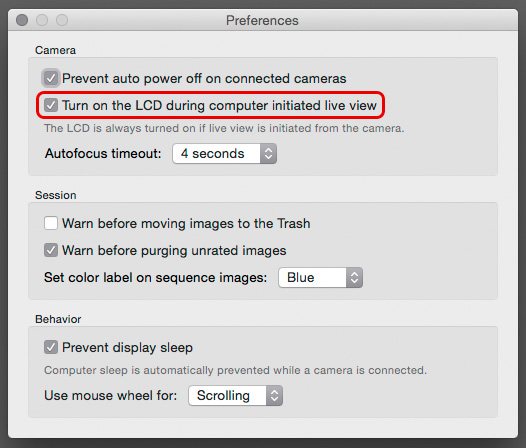
kc21prefsFirst, a new preference is added to control whether the camera’s LCD is turned on when you start live view from within Kuuvik Capture.

If you turn this preference off, the camera’s LCD will remain turned off to conserve battery. But you can turn the LCD on any time with the live view button on the camera.

When you start live view directly on the camera, it’s LCD will turn on regardless of this preference (chances are that you engaged live view on the camera because you want to look at the LCD).

Upon user request, the number of focus bracketing steps had been increased from 30 to 100. And I’ve added hot keys to the Purge Unrated (Cmd-P) and Purge Unrated and Decrease Rating (Shift-Cmd-P) culling commands.

The bug fixes are the following:

  • Live view is now automatically stopped when changing lenses or when the camera is disconnected.
  • Live view navigator zoom labels now display “6x” and “16x” for the EOS 5DS and 5DS R. The navigator frame’s size is also corrected to reflect these zoom levels.
  • ISO 16000 now can be set from Kuuvik Capture on the EOS 7D Mark II, even if using full stop ISOs is set on the camera. This is in line with the camera’s behavior.

Version 2.1 is a free update for existing Kuuvik Capture 2 owners.