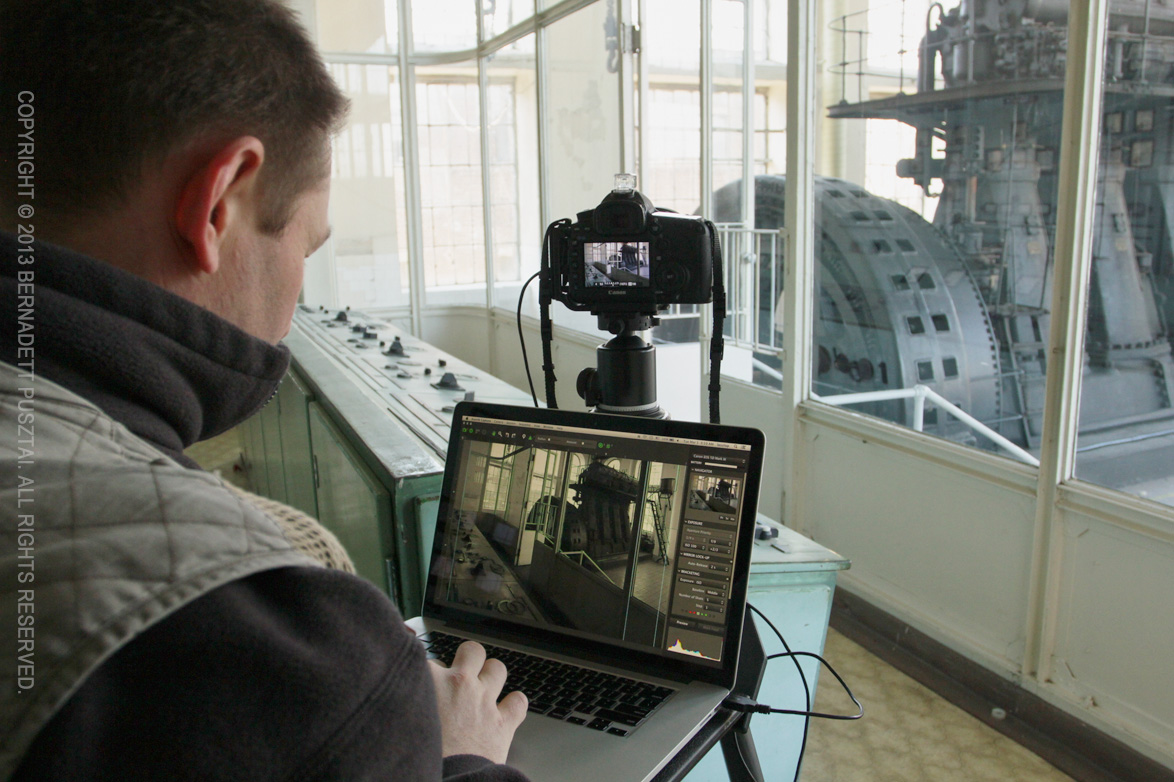
There are situations when you need remote camera control. No, I’m not speaking about the “let’s control the camera from an iPad two meters away” kind of pointless exercises, I’m talking about real needs. Think about cameras mounted on the roof of the stadium, situations where you would scare wildlife away with your presence, or downright dangerous places where you don’t want to spend more time than absolutely necessary.
I bought Canon’s Wireless File Transmitter WFT-E7(B) to assist in implementing some of my photographic ideas, and also to develop network (both wired and wireless) tethering support for Kuuvik Capture. While it’s clear that Canon’s transmitters are not standing in the forefront of today’s technology, if you could live with their quirks and limitations, then they could do the job well.
The Pricing Issue
Well, I paid 520 EUR (roughly $675, excluding taxes) for the WFT. Although this is some $175 less than the list price, it is pretty expensive. The bill of materials for this device is hardly more than $50, so this asking price is a bit irritating. As a comparison: an Apple Airport Extreme base station that packs comparable amount of software costs $179. Considering the functionality of the WFT, my opinion is that Canon could sell huge amounts of these at $199 or even at $299. But the $849 list price is simply unrealistic.
The bad news is if you need full, 100% USB-equivalent remote control functionality, then you have to swallow the price, and buy the device. There are some products, such as Camranger, that offer partial solutions, but you need a WFT for the whole thing.
Integrated Wi-Fi (and WFT software) on the 6D certainly points to a good direction, and I hope more cameras with integrated WFTs will follow. This is how it should be done in 2013.
The Hardware
 When the first wireless transmitters had appeared for Canons, they were ugly bricks that connected to the camera with a cable, but in exchange they supported multiple cameras. Then Canon made their mind, and started to sell dedicated transmitters for each camera model (think 5D2 and 7D). With the WFT-E7, the ugly brick returns. In theory it will support future cameras, but I found no sign on the Net whether it works with anything except the 5D3. I plan to investigate this in the near future.
Its exterior finish acts like a dust magnet, and also files off small skin particles of your hand, so it’s a challenge to keep it clean.
Mounting the WFT is another challenge. I’m using Arca-Swiss compatible tripod heads/plates, so screwing the WFT under my camera is not an option. As a short term solution I simply attached a keyring to the supplied neoprene case, and hung the device on my tripod hook. In the long term the keyring will be replaced with a carabiner that will attach to that hole on the tripod base. Canon packages two cables with the device: one is too short and the other one is too long for me. This is why I reel up and velcro the longer cable to the case.
The good news is that the WFT is powered by the same LP-E6 battery that powers the 5D3.
Operating Modes
You can choose from the following operating modes (which are mutually exclusive):
- Remote camera control (EOS Utility).
- WFT Server, which is a web-based remote control facility.
- You can upload your shots to an FTP server.
- Show your images on a DLNA compatible TV set.
- Can sync time between cameras.
The only mode that gives you full remote control is the EOS Utility mode. This is what I’m using, so will skip the others.
Network Configuration
This is the first quirk. For some unknown reason, the device can’t operate as an access point. So you either connect it to an existing network; bring your own access point (another box, batteries, etc); or create and use an ad-hoc Wi-Fi network (which can work only in “g” speed, and its WEP encryption isn’t something considered secure). This is a major oversight on a $675 device.
I won’t talk about basic network configuration, because you can find pretty good and detailed guides at Canon’s Digital Learning Center. I will, however, talk about another quirk: pairing.
Pairing
To control a WFT-equipped camera, you have to pair it to the computer and application you plan to use it from (I’ll call this computer/application pair an endpoint).
You must configure your networks settings on the 5D3 using the Connection wizard. No matter how experienced you are in IP network configuration, this is the only way you can get your WFT to do the pairing at the end.
Below is a screenshot of the network camera manager in the private beta version of Kuuvik Capture 1.1 showing my paired (and connected) 5D Mark III.

Network camera manager in Kuuvik Capture 1.1 beta
Working with the WFT
This is the best part: once paired and connected, you can forget about the WFT. Everything looks and works as if your camera was connected via USB. Yes, Wi-Fi can be slow (especially ad-hoc “g” speed networks), so large RAW file downloads can take a while. But otherwise the functionality is completely identical.
You only have to pair your WFT to Kuuvik Capture once, but you must watch for the connection sequence later on. WFTs advertise themselves on the network using Bonjour. When you turn on a paired WFT, it will advertise itself for a minute. During this time Kuuvik Capture (or another software) must connect to it. If the camera does not receive a connection request within a minute, it will shut down the WFT! From this point on things become pretty stochastic. Sometimes after a while the camera turn the WFT on again, sometimes you have to disable and re-enable EOS Utility mode on the camera to retry the connection.
The recommended sequence is:
- Start Kuuvik Capture.
- Turn on the paired camera. It might need half a minute or so to start advertising itself. When it appears in Bonjour, Kuuvik Capture will automatically connect to it.
Conclusion
During the last few weeks of testing the WFT-E7 worked as expected – offering stable, completely USB-equivalent connection. I don’t have a reason no to be satisfied with it. I just try not to think about its price.
Oh, I’m sure 6D owners will break into a smile seeing the ugly brick hanging under my tripod…
☕ ☕ ☕
Did you enjoy this post? Consider buying me a coffee if so.
 Ladies and gentlemen! It’s my pleasure to introduce something I have been developing for the past 15 months: