ShutterCount 4.5 Released with EOS R5 Support

The latest update to my ShutterCount app is now available for both Mac and iOS on the respective App Store. The headline feature is Canon EOS R5 support.

Since the app supports Wi-Fi connections in EOS Utility (Remote control) mode, it’s time to bring another gross R5 fault to the spotlight: glacially slow Wi-Fi connections.

Normally a Canon EOS camera would establish a Wi-Fi connection in a second or two, but for the R5 it may take 40-60 seconds. The same happens with Canon’s own EOS Utility 3 software, just its badly designed, slow-to-operate user interface covers most of this time. Slowness kicks in after the last step of the pairing is done on the camera, as well as in case of all subsequent connections. So if you must use Wi-Fi, then be prepared to brew a coffee while the camera connects. This is one of the many R5 bugs that Canon should urgently fix with a firmware update, but for now I would recommend to forget Wi-Fi and use USB instead – it works even on iOS. Update: firmware 1.1.0 is still unusable for Wi-Fi.

Speaking of bugs, we’ve fixed a crash that could happen when IPTC information is set to a camera having no IPTC set before, and another one in the iOS version’s copyright info template editor.

With this release the iOS version gains a few new features. History logs can be accessed via the Files app on both iPhone and iPad, and ShutterCount now fully supports slide over and side-by-side multitasking on iPads. The latter is a great way to have the app and the Getting Started Guide open side-by-side while you’re doing your very first Wi-Fi pairing, for example.

To use USB tethering on iPhone and iPad, iOS/iPadOS 13.4 or later is required. During the last couple of months we’ve received a few support requests complaining about non-working USB tethering. The cause in all cases was the cheap aftermarket Lightning to USB or USB C-to-A adapter the customer tried to use. We continue to recommend only Apple’s adapters as well as Apple, Canon or TetherTools USB cables.

The version 4.5 update is free for existing users.
Kuuvik Capture on iPad : Gestures

Being an iPad app, gesture support in Kuuvik Capture takes center stage. Let’s dive right in!

Long Press

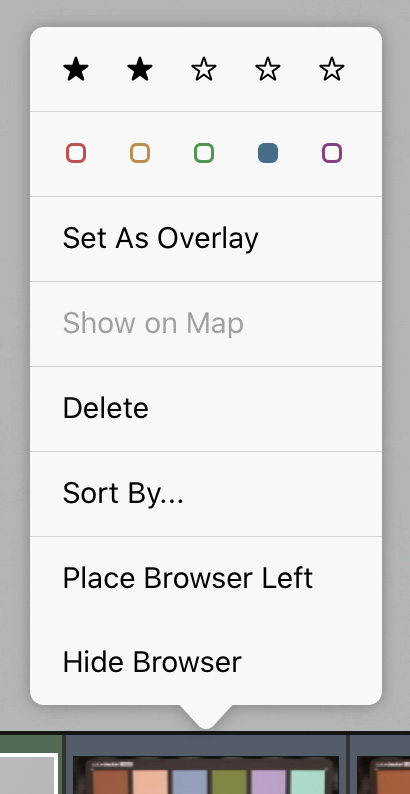
Where you normally would right-click in the Mac version, use a long press on iPad. It brings up context menus on browser thumbnails (shown on the screen shot), on the displayed image, on live view and on the bracketing monitor. It opens the corresponding option panel for the Live View, Clipping Warning, Marker, Sharpening, Focus Peaking, Guide and Image Overlay icons on the toolbar. Long pressing the camera selector in the top right corner will show the Wi-Fi and Ethernet Pairing dialog.

In Pan (Hand Tool) Mode

While an image is displayed, double tapping will toggle between 100% and Fit zoom levels. Otherwise use pinch and spread to zoom in and out. Drag the zoomed image around with a single finger, or flick it for faster movement. Swipe left or right with two fingers held together to show the next or previous image in the session, respectively. Note that the app will change the image when you lift your fingers.

In live view things work a bit differently. You can use flick-zoom (a fast, flick-like pinch and spread) to change zoom levels. And then drag the zoomed image around with a single finger. What a double tap does can be configured in the menu: initiate AF or toggle medium or high magnification levels. Swiping up and down with two fingers will pull focus. Step size for focus pulling depends on the magnification: Kuuvik Capture uses small steps for zoomed-in levels and medium steps at Fit zoom level.

Use the rotate gesture to rotate both displayed images and live view (the latter when live view auto-rotation is disabled). Rotation happens at 90 degrees. Once the app recognizes the rotation gesture, it will highlight the corresponding rotation icon on the toolbar. Let the screen go at this moment, and the image will be rotated.

In Marker Tool Mode

Tap the image/live view to place a marker, and tap an existing marker to remove it. A single-finger left or right swipe can be used to move between the markers. Two finger swipe is also recognized in this mode, just like in pan mode.

In Reposition Overlay Mode

You can resize and rotate the overlaid image with two fingers, and drag it with a single finger. Simple as that. Double-tapping the displayed image will toggle between 100% and Fit zoom levels, to facilitate precise overlay placement.

Guide Dragging Takes Precedence

When you tap a guideline (and it becomes a dashed line), then all other gestures are ignored while you hold or move that line around, regardless of the current tool or mode.

Kuuvik Capture 5.1 Available on iPad

Continuing the decade long tradition of bringing you industry-first solutions, I’m pleased to announce that Kuuvik Capture 5.1, both on Mac and iPad, is now available on the App Store. It is the world’s first Canon EOS remote control app that can be used with a USB cable between your camera and iPad – thus skipping slow and error-prone Wi-Fi completely.

Camera connections on iPad work exacly the same way they do in ShutterCount Mobile, as described in my post announcing USB support, as well in the Getting Started Guide for Wi-Fi.

More information about Kuuvik Capture on iPad can be found my previous posts (here and here).

Now I’m taking a deep breath, a few days off, and start posting short articles as the handbook is updated.

Enjoy!

IMPORTANT: If you purchased the app for Mac and want to download it to your iPad (or vice versa), the App Store may not recognize your previous purchase and display the full price. Make sure that you are using the same Apple ID you did for the original purchase, and go ahead with “buying” the app. Instead of charging your card, the App Store should display the message “This update is free”. This is an App Store bug, so please address your comments to the party responsible for it (that is, Apple).

Sneak Peek : Kuuvik Capture 5 on iPad

After a month, we’re roughly halfway through the project that brings Kuuvik Capture 5 to iPad, and I wanted to show you how does it look now. Click the image for a full size version.

The iPad version sports the familiar Kuuvik Capture interface, but there are several subtle differences because of the touch input. Buttons are generally bigger, for example. I’ll show you quite a few interesting new user interface elements during the coming weeks.

As I mentioned previously, it’s going to be a full-featured professional tethering app, supporting both direct USB connections as well as your Canon’s built-in Wi-Fi. 3rd party Wi-Fi boxes are NOT required. I strongly think that Kuuvik Capture on iPad will open up a new era of in-the-field tethered shooting.

I’m currently working 7 days a week on this project, and you could encourage me to push even harder by purchasing the Mac version right now. Since the app is a universal purchase, the iPad version will be yours for free soon.

Kuuvik Capture 5.1 : The Move to Metal

Kuuvik Capture, as well as my other apps, used OpenGL and its mobile counterpart, OpenGL ES, as the base technology behind their display engines.

While it was working, ES was different enough so that I had to keep Mac and iOS code effectively separate, with serious consequences.

Then a year ago Apple announced that OpenGL is deprecated in its operating systems (and I guess it will be removed completely in a few years). So it was time to move on.

My new unified display engine, rewritten on top of Apple’s proprietary graphics technology called Metal, will debut in Kuuvik Capture 5.1. Both in the Mac and iPad versions.

The benefits are nothing short of breathtaking. Kuuvik Capture was always known to be amazingly quick. But now images appear on screen up to 2x faster… Live view CPU utilization is further lowered by up to 25%… Even previous versions used 10x less CPU for live view compared to Canon’s EOS Utility, so the difference is simply brutal.

You’ll be able to enjoy these enhancemets when version 5.1 is released later this summer.

Stay tuned!

Kuuvik Capture 5 Coming to iPad

This isn’t a big surprise if you followed what I have been doing lately: a high performance imaging pipeline for Technical Camera, and then USB support in ShutterCount Mobile a month ago. I have technologies at my disposal that nobody else has, so it would be silly not to make it happen.

So I’m pleased to formally announce the development of the iPad version of Kuuvik Capture 5.

Let me stay for a moment with the prerequisites. In 2015 I had re-acquired the rights for Kuuvik Capture, and started paying royalties to my original business partners. But as the app evolved, keeping the old code separate from new (so that I can calculate the amount to be paid) became a headache and a roadblock to innovation. To resolve the situation, I did redeem all future royalty payments in February, opening the door for improvements across the board. You can already enjoy these in the Mac version of Kuuvik Capture 5.

Now on to the exciting stuff!

We’re aiming for the full Kuuvik Capture 5 feature set. Complete with overlays, dual histogram, multi-point live view, and so on. Of course a few things will work differently, since there are vast differences between how you interact with an iPad and a Mac. But the basic principles will remain the same.

Both USB and Wi-Fi connections will be supported. Actually, the complete camera control and sequence automation machinery is already working. I’m going to reiterate: at the time of writing nobody else in the world has the tech required to support pro-level USB and wireless tethering with Canons on iPadOS. Period.

The iPad and Mac versions will be offered as a universal purchase. That is, if you already purchased (or upgraded to) Kuuvik Capture 5, the iPad version will be a free download.

It will require an iPad running iPadOS 13.4 or later. This is a requirement for USB tethering, plus older iPads that can’t run iOS 13 simply aren’t powerful enough for the app. If you happen to have one of those, it is a great time to upgrade quickly, because…

It is planned to be released during the summer. If I were hard pressed, I would say June, but there are way too many things that can delay a development project.

I’m currently working 7 days a week on this project, and you could encourage me to push even harder by purchasing the Mac version right now. The iPad version will be yours for free soon.