Kuuvik Capture 5 – Leaner and Meaner

I’m proud to announce the immediate availability of Kuuvik Capture 5, our premium Canon EOS tethering app for macOS!

Kuuvik Capture saw the light of day on April 2, 2013, and some of its features are still unmatched after 7 years. Version 5 is by far the biggest update, elevating the app to a whole new level, all the while shrinking it to an almost unbelievable 3.9 MB.

I’ll cover the new stuff in separate posts, but let me go trough the most important bits in a nutshell. I also recommend to check out the release notes, plus the brand new Features and Screen Shots pages on the web site.

Adds the Most Requested Features

Number one is overlays. You can place an image overlay on top of both live view and captured images. It can be repositioned, resized, rotated, and of course can be made less or more transparent. And it works in magnified live view, helping in precise alignment. Overlays use our high-performance graphics engine, so you can expect the same swift and smooth operation as you are accustomed to with images.

Number two is hideable screen elements. While you were able to hide the browser in previous versions, people had asked for more. So now you can also hide the sidebar, the toolbar, and the rulers. Separately. Or you can quickly toggle the visibility of all bars (browser, sidebar, toolbar) by pressing Ctrl+Tab. Screen element visibility is remembered separately for full screen mode (where the default shows the info overlay with no bars and rulers). Ideal for culling or presenting images to a customer.

Number three is live view auto-rotation. Turning the camera to portrait orientation will automatically re-orient live view to match it. Well, it works in any of the four possible orientations. Manual rotation is disabled when auto is active, so auto is off by default. You can activate it from the View menu or by pressing Ctrl+A.

One Big, Plus One and a Half Dozen Smaller Things

Variable-step (or inhomogeneous) exposure bracketing allows you to disable individual frames. Just click the corresponding green (or yellow/red) square on the bracketing monitor. And click again to re-enable. This is a real time-saver in situations where you would only throw out frames in a part of the bracket.

Then there’s the AF feedback on the point of operation indicator – turns green on success, red on failure. Just like on the camera. And improved sliders with precise numeric display and entry. And the ability to disable user interface animations. And on and on…

Again, I would recommend to go through the release notes for the whole list.

Farewell to Legacy Technologies

There are times when legacy technologies get in the way of progress, and need to be eliminated. This is such a time.

The app no longer supports tethering with the 5D Mark II, as well as the previously obsoleted 1Ds Mark III and 50D. Files created with them can still be opened. These cameras used incomplete and buggy tethering interfaces that littered the code with – well – crap. On a side note, I got a mail from Canon a few months ago, noting that they no longer service the 5D Mark II. So its heydays are pretty much over.

We also moved forward with the minimum macOS version required, to 10.14. Mojave is a stable release (unlike Catalina), and works with each Mac released since 2012.

This is a Paid Upgrade

Free upgrades until eternity is unfortunately not a sustainable business model for professional apps. So to be able to provide the usual stream of new features and camera support updates, we had to change the model. But instead of going the “popular” and much hated subscription route, we decided to stick with good old-fashioned upgrades.

From now on, major versions will be a paid upgrades. We’ll continue to add new features to point releases, and these will be free updates. Without pre-announcing anything, I can tell you that very cool things are coming to Kuuvik Capture 5.x!

Kuuvik Capture 2.x-4.x users can upgrade with the Kuuvik Capture 5 Upgrade bundle on the Mac App Store. This is the usual “fair” upgrade provided by the App Store: the price is calculated from how much you paid for the previous version.

Kuuvik Capture 4.5 remains on the Mac App Store as it is required for upgrades to work. The price is reduced to make it a cost-effective solution to new customers needing 5D Mark II or older macOS support.

ShutterCount 4.4 Brings USB Connections to iOS

The history of my ShutterCount app is a story full of world’s firsts. Just to mention the most important innovations:

  • October, 2013: The world’s first Canon shutter count reader on macOS.
  • April, 2016: The world’s first Canon shutter count reader on iOS (for Wi-Fi equipped cameras).
  • June, 2017: The world’s first shutter count reader on Mac and iOS that supports post-2014 Canon cameras and that introduces live view counters and the Distribution Chart.
  • October, 2018: The world’s first shutter count reader that supports Canon mirrorless models.
  • March, 2020: The world’s first shutter count reader that supports Canon cameras via USB connection on iOS.

The complicated Canon Wi-Fi pairing interface was always a problem for users of the mobile app. I’ve written a long guide and produced a few videos that allowed lots of people to successfully navigate this mess. But what I always wanted was proper USB support on iOS.

Last fall, with the release of iOS 13.1, Apple partly delivered my requested feature. USB tethering appeared in the OS, but was completely defunct. We’ve provided extensive feedback to Apple during the last six months, and now finally have an OS where USB tethering works reliably. I have only one gripe (with permission prompts) that I’ll discuss shortly.

How Does It Work?

First, you’ll have to have a USB port on your iOS device. New iPad Pros have a USB-C port, that’s fine (although you may need a USB-C to A adapter if your camera doesn’t have a C-type port). But for all devices having a Lightning port, Apple’s Lightning to USB 3 Camera Adapter, or the former USB 2 version, will be a required accessory.

ShutterCount USB connection on iOS

The above image shows a typical setup, with my good old 7D Mark II hooked up to an iPhone 7 Plus using the Canon-provided USB cable and Apple’s adapter.

Once the camera is connected and turned on, you’ll be greeted with a series of permission prompts. These prompts are presented by iOS (not ShutterCount), in a very un-Apple-ish manner (three prompts for a single thing).

The first two ask for Files and Folders and Camera access permissions. As I mentioned regarding Catalina’s similar approach, this is not just terrible user experience, but also a security issue as you’ll have to grant much broader permissions than it would be necessary. An example of Apple ignoring its own guidelines…

And to add insult to injury, there’s the third prompt, which will appear every single time you connect a camera. This is a rather ridiculous one: it tells you what you already know, and you don’t have an option to block access (tapping Settings will bring up Settings, but the connection will succeed). I’ve already called out Apple multiple times to fix the permission mess around tethering – nothing happened yet.

So please don’t blame us for this thing. But I do encourage you to provide feedback to Apple. The more of us complain, the more pressure on Apple to make this right.

New Camera Support and Availability

Speaking of new cameras, we’ve added support for Canon’s new EOS-1D X Mark III in both the Mac and iOS versions.

ShutterCount 4.4 is available now on the respective App Store. To use USB tethering, iOS 13.4 is required, which Apple promises to release on Tuesday.

The update is free for existing users.

Kuuvik Capture 4.5 : CR3 and M6 II Support

Version 4.5 of Kuuvik Capture, my premium Canon tethering app, is now available on the Mac App Store. Besides the usual camera support updates (this time for the M6 Mark II and EOS Ra), there are a few noteworthy things.

RAW Histogram and Exposure Warnings for CR3 Files

Proper support is finally here for Canon’s new RAW format. Initially I wasn’t a fan of the new format as it wastes a lot of space for unnecessary things (like duplicated metadata parts and an embedded, smaller resolution RAW image), but there’s one single feature that changed my view entirely. And this is the actual organization of the RAW image data.

My biggest gripe with the CR2 format is that the RAW data must be processed serially, on a single processor. No matter how many cores you have in your machine. But CR3 allows parallel processing! My very first CR3 decoder is roughly 2.3x faster compared to a same megapixel CR2 (EOS R vs 5D Mark IV, 0.22s vs 0.51s on my 8-core 2019 MacBook Pro). And I’m investigating architectural changes in Kuuvik Capture to allow extracting even more of the inherent parallelism in the new format.

Please note that like with sRaw/mRaw CR2, Kuuvik Capture doesn’t support the RAW histogram and exposure warnings for lossy compressed C-RAW CR3 files. I don’t think that in the age of dirt cheap storage, trading a little space for increased processing time and lower quality does worth it.

New Sequence Controller

Until now, exposure sequences were controlled by a variant of the original Kuuvik Capture 1 controller. But we had recently discovered a situation where actual exposure values could slip, resulting in two identical frames. Unfortunately the cause was the app’s architecture interfering with Canon’s exposure control mechanism, and the only solution was to completely rewrite the sequence controller.

The new code also allowed to resolve a long-time issue with the inability to stop sequences while the app waits between intervalometer shots. And there’s another pretty neat thing coming in a future release!

Tethering on macOS Catalina 10.15.2 and Later

Simply put: Apple made a huge mess, so we added extensive in-app guidance about what (seemingly unrelated Photos and Removable Volumes) access permissions you have to grant to ensure that macOS lets the app communicate with USB connected cameras. Failure to do so will prevent the app from doing its job.

Of course we had filed a bug report to Apple, proposing the way that it should be done: macOS should ask for a Tethering access permission. Their current solution is not just misleading, but poses a security risk as users must grant much wider permissions than it would be necessary, grossly violating the principle of least privilege. This is a prime example that security done the wrong way actually results in a less secure system… Just sayin’… If anyone at Apple happens to listen.

Availability

The update can be downloaded from the Mac App Store free of charge for existing Kuuvik Capture 2+ users. My eBook was also updated to reflect the changes in this release.

There’s one thing you must be aware of, though: the app now requires macOS 10.12 or later. This change allowed us to modernize parts of the code, and to get rid of the OpenCV dependency, which was only used for one purpose: resizing the RAW exposure warning layer on some old Macs. Removing it reduced the app’s size by 35%, to a mere 5.3MB. In comparison, Canon’s EOS Utility is a 75MB behemoth.

ShutterCount 4.3 Released

The latest update to my ShutterCount app is now available on the iOS and Mac App Stores.

Camera-wise, this release brings Canon EOS M6 Mark II and EOS Ra support.

Apple totally messed up tethering with macOS Catalina 10.15.2, so we added extensive in-app guidance about what (seemingly unrelated) permissions you have to grant to ensure that macOS lets the app communicate with USB connected cameras. Failure to do so will prevent the app from doing its job.

And there are revised icons for Pro editions on both platforms.

The update is free for existing users on both iOS and macOS. New users can purchase the app in the respective App Store.

Enjoy, and have a happy new year!

Technical Camera 1.6 : Keeping the Lowest ISO

Technical Camera 1.6 introduced a new option, Keep Lowest ISO. But let’s start with a little background information.

Multiple cameras on an iPhone usually have different ISO ranges. For example on the iPhone 11 Pro Max, the ultra wide camera’s ISO range is 21-2010, while the wide camera’s range is 32-3070. The telephoto camera is capable of ISO values identical to the ultra wide.

The difference on the high end of these ranges doesn’t really matter as everything above ISO 400 tends to produce unacceptable results for serious photography, and ISOs above 1600 are pretty much useless.

But the low end is different. You have to use the lowest ISO possible to get the highest image quality. And switching between cameras having a different lowest ISO value in manual ISO mode was a bit of a pain, as you had to adjust the manually set value every time.

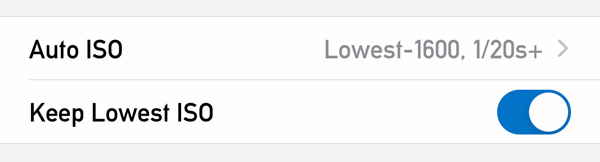
This is no longer the case in version 1.6. If you turn the Keep Lowest ISO option on in the menu, the app will automatically set the lowest possible ISO on the camera you switched to, given that you had the lowest ISO set on the camera you’re switching from. Please note that this works only in manual ISO mode. And that’s it. A pretty simple but highly effective feature for those pursuing the highest possible image quality even in mobile photography.

Artist’s Viewfinder 6.5 Released with iPhone 11 Ultra Wide Camera Support

Version 6.5 of the Mark II Artist’s Viewfinder is now available on the App Store. This release brings long-awaited iPhone 11 ultra wide camera support.

We did face two serious challenges with the new phones.

First, despite being ordered on September 13, our iPhone 11 Pro and 11 Pro Max was delivered only on October 16. At first, the estimated delivery date was October 1, which had suddenly slipped to October 25.

After a series of rather angry phone calls, we finally got the devices on the 16th. As I mentioned earlier, Apple doesn’t treat developers equally in each country, putting us at serious competitive disadvantage, and causing excess costs. This is an ongoing issue since we started this business a decade ago, and I’m not going to dissemble it any more.

Second, the ultra wide camera “out of the box” turned out to be grossly inadequate for the task. To begin with, its angle of view differs between live view and taken pictures. And to add insult to injury, Apple’s distortion correction leaves heavy barrel distortion. Unacceptable things for a precision instrument like Artist’s Viewfinder.

Fortunately we have proven, mature distortion correction technology since 2013, so disabling Apple’s stuff and rolling out our own resolved the issue. But at this point we had to buy an iPhone 11 too, just to profile the ultra wide camera…

So after two and a half weeks of hard work the app is ready, and I’m pleased with the results. The ultra wide camera works like a 0.5x-class converter lens and can simulate a 15mm lens on the 35mm format (a 14mm is slightly clipped), or the Rodenstock HR Digaron-S 23mm f/5.6 with a 40x54mm back.

Marketing folks tend to live in an alternate universe where math is distorted. Apple markets the iPhone 11 as having a 13mm and 26mm equivalent (in 35mm terms) camera. The reality is that in 35mm terms, the horizontal (longer side) angles are equivalent to 14.5mm and 28mm lenses. Maybe they are comparing the diagonal angles, which although let them show shorter focal lengths because of the aspect ratio difference (2:3 vs 3:4), is misleading. It’s just like when Canon marketed a 6000×4000 pixel camera having 24.3 megapixels… Where the hell that 0.3 megapixels are coming from? (Well, maybe from the inactive sensor area being included in the megapixels number, but its still cheesy.)

Sorry, I had to vent… Now back on track.

Just like a regular wide converter, the ultra wide camera can be activated with the WIDE icon on the Quick Control Screen or via the Toggle Wide Mode function assigned to a Smart Function Key.

RAW capture, optical image stabilization and focusing is not available with the ultra wide camera due to hardware limitations.

Using external accessory lenses with iPhone 11 models is not supported. You don’t need one, just mention it for the sake of completeness.

The Viewfinder Handbook was also updated to reflect the new features.

This update is free for existing users. New users can purchase the app in the App Store.