Technical Camera 1.6 : The Ultra Wide Camera

The most heavily touted feature of the iPhone 11 series is the ultra wide camera. Don’t get me wrong, it is a useful tool, but disappointment is guaranteed if you blindly believe the marketing spiel.

Why? Because the ultra wide camera isn’t a first class citizen on the iPhone. It can’t shoot RAW, doesn’t have optical image stabilization, has no focusing of any kind and has severe distortion that is only partially corrected by iOS. You may wish to read my former post for more details.

It was a real challenge to make this thing live up to the quality demands of Technical Camera and to the high expectations of its users. There are a few aspect we can’t change, because hardware is given. But fortunately, I’m a seasoned expert in the correction of the most annoying of its properties: distortion.

Time to show off…
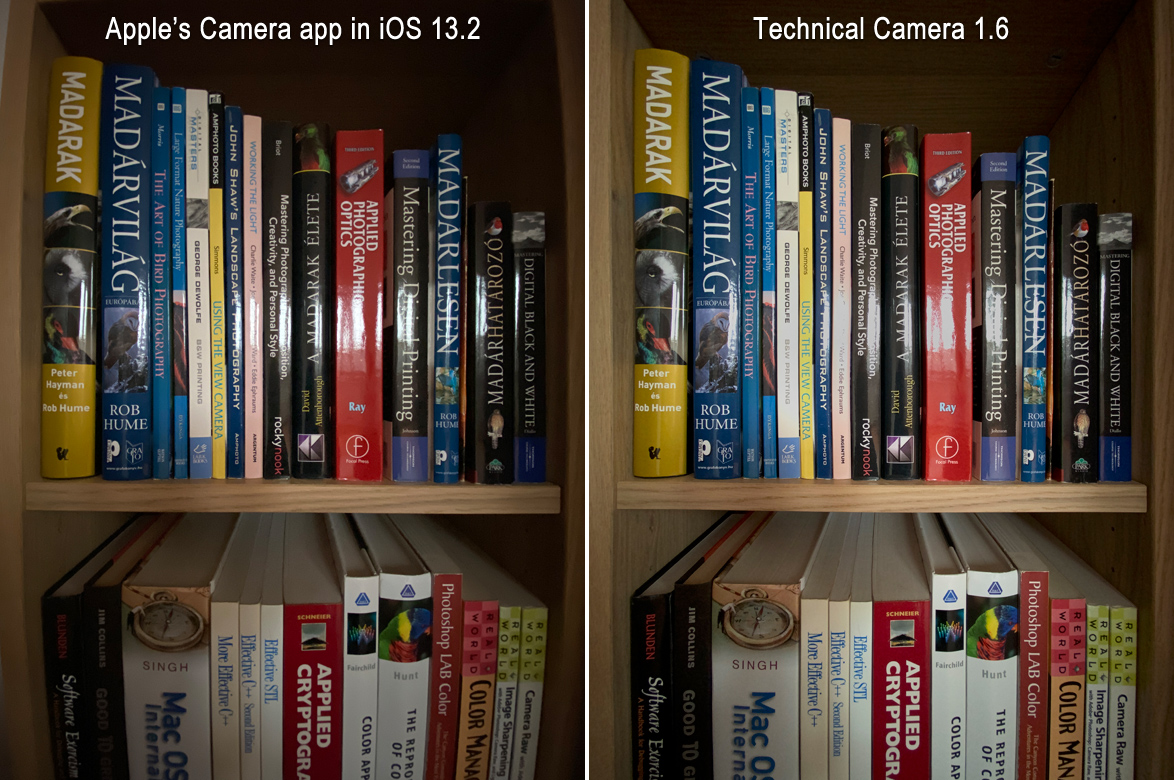
Technical Camera distortion correction compared

There’s no need to talk a lot about it. Technical Camera can give you a well corrected, almost perfectly rectilinear image, while the built-in camera app – and most others – simply can’t. This is where six and a half years of experience shows. So if you shoot buildings, interiors, or anything else where barrel distortion is a problem, then you will appreciate my app.

The apparent image quality difference which comes through even at this small size is partly attributable to the ability to use manual ISO in Technical Camera. The above image was shot at ISO 200, while Apple’s Camera app used ISO 1250.

Live view in Technical Camera shows you exactly what you get in the final picture, so you can frame your shot precisely. Apple’s camera app captures a little wider (and more distorted) image than its live view shows.

On the positive side, the ultra wide camera provides better image quality than any wide converter accessory lens I’ve ever created a distortion correction profile for. You still get corner smearing, so I do recommend to use a lower resolution image quality setting, such as JPG Quarter HQ with this camera.

Speaking of image quality settings…

If you happen to use an album that has RAW set as the image quality, and subsequently switch to the ultra wide camera, the app will warn you that since that camera can’t shoot RAW, JPG will be used instead. You can also choose to hide this warning. But don’t worry, it can be restored with the Warnings screen in the menu.

OK, but how do you switch to the ultra wide camera? There are two ways. You can use the WIDE icon on the Camera Options screen (which can be displayed by tapping the circle icon in the corner of the main screen). Tap the WIDE icon again to return to the default wide angle camera. Alternatively, you can set up a Smart Function Key with the Toggle Wide Mode function (the exact same way you do with a wide converter accessory lens). The latter method is what I use personally.

Version 1.6 is a free update for existing Technical Camera owners. New users can purchase the app in the App Store.
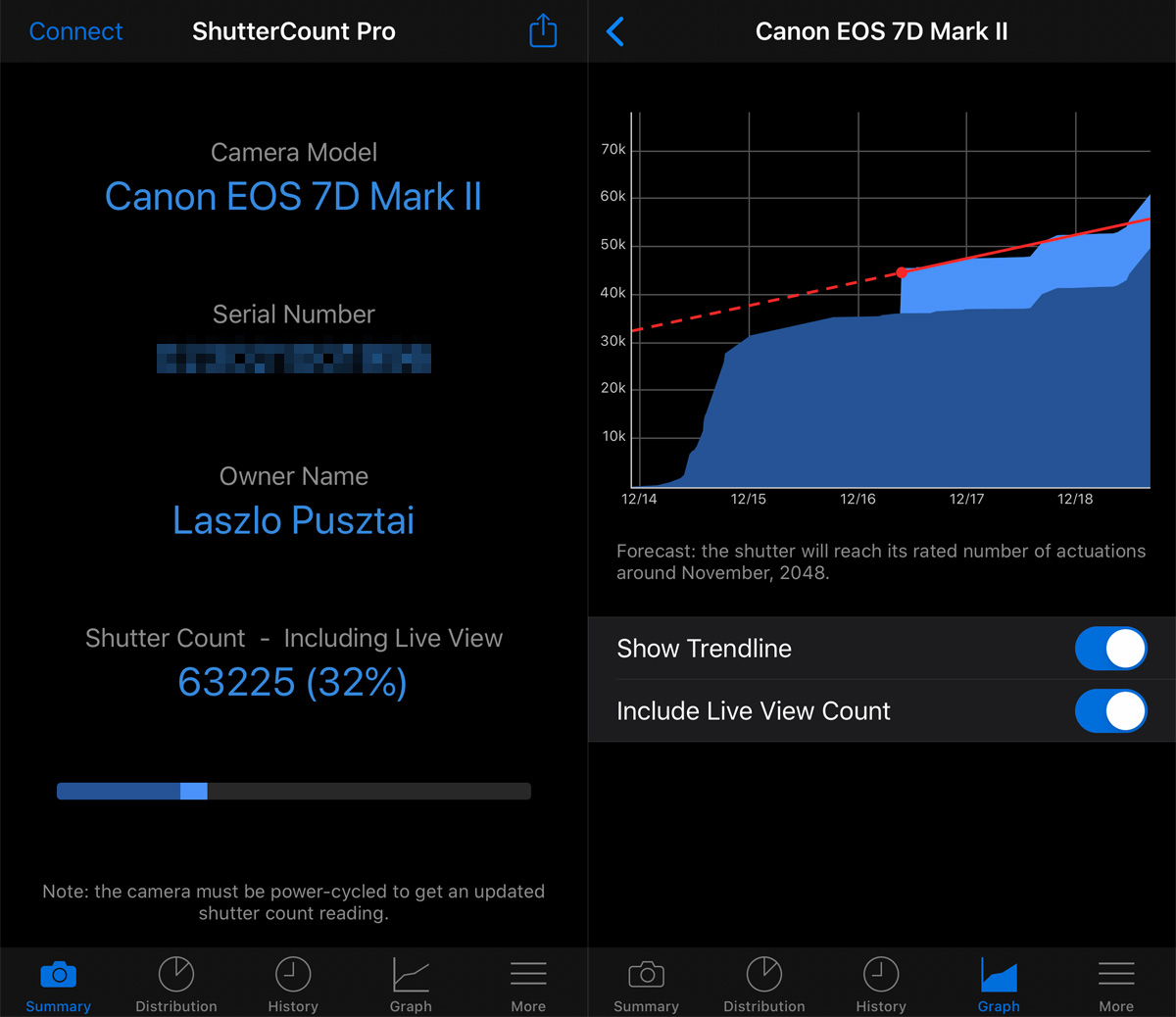
Celebrating 140,000 Wonderful ShutterCount Customers

I’m proud to announce that ShutterCount just passed the 140,000 customer mark. People in more than 120 countries rely on this app to measure the number of shutter actuations on Canon, Nikon and Pentax cameras. Thank you for helping to make ShutterCount the gold standard!

Launched almost exactly six years ago in October 2013, ShutterCount was the first shutter count reader for Macs. It supported Canon cameras only at that time. But we didn’t sit on our laurels, and in April 2016 launched the first (and to my knowledge the still only) shutter count reader for iPhone and iPad: ShutterCount Mobile. Canon has changed the way its cameras work, and we were the first on the world to support this new way in ShutterCount 3, available since June 2017. This release also brought Nikon and Pentax support, and the ability – again as a first – to count and graphically display live view actuations separately. Mirrorless cameras from Canon introduced a new counting mechanism, and ShutterCount was the first app to include support in October 2018.

With an app having such a widespread user base, it is inevitable that some people will have problems. During the last six years we had helped several hundreds people. From pre-purchase questions to actual problem solving. They helped to shape the various resources we offer today to get the most out of the app: the Getting Started Guide, my step-by-step pairing guide, as well as a handful of instruction videos. Thank you!

Unfortunately there are a few people who doesn’t allow us to help: doesn’t read/watch the instructions, and doesn’t contact us for help. And usually end up leaving a bad review based on their beliefs how the app should work. It’s really hard to shepherd them back to the correct way, but we take it as a challenge and continuously improve both in app-messages and our guides.

Again, thank you all for this wonderful journey!

Viewfinder iPhone 11 Support Coming

The release of the iPhone 11 series marks the end of an era for me. Six years ago we’ve released the Mark II Artist’s Viewfinder, a new incarnation of our successful Viewfinder Pro app. The Mark II brought first class wide angle conversion lens support, complete with real-time distortion correction. A world’s first tech at that time, and still unmatched.

This opened up a whole new world for landscape and architecture photographers, allowing them to simulate ultra wide shots and stitched panoramas.

But the converter lenses were bulky, expensive, and sourcing them early was a huge problem. We have a big box of lenses for every imaginable phone that are nothing but worthless junk now. So I don’t feel sorry that this is history and that some converter lens manufacturers will go out of business. With the exception of ALPA, they were all a pain to deal with.

We’ve received our 11 Pro and 11 Pro Max two days ago (more than a month after placing the order – sadly Apple doesn’t provide an equal playing field for developers in some European countries). And now I’m happy to report that ultra wide angle camera support is almost complete. Yes, I wrote most of the code in advance.

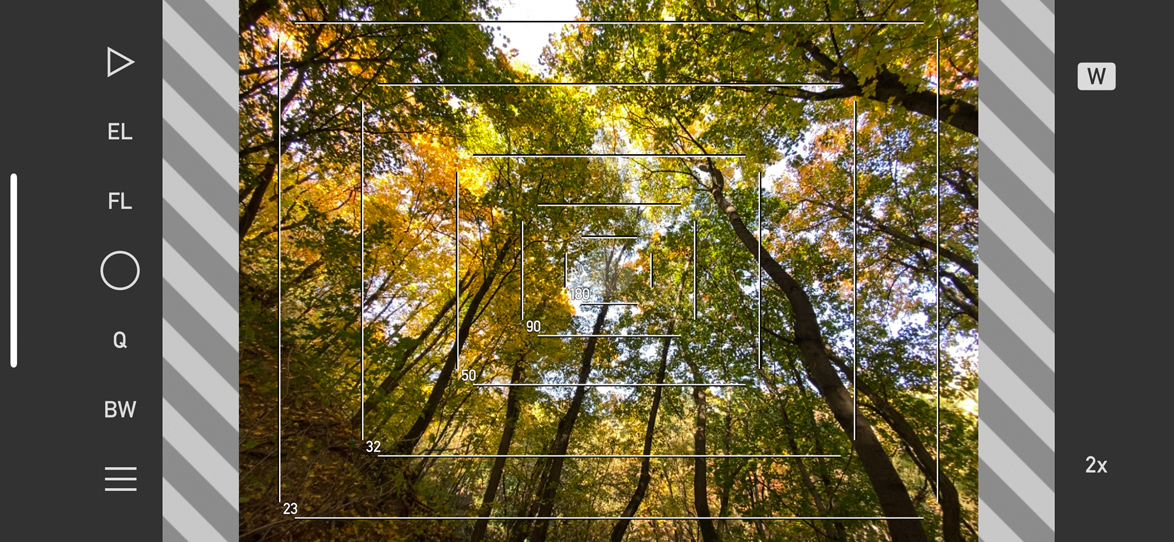
A screen shot showing the ultra wide camera in action

During the last month we had been asked frequently whether the new ultra wide camera will be able to simulate a Rodenstock HR Digaron-S 23mm f/5.6 on a 40×56 mm sensor, such as the Phase One IQ4 150. Although precise bench measurements still have to be done, based on iOS provided angle of view information the answer is a resounding yes. Just take a look at the screen shot above. For 35mm cameras, this is roughly 15mm equivalent. Sides of a 14mm are slightly clipped, so the 13mm in Apple’s materials seems to be marketing exaggeration. But we’ll see after the measurements.

The ultra wide camera is treated as a permanently present wide converter. That is, activating Wide Mode will switch to the ultra wide camera. There’s nothing else to configure. And there are no workflow changes. The updated app will also provide a separate Frame Size Adjustment slider for the ultra wide camera.

We still have about a week’s worth of work ahead, and thus I expect the updated version to be available by the end of October. The update will be free for existing Mark II users.

90D Support in ShutterCount and Kuuvik Capture

ShutterCount 4.2 and Kuuvik Capture 4.4 with Canon EOS 90D support are now available on the App Store.

ShutterCount also adds support for the Nikon Z50.

In these releases we had improved a few error messages. First and foremost, in case of any interference on a Mac, we remind you to quit Dropbox. Yes, they didn’t fix this bug despite we had reported it months ago, leaving no other choice for us but to explicitly point in their direction. Dropbox was the culprit in 100% of the connectivity-related support cases we resolved during the last 6 months or so.

We had also revised the Wi-Fi pairing instructions in ShutterCount’s Getting Started Guide, and updated the Wrong Connection Mode message’s description to mention the key points. I’m amazed that some people think this message is a joke and continue to bark up the wrong tree – in one occasion we had received a problem report showing that this message was displayed no less than 50 times. I can’t stress it enough: you must follow the instructions.

Tech Camera and Artist’s Viewfinder Updates

Technical Camera 1.5 and Mark II Artist’s Viewfinder 6.4 are now available on the App Store.

Both apps add support for the new 10.2″ iPad screen size, and resolve a bunch of issues on iOS 13. Artist’s Viewfinder also gains support for a few new cameras.

Technical Camera sports a new feature that didn’t make into the previous version: the exposure simulation warning. Since it belongs to exposure simulation, I’ve described it in that post.

These updates are free for existing users.

ShutterCount 4.1 Released

The last of today’s updates is for ShutterCount. Of course version 4.1 brings iOS 13 support, including a lovely dark interpretation to the app.

We like it so much that the Mac version was also updated with a variant of the iOS dark mode colors.

Current firmware version info in the Plus Pack was also updated to reflect the latest security patches from Canon. While I usually don’t mention it, this time it’s important to update your camera as soon as possible. Read Canon’s security advisory for more information.

Version 4.1 is a free update for both Mac and iOS users.