Lexar 1000x and SanDisk Extreme Pro

Just got a bunch of new cards from B&H for my 5D Mark III (and in preparation for the upcoming 6D). The set consists of two 32GB Lexar Professional 1000x CompactFlash cards and two 32GB SanDisk Extreme Pro SDHC cards. The Lexars will replace the 16GB SanDisk Extreme Pro and a bunch of 8GB Extreme IVs I used in the 5D3 since I bought the camera (actually the Extreme Pro will remain in use, as “emergency” storage).

Here are my initial observations.

Man, these Lexars are blazing fast! I can shoot god-knows-how-much frames before the camera starts to slow down. Then the buffer is emptied to the card in just a few seconds after I release the shutter. They are noticeably faster than the SanDisk Extreme Pro was. This is the speed I always wanted to have!

Forget about using SD cards in the 5D Mark III, however. They are that slow. I have a 32GB SanDisk in the SD slot for situations when I don’t have time to fiddle with swapping the CF (think action). I hope the the 6D will drive these cards faster.

Btw, you can find some numbers on the performance of these cards in Rob Galbraith’s now abandoned CF/SD performance database. According to his measurements the Lexar is 36% faster than the SanDisk Extreme Pro I used. My observations are completely in line with these numbers.

So if you have a 5D3, then these Lexars are the way to go, period. And B&H has an attractive price tag on the 2-Pack.
Hibernate File Issue with MacBook 2012 Update

Seems that the list of annoyances I have to deal with after each and every OS X update just grown a bit. Besides the usual

chflags nohidden ~/Library

command that unhides the Library folder, now I have to do some extra work to reclaim the space normally occupied by the hibernate file (/var/vm/sleepimage). I do not use hibernation on my notebooks. I shut them down when I finished. I prefer to start with clean state on every boot, but equally I’m not fond of wasting 17 gigabytes of expensive SSD space on a file that I never use.

In the past you could turn off hibernation with

sudo pmset -a hibernatemode 0
sudo rm /var/vm/sleepimage

But after today’s release of “Update 2.0 for all Mac notebooks introduced in June 2012”, I had to do some extra work. The issue is: regardless of the state of the hibernatemode switch, the hibernate file (stored in /var/vm/sleepimage) is recreated on every boot. Bummer.

Fortunately you can also set the location of the file, so all I had to do is to send it into a black hole:

sudo pmset -a hibernatefile /dev/null

Everything works fine with this setup, but I fear that the next update could bring some more surprises…

Retina MacBook Pro – After 2 and a Half Months

The 15″ MacBook Pro with Retina Display is by far the best computer I had ever used, no question about it. And I had used great many – although only a handful made a deep impression (I mean a positive impression, because I came across several that made unforgettable bad impressions). These are heavy words from me. As you might have been noticed I’m really picky on everything I use (just browse the Hall of Shame section for rants about bad design and/or execution).

You can read my initial impressions about the machine here.

During the last months I had used the machine as a desktop for software development (both iOS and OS X) as well as studio work, and lugged it around the country as a field laptop to assist during my photo trips. Most of my first impressions are still valid, and I love the machine even more than I though at first. I would just like to add further observations.

Battery Life

In my initial post I wrote around 5 hours. Since then OS X 10.8.2 came out, which increased battery life substantially. Now I get something between 6 and 8+ hours, depending on the usage pattern (disabling Adobe Flash holds a great contribution to increased battery life, though).

Tethered Shooting

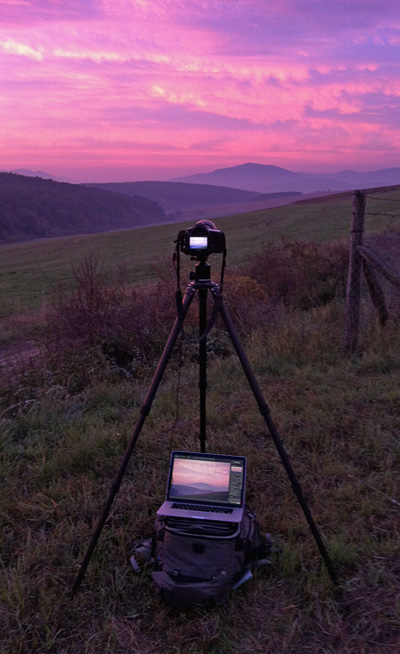
Working Tethered

I started working tethered for landscape shots immediately after receiving the MacBook, and the benefits far outweigh the inconvenience of lugging around a computer. Before the MacBook I had tried to use the Lenovo X200s for tethered work, but was not really satisfied with it and abandoned the idea until the MacBook arrived.

I like several things about this setup.

No time required for image sorting and selection later. I just bring home the keepers. This proved to be a huge time-saver!

I can make the first cut of the final processing in the field, using the same tools I use in the studio. This fits extremely well into my creative process. The high resolution and color-accurate display helps a lot in this. It’s like holding an A4 sized print in front of me. I even stitch panoramas made with the 24mm TS-E lens to check whether everything is good about the shot.

Images are immediately backed up, as the the tethering software saves images to both the memory card in the camera and onto the computer. (Which app? – you might ask. Don’t worry I’ll devote a few posts for that subject later.)

As I wrote in my first impressions piece, the machine fits perfectly into my Lowepro Pro Trekker 400AW. Fully loaded it’s now a back-breaking experience, but if I leave home stuff I don’t need for the shoot, then the full weight is around 15kg, which is bearable. I did several 2-3 hour hikes with the setup without any effects on my back and shoulders (did I mention that the Pro Trekker is a great backpack?).

Other Good Things

The notebook-as-the-desktop was really helpful during the August storms. I routinely power down and disconnect sensitive equipment during thunderstorms, as I saw quite a few over-voltage spikes in the past. But with the MacBook I can continue working during these hours. I really like thunderstorms and they put me in a creative mood, so it’s a big plus!

Last, but not least, no more copying or syncing or Dropboxing files between my desktop and field notebook! No more forgetting to copy something in the hurry before I leave! This saves me lot of time and the peace of mind that comes from the fact that I always have everything I need with me is priceless.

What I miss?

Thunderbolt docks. Matrox’s and Belkin’s solutions are both delayed. Plugging in all those cables (all the connectors of the machine are populated) in the morning really pisses me off. I’ll be first in the line for one of those docks!

Why ColorBase?

After my recent post about the new ColorBase version, a friend asked the question: “why is it better than factory calibration?” I though this could be interesting to other people, so here’s my (longish) answer.

Some background first. In the grand scheme of things, building a color profile for a device is a two-step process. The first step is calibration, which sets the basic operating parameters of the device to a well known (sometimes standardized) default. In case of monitors, calibration sets the black level, white luminance, color temperature and tone reproduction curve. In case of printers, it sets the relationship between color values and the actual amount of ink laid down to be linear – this is why this step is called linearization. The second step is the actual profiling. Here the software determines the color reproduction characteristics of the device and creates the profile.

On the low end, manufacturers tend to skip the calibration step, doing only the profiling. This is a nasty trick and the reason why I think that cheap colorimeter packages that can’t do the calibration step are downright dangerous and actually worth nothing. On the high end profile making is always preceded by calibration.

Speaking of printers: the lack of calibration (linearization) is less noticeable here, because profiling packages do a linearization step under the hood before starting to build the profile. This is not that accurate as the separate step, however (“true” linearization controls parameters in the rasterization process, whereas “simulated” plays with the color values). So basically it is more or less done for printer profiles.

My favorite example for showing color reproduction differences across devices is the TV department of your favorite electronics store. Almost every single one displays the same content differently. Consumer printers are the same. Take two Epson 2880s, and they will print different colors. In case of professional Epsons, all the devices are “factory calibrated” to be as identical as possible when they leave the factory. But this does not mean that they will not drift over time! And because of this drift (and inherent difference in consumer models) you’ll have to re-create all the profiles from time to time. Which could be a daunting task.

To be able to decide whether your device drifted out of tolerances, high end profiling packages provide a validation tool that measures the color reproduction accuracy of the calibrated/profiled device. This way you can check the status periodically and recalibrate/re-profile as needed – instead of doing this blindly every month or so.

Epson’s ColorBase is a software for both linearizing the printer driver and a validation tool for checking the linearization accuracy. A welcome extra is that it can do this for higher-end consumer printers. So one can utilize ColorBase in two different ways:

  • Use it to measure accuracy, and redo the complete linearization/profiling for each of the papers when the accuracy has drifted. This could still be daunting for several papers, but this provides the utmost precision.
  • Use it to measure accuracy, but only redo the linearization if the printer became out-of-spec. Because ColorBase returns the printer to the state it had been before creating the profiles, there are pretty good chances that the profiles will remain accurate.

I have been using the second method for five years with great success. And the longest period that the printer was in-spec reached 2 years with my late 4800. This demonstrates that we are talking more about peace of mind and process control here than visible results. This stuff is about to catch when something goes wrong before it ruins several prints.

And what’s the difference between factory calibration and ColorBase? Actually they are two different things. Factory calibration is for making sure that pro printers are identical when they leave the assembly line, whereas ColorBase is a tool for employing process control.

I must mention two glaring omissions in the package, however. Ink limiting and support for third party papers. You can control ink within the printer driver to some extent, but this should be done with the linearization step. Over-inking could be a serious problem using the driver with some papers. Not supporting third party papers could be worked around by linearizing the printer to the Epson paper selected as the media type for the third party paper (for example Velvet Fine Art in case of Hahnemühle Photo Rag). You will not have a linearization for Photo Rag (which would be the desirable), but at least you’ll be able to build its profile on a solid and consistent base.

If you need ink limiting and linearization for custom papers then moving to a RIP is the only solution these days.

Calibrating the Retina Display

In a recent post about the new MacBook Pro I mentioned that it “calibrates very accurately”. Let me elaborate more on this subject.

My standard display calibration parameters are: 80 cd/m2 luminance, D50 white point and L* tone reproduction curve (TRC). I had used this setup for years with my EIZO on both Windows and Mac computers. I’m also using a complete L* workflow (with ProStarRGB working space in Photoshop for example). So my target was the same for the Retina display.

Due to the incompatibility with OS X 10.8, I gave a shot recently to basICColor display for color calibration. The MacBook Pro arrived just before the trial expired on my old desktop and I got another 14-day trial license for the new machine. This allowed me to test the software again before committing to the purchase.

So I spent the whole Sunday on profiling displays and evaluating them side by side. My initial thought was that it’ll be a piece of cake. How naive was I…

First, I calibrated both monitors to the aforementioned conditions and profiled them. The EIZO was good as usual, but my usual 50% gray desktop background on the Retina display showed a strong, ugly reddish color cast. Black levels were also quite different, making it hard to see and make decisions about contrast and work with delicate shadows. I was far from being satisfied with the results.

Then gave a try to X-Rite’s new i1Profiler. Although printer and press profiles created with the application literally sing, there’s a lot to be desired regarding its display calibration abilities. Frankly, I still prefer display profiles from the old i1Match application (not available since Apple eliminated PowerPC emulation from OS X). It also lacks L* TRC support, the most perceptually uniform TRC you can get is the one modeled after the sRGB color space’s TRC. The results were disappointing. Even watching a movie I complained about burnt highlights and ugly gradations (causing a little bit of indignation from my Loved One).

I was thinking what the hell should I do to make the otherwise gorgeous display usable. And a faint memory reared its head. Some 8-9 years ago I evaluated a display calibration and profiling tool named ColorEyes Display Pro. Downloaded the latest version and gave it a try. This was the first time I got acceptable results without the unbearable reddish cast.

The app works fine under 10.8. There’s one thing to watch for, however. For better monitor match it recommends to calibrate to “absolute black” instead of treating the monitor’s lowest black as 0/0/0 pixel value. Yes, this will cut the visibility of the deepest shadows on the monitor. Actually it behaves just like paper and ink, so it’s even easier to fine tune my images for printing (and of course I can always use the levels tool to bring up the shadows a bit temporarily). This worked out very well. Examining my favorite test image side by side showed only very small differences. Actually, I think the Retina display is usable for semi-critical color work, such as quick edits during field trips.

Unfortunately, the desktop and every non-color managed app still had a slight reddish cast. After 4-5 hours of trying every imaginable solution (tuning white points, changing colors, etc, etc.) I ended up with two profiles. One, the usual 80cd/D50/L* for editing images and another one with 80cd/5300K/L* for other types of work I do (such as app development and writing). With 5300K the non-color managed apps look just like D50 does on the EIZO, and even I do light photo editing with it sometimes.

The two displays side by side now look as if they were prints on a matte Hahnemühle Museum Etching and a semigloss Hahnemühle Photo Rag Baryta. Sweet!

Some closing numbers. With absolute black level calibration I can easily see into the shadows as low as about level 8 (from 255) on the EIZO and as low as about 6-7 on the Retina. Maximum deltaE is 0.90 for the EIZO with an average of 0.5. Maximum deltaE is 0.63 for the Retina display with an average of 0.34. Most impressive! And the Retina display’s color space covers roughly the entire sRGB space (as viewed in ColorSync Utility).

I must mention again that the resolution advantage is huge! Just enabled Retina support this morning in the application I’m working on these days and it looks really awesome. The EIZO doesn’t get much love these days…

MacBook Pro with Retina Display

It took a month, but my machine finally arrived two days ago. I spent the whole yesterday on moving my digital life over to the new machine and set it up for work. This post is a collection of my initial impressions. I will not reiterate the specs that can be found in numerous online reviews. All of those I recommend watching just this one.

My configuration is the 2.6GHz machine with 16GB of RAM and a 500GB SSD.

Winner of Two Lotteries

You enter two “lotteries” when you buy an Apple notebook. The SSD lottery and the display lottery. The reason is that Apple sources these components from two vendors: Samsung and Toshiba for SSDs/flash memory (I will use the Solid State Disk term instead of Apple’s “flash memory” marketing talk from now on – because these are all SATA connected SSDs – although in different form factors) and Samsung and LG in case of displays. Unfortunately the non-Samsung options are vastly inferior to the Samsung ones.

For example, Samsung SSDs are using the great Samsung PM830 controller. The Toshiba one use a Sandforce SSD controller. Sandforce SSD controllers compress all the data before it gets written into the chips for an almost twofold throughput increase. But if you are like me, and use FileVault to encrypt your disk then this compression becomes useless: almost random data can’t be compressed. Which results in halved performance. Fortunately, for larger capacity drives Apple seems to be using the Samsung ones. So I ended up with an 500GB Samsung SSD. One win.

You might wonder why did I mention 500GB instead of the advertised 512GB. Because the 512GB is simply a lie. The drive actually measures 500GB (if you count 1,000,000 bytes as one GB – as the storage industry as well as Apple does) and 476GB if you count (1,048,576 bytes as one GB – which is how many bytes a GB truly is).

Regarding the display lottery, lots of LG manufactured panels are defective out of the box. Just execute the command in the linked article to show your display’s manufacturer. LP is for LG and LSN stands for Samsung. I have a Samsung panel. Another win.

Is the Lack of Upgradeability a True Problem?

Lots of people on the Internet fret about this. Frankly, in the last 15 years I can only mention two occasions when I upgraded memory in my machines. And CPUs were never changed. Disks are another story. Before SSDs I regularly went to faster disks as they became available. But since I’m using SSDs I don’t feel the need to upgrade yearly. I usually buy my machines maxed out with RAM and disk, and opt for the one-less-that-the-fastest CPU option (they cost way less and the performance difference is negligible). So the lack of upgradeability is not a problem for me.

And on the positive side, soldering RAM to the motherboard gives some huge performance benefits (read the section below the graph). Wow, 99.9% processor bandwidth utilization IS something!

Two Missing Pro Features

ECC memory and 30-bit display output capability. I know that ECC (Error Check and Correction) has disappeared from consumer machines and Intel only supports ECC with their Xeon processor line, but 16GB is a lot and for mission critical work (like huge CAD models) ECC is a must. So for situations where it is not acceptable that your memory can forget a few bits here and there, the Mac Pro is the way to go. For example I use a Xeon E3-based server machine with 16GB of ECC memory.

The other one is 30-bit color. This is available on all current high end graphics displays and NVIDIA makes mobile chips that support 30-bit. Usually these chips are completely identical to the consumers ones Apple is using, just high precision stuff is enabled in them (I remember those times when I hacked consumer NVIDIA cards to Quadro ones…). For a notebook at this price point, pro graphics should be the standard.

Needs a Thunberbolt Dock

On the left side of the machine I have:

  • The power cable.
  • A mini displayport to DVI adapter for my EIZO CG241W display.
  • A Thunderbolt to Gigabit Ethernet adapter.
  • An USB connection to the EIZO. Keyboard and mouse is attached to the EIZO’s hub.

Looks ugly. And plugging in all these when I use the machine as a desktop is a hassle. I can hardly wait for Matrox’s solution.

Usability

The machine is light (for such a powerhouse), fits neatly into the notebook pocket of my Lowepro Pro Trekker 400. Key travel is a bit short, but it’s not really a problem. I miss PageUp/PageDown and Home/End keys…

It gets a bit warm during use, but it’s bearable. As the majority of current applications are incapable of driving the four processor cores (with eight processing threads), so fans are spinning silently. Even if you can put some heavy load on the machine they produce an almost pleasant noise. Nothing disturbing (and believe me I’m overly sensitive to machine vibration and noise).

Battery life is rather short – I found it about 5 hours in my normal usage patters. This is way less than Apple’s advertised 7 hours, but there are reports that Mountain Lion causes this reduction. We’ll see.

Applications and the Retina Screen

The screen resolution is astonishing. Brightness uniformity is not on the same level as my EIZO (actually I would score this as pretty bad). The display calibrates very accurately (in one spot at least). I was surprised that it produced less deltaE2000 than the EIZO. If uniformity would be better, this could be a great graphics display. All in all I want this high resolution on my desktop graphics monitor! Hope that either EIZO or NEC will come out with a high resolution display like this.

I would also note that the Intel integrated graphics is not capable of handling such large amount of pixels. You can’t even watch a movie full screen using integrated graphics, so the machine uses the NVIDIA chip a lot.

The real problem is that most of the applications are not yet ready for supporting the HiDPI modes of the Retina display. These apps would really need the upgrade:

  • Photoshop
  • Lightroom (it displays UI text in high res, but everything else is pixel-doubled)
  • Capture One
  • Kindle

Others, like Parallels Dekstop and VLC, already support the display. It’s still a waiting game. And the display would only realize its full potential when these apps become ready.