Backing up Lightroom with ChronoSync

ChornoSync is what I use on my Mac for backing up user data – including my images. Although I don’t use Lightroom nowadays as much as I used to, backing up the database is important. There’s one gotcha, however. Preview images are stored in something called a bundle. A bundle is a directory that OS X handles as a single entity. For the catalog named Something.lrcat the preview bundle is named Something Previews.lrdata. So if one single preview image is changed, OS X thinks that the bundle is changed and ChronoSync happily copies the entire multi-hundred-megabyte conglomerate, not just the changed (or new) previews.

There’s a simple solution to this issue, shown on the image below.

Check the Dissect packages checkbox on the Options tab, and the Previews bundle will be treated as a regular directory, and ChronoSync will just synchronize newly added or changed previews.

  ☕ ☕ ☕

Did this post help you? Consider buying me a coffee if so.

Image Stabilizer + Tripod

Common wisdom says that you should shut off your lens’ image stabilizer when shooting from a tripod. There’s another saying that it’s safe to use on newer generation lenses, because it detects that the lens is steady and turns off the ill-effects automatically. Actually I belong to the former camp. When I compared my new non-L prime trio with the L zooms, I did a pair of test shots with my Canon EF 70-200mm f/2.8L IS USM (version 1, which I own for 9 years) for the sake of this post.

The pictures show the center of the image, where I focused with contrast detect focus and validated that the focus is spot on manually through live view (by executing a manual focusing step to see whether I can focus any better). The camera used was a Canon 5D Mark II, mounted on a sturdy Gitzo 1325 tripod and Arca-Swiss Z1 ballhead. The zoom was set to 70mm, aperture was f/8. These are unprocessed images straight from Capture One 6.4.2. Yes, these were shot on a cloudy day.

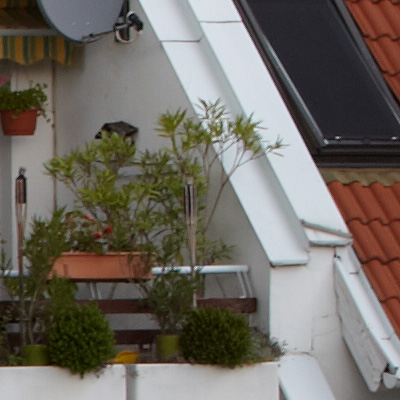
The first 100% crop is the non-IS version. As good as it gets.

Image Stabilizer OFF

 And here is what happens if you turn IS on.

Image Stabilizer ON

The bottom line: if you are seeking ultimate image quality and as such shooting from a tripod, then shut IS off (unless you test your configuration for yourself and that test proves otherwise – newer lenses can behave differently). It will also save some battery power!

The Effect of Black Point Compensation

Click image for larger view

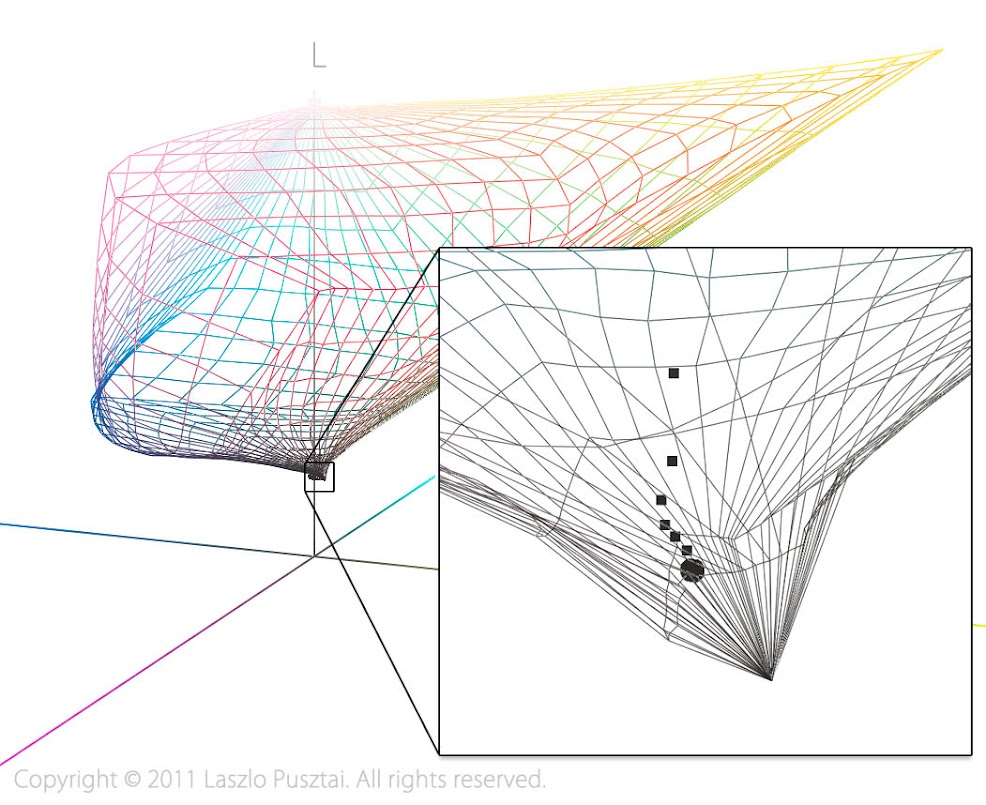
Visualization: effect of black point compensation on the mapping of the lower 10% of L* values. The gamut shown is Hahnemühle Photo Rag printed on an Epson 4800. Plotted are L* values in 2% steps from 0% to 10%. Rendering intent was relative colorimetric of course.

Circle – without BPC all six grays are mapped to the same point (goodbye shadow detail).

Squares – with BPC all values are neatly separated.

This is why you should use black point compensation with the relative colorimetric intent.

L is not Always Better

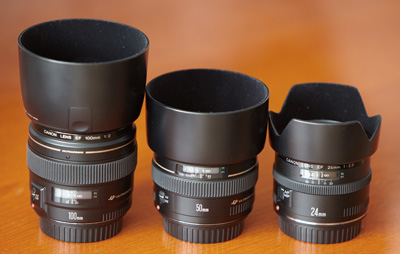
Canon 100mm f/2 USM, 50mm f/1.4 USM, 24mm f/2.8

My fully loaded camera bag is around 16kg (without the 500/4). So I started a “project” to reduce its weight substantially. The goal is to shave off 3kg. The other reason behind buying the non-L glass you see on the right was that I needed a lightweight travel kit. After contemplating a lot and considering even the Sony NEX-7 and the Fuji X-Pro 1, I had decided to go the most cost effective way: get some good primes for my 5D Mark II.

I had spent a weekend on reading reviews, analyzing resolution and distortion charts. And a strange thing started to materialize in front of my eyes. I’ve found three Canon primes that promised stellar image quality, low weight and low price tags. So I ordered the 24/2.8, 50/1.4 and 100/2 trio (of course with the optional lens hoods).

First arrived the 24mm (at the same day when Canon announced that this lens is discontinued and will be replaced with a much expensive IS version). I was surprised how sharp this lens was, blowing away my two L zooms that cover that range, and providing better center sharpness than the marvelous TS-E 24 II.

A few days later the 50mm arrived. Mounted it on the 5D II and compared it against my 24-70/2.8. It was no contest. The 24-70 was not even in the ballpark. Immediately replaced it with the 50, reducing my bag’s weight by about 600g.

The 100 produces much less shock than the other two. It is just a great lens (although I still prefer the color rendition of the 70-200/2.8 IS). Compared it with a friend’s 100/2.8 IS Macro, and at f/8, although less contrasty, it was on par with the macro lens (in the corners the little 100 produced better image quality).

These primes cost less together than a 24-105 f/4L lens and image quality at modest apertures (f/4-f/11) is much better in almost all aspects (avoid shooting towards the Sun with the 24…). Or to put it another way: I can break or otherwise ruin any of these three times to arrive at the price point of an L counterpart.

Solved: C1 Crashes with Images on an AFP Share

I originally posted the following on the Phase One forums.

I almost pulled all my hair because of this issue, so I thought the solution could be helpful for others (especially FreeNAS users).

The problem:

I recently moved to storing all my RAW files on a central server in the studio to be able to access them from my Macs as well as a Windows notebook (which I use on the field during trips). The server is a beefy machine, with dual gigabit Ethernet connections and an 8 disk super fast ZFS array. It runs FreeBSD 9.0 with Netatalk 2.2.1 for file sharing towards Mac clients and Samba 3.6.3 for Windows file sharing. It could serve files faster than the local SSD disk in my Mac… Basically this is the same software stack you get when you use FreeNAS.

From Windows 7 running the 64-bit version of C1 everything was fine, but when I worked on my files from a Mac then C1 crashed every 5-15 minutes bringing down even the Mac (I had to pull the plug several times because even shutdown didn’t work). Frankly I was unable to work at all with C1 from Macs (running OS X 10.7.3).

The server’s log was full with the following error message:

afpd[6065]: sys_getextattr_size: error: Result too large

The solution:

After hours of debugging the solution is really simple: you have to add the “ea:ad” parameter to the shared volume’s config line in AppleVolumes.default.
The line for my Photos share is the following:

/tank/Photos ea:ad options:upriv dperm:0700 fperm:0600

No more error messages, and C1 6.3.5 shines! I’m a happy user now :D

Intel’s Video Drivers Kill Display Calibration

Since I had switched to Macs more than a year ago I spent really little time on managing my Lenovo X200s notebook. It was still running the original – Microsoft supplied – video driver. You know, if it ain’t broke, don’t fix it. I was really happy with its color, as I figured out how to set it up so that Windows loads display calibration properly. As you might guess, up until now…

Enter SP1

Windows 7 SP1 came out, and yesterday afternoon I had a little time to kill and decided to do the upgrade. There was also an Intel video driver upgrade available – and I decided to install it alongside the service pack. Everything looked OK util I had rebooted the machine. Then, just a split second after Windwos loaded the calibration curves, something swithced the monitor back to the uncalibrated state. First I thought that Microsoft screwed it up, but further investigation revealed the truth.

In my former article I blamed Microsoft for not understanding what color management is all about. Although they finally seem to catch up, there are a lot of hardware manufacturers who does not care about all this stuff.

Intel is among them.

Rant: I still do not understand why PC hardware manufacturers feel that they have to load a bunch of crappy software alongside their drivers. Start with a fresh Windows installation, download all the latest drivers and your machine is full of useless applications. I can’t remember a single event when I used any of them (and I used Windows PCs since the earliest days of Windows). That’s one of the reasons I’m using a Mac now.

Yes you’re right, one of the crappy apps Intel ships their Graphics Media Accelerator video driver with was that killed the calibration. The app is called “Persistence Module”. It’s name seems like a joke as it is THE module who does not allow calibrations to be presisted…

How to Remove Persistence Module?

There is a really handy tool, Autoruns, written by Mark Russinovich and Bryce Cogswell, which can be used to show the hordes of apps that Windows loads at startup – and more importantly to disable any of them.

When you download and run the app it will display something similar to what you see on the following screen shot.

To disable Persistence module, just click on the Logon tab, and find Persistence under the first “…\Run” list. Removing the checkmark in front of the name will disable this application, but you can completely remove this entry hitting Delete.

Note that I also disabled Logo Calibration Loader because this task is handled by Windows 7 correctly, as well as ProfileReminder because I don’t wand reminders about recalibration on my notebook (I’m usually recalibrating it before each major shoot).

Reboot your machine and it’ll be good again.

That’s it. Case closed for now. Until Intel comes out with another irritating innovation of course…

I do not use Windows any more, so not is a position to answer your Windows-related questions.