EIZO CG279X – A Truly Superlative Monitor

I had been using an EIZO ColorEdge CG241W for the last eleven and a half years, and during that time grown to love and trust that monitor. Well, in fact also grown to not trust any other brand when it comes to high-end color correct displays (no, it’s not prejudice, it’s experience).

While the CG241W still works perfectly, my recent upgrade to the current (2019) 8-core MacBook Pro having 10-bit per component color capability was a good cause to get a new monitor.

I did think about going larger than 24″ for a while. But also didn’t want the super tiny pixels of a 31″ 4K display.

Here I have to note that Retina-style (high DPI) displays are totally unusable for photo editing – you simply can’t see what’s sharp and what’s not. Unfortunately the CG319X, having an even superior panel than the 279X, fell out because of its tiny pixels (at 149 PPI vs the 109 PPI of the 27″ size).

From EIZO’s current lineup two monitors matched my size/resolution criteria: the CG2730 and the CG279X (the latter replacing the CG277). The 2730 was quickly ruled out because it doesn’t support Gray Balance priority I’m used to with the CG241W. Plus the CG279X can be fed with a single USB-C cable (for both DisplayPort signal and upstream USB), which greatly reduces cable clutter on my desk (more on this in a later post).

The monitor arrived six days ago, and I’m still in awe. It is a very rare occasion to see me running out of (positive) superlatives when describing a device. This is because it is very rare to have a device that doesn’t exhibit even a tiny fault within a week.

The EIZO ColorEdge CG279X is such a device.

Setup

It is pretty straightforward: connect the cables, and install ColorNavigator 7. But since the monitor’s main market is HDR video editing, it has to be reconfigured for a better fit for photo editing and print proofing. The setting I’m referring to is called DUE Priority, which needs to be set to Uniformity (which is also the one recommended by EIZO). My unit arrived set to Brightness, so you at least need to check it before calibration.

Well, my only minor gripe with the monitor is that this setting isn’t trivial to access. You either have to go to the administration menu (hold the leftmost button and the power switch for two seconds when turning on the monitor) or use ColorNavigator. In the latter case you have to manually enable the Monitor option setting extension in the app’s preferences for the DUE Priority item to appear under the Monitor settings menu. Both are documented in the user manuals, so it’s worth reading them.

Calibration

My usual practice is to set the monitor to 80 cd/m2, D50, L* gamma (my complete workflow, even working spaces, revolves around L* gamma) and Gray Balance priority.

The CG279X calibrates beautifully, with the average deltaE 2000 being less than 0.5, and the highest deviation not being more that 2.

Note that this is a hardware calibrated device, so the calibration curves are stored in the monitor’s internal LUT. It’s worth mentioning that all monitors drift over time, so regular re-calibration is mandatory.

Calling any monitor that lacks hardware calibration abilities a professional device is pure marketing bullshit in my book (yes, I’m referring to Apple’s new Pro Display XDR, for example).

The CG279X removes another pain from my life: assembling the spectrophotometer for calibration. It has a built-in colorimeter for the job. It is so much easier to just fire up ColorNavigator and let it do everything without human intervention.

There’s even self-calibration ability: you can program the monitor to wake up in the middle of the night, sit for 30 minutes to warm up and do an automatic calibration. The only downside is that your display profile won’t be updated, so I prefer to do it the good old way.

10-bit per component color

Or 30-bit color, in Photoshop parlance. As I mentioned earlier, this was one of my excuses to get this beast. Please keep in mind that you need a cooperating graphics card, operating system and applications for proper 10-bit color. The Radeon Pro Vega 20 in my 15″ MacBook Pro supports it. macOS 10.14.5 supports it. The weakest link is application support.

At the time of writing, I get 10-bit color in Photoshop CC 2019 and Capture One 12.1. Maybe in earlier versions, and other apps, but these are what I’m using and can say anything about. Lightroom doesn’t handle 10-bit color. In Photoshop you should check whether 30-bit display is enabled (in Preferences > Performance… > Advanced Settings…), but Capture One automatically engages it.

Pricing – in different light

Retailing for around 1700 EUR net, it isn’t a cheap shot. But if you are only using the monitor for the five-year warranty period, that’s 0.93 EUR a day. My former CG241W did cost me about 0.33 EUR a day (during its 11.5 year service time). And this doesn’t include the resale value. So for less than the price of a coffee a day, you can get the best monitor money can buy for photo editing and print proofing. Think about it.

  ☕ ☕ ☕

Did you enjoy this post? Consider buying me a coffee if so.

Hardware vs Software Monitor Calibration

Monitor calibration produces a set of curves, one for each of the three color channels. These curves are responsible for bending and twisting the device’s native color to reach our calibration goal. Where these curves are stored is a main differentiator between regular and so-called “hardware-calibrated” monitors.

Regular monitors depend on the computer’s video chip to store the curves. Hardware-calibrated monitors store the curves inside the monitor’s look-up table (LUT).

MonitorVsVideoLUTs

Above are the calibration curves for my current setup as shown by the ColorEyes Display Pro calibration software. On the left are the curves for my Retina MacBook Pro’s internal display; while on the right are the curves for the EIZO CG241W monitor. Note that this software puts the curves either in the video LUT or in the monitor LUT – but not both. Other packages, such as basICColor Display tend to utilize both for hardware-calibrated monitors.

While the video card stores these curves at 8-bit, my EIZO’s internal curves are at 12-bit. At higher bit depth calibration is more precise and virtually eliminates color banding and seepage. Hardware-calibrated monitors also store the curves permanently (of course until the next calibration).

Calibration software loads the video LUT as part of the calibration process. But what happens if the computer is rebooted or turned off and on again on the next day? Unfortunately video card hardware does not store and automatically re-apply calibration curves on startup. So the question remains: where to store them and who will reload them?

Apple invented a fairly obvious solution to answer this question: embed calibration curves into the display’s ICC profile. This way they could be handled together as a single entity. Because the ICC profile specification does not provide any storage space for calibration data, Apple had created a new profile tag, the infamous video card gamma table (VCGT). To complete their solution ColorSync loads these curves when needed. Calibration packages also support this by embedding newly computed calibration curves into the profiles they create.

Windows 7 and above also sports a video card LUT auto-loading feature, but it isn’t as obvious as on a Mac. I would recommend reading my old post about the topic.

In the next installment of my monitor calibration series I’ll talk about what can one reasonably expect from proper calibration and profiling.

  ☕ ☕ ☕

Did this post help you? Consider buying me a coffee if so.

Keeping OS X Display Brightness Unchanged

In the previous installment in my monitor calibration series, I mentioned the need to keep monitor brightness unchanged after calibration – as any change to it invalidates the profile.

But what if I press the brightness control buttons on the Retina MacBook Pro (or on any other MacBook)? Should I immediately re-calibrate and re-profile? Well, there’s a slick trick.

MacBookBrightnessControl2MacBook display brightness is changed by default in whole unit steps using the brightness keys. But holding down Shift + Option while pressing the keys will change it to 1/4 unit steps – the same amount ColorEyes Display Pro (and other software) uses when controlling the display.

What I usually do after calibration and profiling is: increase the brightness by 1/4 unit, take note of the (previous) value, and immediately decrease it back to where the software set it. This way I could return the display to the calibrated state even if I had to change, or accidentally changed its brightness.

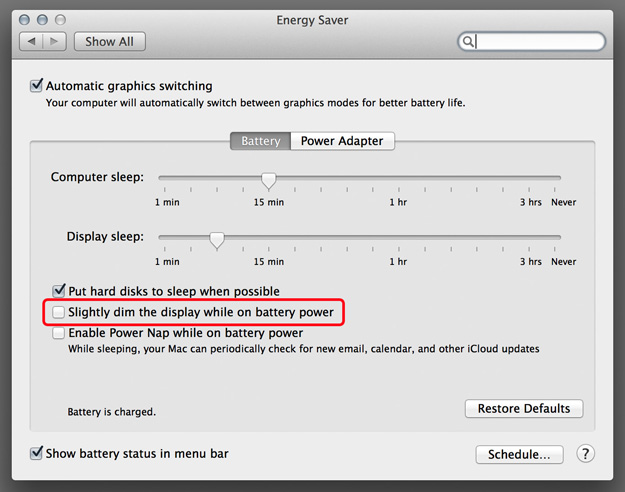
Another enemy of keeping the calibration intact is the display dimming preference of OS X – which tells the machine to slightly dim the display while running off of batteries. It might be useful for users not requiring color accuracy and consistency, but turn it off for calibrated displays (by default it’s on).

DisplayDimming2

In the next installment I’ll examine the differences between hardware and software calibration.

Monitor Calibration vs Profiling

The photographic industry uses these phrases somewhat interchangeably, but they are two completely different concepts. So in this post I’d like to shed some light on what is what. This is the first in a series of posts about the subject of monitor calibration.

Calibration is the process of bringing a device into a known working condition. In case of monitors it consists of setting the device’s black point, white point and tone reproduction curve (sometimes incorrectly called gamma). The exact values for the calibration parameters depend on the actual application, but let me explain what they really mean as well as what are their recommended values or value ranges.

The white point’s luminance controls how bright the display will be. One should choose a value according to the output’s intended viewing environment. 80 cd/m2 is widely used in the printing industry, but not each monitor is capable of reaching this luminance or working there without ill effects. Some recommend 100-120 cd/m2 for brighter working environments. Output is the king, so one should set the working environment to match the output’s needs. Note that values over 120 cd/m2 will cause eye fatigue pretty fast. Top end EIZO displays or even the displays in Retina MacBook Pros has no problem working at 80 cd/m2. Actually the MacBook’s display is a bit over 50% of its brightness range at 80 cd/m2.

The white point’s color temperature controls how blue or yellow whites will be. The printing standard is D50 (5003K), where all wavelengths are roughly equally present. This is a good match for natural white papers, but brighter papers, loaded with optical brighteners might ask for “bluer” white, with higher color temperature, such as D65 (6504K). Ideally one should measure the color temperature off the papers. Regular monitors, especially those with bluish LED backlight have a hard time reaching D50: the blue channel is lowered too much and posterization kicks is. But the Retina MacBook Pro for example can be used at D50.

The black point controls how blacks will be handled. Its luminance should be set to minimum to utilize the monitors black separation capability as much as possible. ColorEyes Display Pro – the monitor calibration software I use – has a unique setting controlling how blacks are rendered. Every output device, be it a display or a printer, plugs the shadows to some degree. Relative black rendering tells ColorEyes Display Pro to find the lowest value where there’s still detail in the blacks and create the profile to map 0/0/0 there. Actually most calibration/profiling apps do this. But this not just makes matching multiple monitors almost impossible, but also causes problems with print preparation, because printers also tend to plug deep shadow detail.

The other choice in ColorEyes Display Pro is absolute black, which maps 0/0/0 to the absolute black (you know, the proverbial black cat in an unlit coal mine, in the middle of a moonless night). It results in more precise profiles not to mention that it makes multi-monitor matching possible.

A fortunate coincidence that both my EIZO and my MacBook Pro’s Retina display start to plug shadows where my favorite Hahnemühle papers do (around 8/8/8, the EIZO being a bit better and the Retina a bit worse), so using absolute black rendering I can see on the monitor how the paper will behave.

Digital files represent image data quite differently than humans see. For a digital file (and also sensors) the brightest stop contains half of the numeric values usable at a given bit depth (e.g. 128 for a 8-bit file, 32768 for a 16-bit file). The second stop contains quarter of the values, and so on. This presents two problems: 1) darker parts of the image would get only a few different levels, resulting in posterization, 2) it would be quite difficult to work on these files due to the lack of “perceptual uniformity”, that is 128/128/128 is not twice as bright as 64/64/64. The role of the tone reproduction curve is to map file values into humanly “processable” values. Human perception follows a power-law; so using a single exponent can attain a surprisingly good approximation of the “ideal TRC” of human vision. This exponent is known as the gamma, and the mapping using the TRC is called gamma correction.

A gamma value of 2.2 gives a pretty good approximation of the ideal TRC, but plugs the shadows. To compensate for this, the sRGB TRC, which uses a 2.4 exponent combined with a linear section in the deep shadows, was invented (this is used as the TRC of Lightroom’s internal Melissa RGB working space). You could safely forget about gamma 1.8, a relic from the ages when Apple computers and printers used to have an internal gamma greater than 1.0. Well, the simple gamma TRC itself is a relic from times when computers were slow and storing and working with a few kilobytes of curve data was infeasible.

Nowadays we have a markedly better solution, called the L* curve. This is the most precise approximation of the ideal TRC, and doesn’t present a problem for today’s (and even yesterday’s) machines. So I highly recommend to use the L* TRC. I moved to a completely L*-based workflow (including RGB and gray working spaces) five years ago, and never looked back. But this is another story.

Profiling is the process of measuring the device’s color reproduction capabilities and creating an ICC profile file. In case of monitors it simply measures and stores the red/green/blue primaries and the color temperature of white. Well, the profile might also contain calibration curves (my ages old post explains this Apple invention in detail – its about Windows, but you’ll find useful information in the “Issue” section even if you happen to use a Mac).

Calibration and profiling walk hand in hand. There’s no point in calibrating a monitor without profiling it, and vice versa, profiling without prior calibration is an exercise in futility. Why big name measurement device manufacturers market low-end devices that are incapable of doing proper calibration is beyond me. Avoid these at all costs.

There’s an important consequence: one can’t freely change the monitor’s brightness and/or contrast after calibration, as it would invalidate the calibration and the profile built on top of it.

And I’ll discuss how OS X can be made a cooperating partner in keeping these constant in the next installment.

Calibrating the Retina Display

In a recent post about the new MacBook Pro I mentioned that it “calibrates very accurately”. Let me elaborate more on this subject.

My standard display calibration parameters are: 80 cd/m2 luminance, D50 white point and L* tone reproduction curve (TRC). I had used this setup for years with my EIZO on both Windows and Mac computers. I’m also using a complete L* workflow (with ProStarRGB working space in Photoshop for example). So my target was the same for the Retina display.

Due to the incompatibility with OS X 10.8, I gave a shot recently to basICColor display for color calibration. The MacBook Pro arrived just before the trial expired on my old desktop and I got another 14-day trial license for the new machine. This allowed me to test the software again before committing to the purchase.

So I spent the whole Sunday on profiling displays and evaluating them side by side. My initial thought was that it’ll be a piece of cake. How naive was I…

First, I calibrated both monitors to the aforementioned conditions and profiled them. The EIZO was good as usual, but my usual 50% gray desktop background on the Retina display showed a strong, ugly reddish color cast. Black levels were also quite different, making it hard to see and make decisions about contrast and work with delicate shadows. I was far from being satisfied with the results.

Then gave a try to X-Rite’s new i1Profiler. Although printer and press profiles created with the application literally sing, there’s a lot to be desired regarding its display calibration abilities. Frankly, I still prefer display profiles from the old i1Match application (not available since Apple eliminated PowerPC emulation from OS X). It also lacks L* TRC support, the most perceptually uniform TRC you can get is the one modeled after the sRGB color space’s TRC. The results were disappointing. Even watching a movie I complained about burnt highlights and ugly gradations (causing a little bit of indignation from my Loved One).

I was thinking what the hell should I do to make the otherwise gorgeous display usable. And a faint memory reared its head. Some 8-9 years ago I evaluated a display calibration and profiling tool named ColorEyes Display Pro. Downloaded the latest version and gave it a try. This was the first time I got acceptable results without the unbearable reddish cast.

The app works fine under 10.8. There’s one thing to watch for, however. For better monitor match it recommends to calibrate to “absolute black” instead of treating the monitor’s lowest black as 0/0/0 pixel value. Yes, this will cut the visibility of the deepest shadows on the monitor. Actually it behaves just like paper and ink, so it’s even easier to fine tune my images for printing (and of course I can always use the levels tool to bring up the shadows a bit temporarily). This worked out very well. Examining my favorite test image side by side showed only very small differences. Actually, I think the Retina display is usable for semi-critical color work, such as quick edits during field trips.

Unfortunately, the desktop and every non-color managed app still had a slight reddish cast. After 4-5 hours of trying every imaginable solution (tuning white points, changing colors, etc, etc.) I ended up with two profiles. One, the usual 80cd/D50/L* for editing images and another one with 80cd/5300K/L* for other types of work I do (such as app development and writing). With 5300K the non-color managed apps look just like D50 does on the EIZO, and even I do light photo editing with it sometimes.

The two displays side by side now look as if they were prints on a matte Hahnemühle Museum Etching and a semigloss Hahnemühle Photo Rag Baryta. Sweet!

Some closing numbers. With absolute black level calibration I can easily see into the shadows as low as about level 8 (from 255) on the EIZO and as low as about 6-7 on the Retina. Maximum deltaE is 0.90 for the EIZO with an average of 0.5. Maximum deltaE is 0.63 for the Retina display with an average of 0.34. Most impressive! And the Retina display’s color space covers roughly the entire sRGB space (as viewed in ColorSync Utility).

I must mention again that the resolution advantage is huge! Just enabled Retina support this morning in the application I’m working on these days and it looks really awesome. The EIZO doesn’t get much love these days…

Intel’s Video Drivers Kill Display Calibration

Since I had switched to Macs more than a year ago I spent really little time on managing my Lenovo X200s notebook. It was still running the original – Microsoft supplied – video driver. You know, if it ain’t broke, don’t fix it. I was really happy with its color, as I figured out how to set it up so that Windows loads display calibration properly. As you might guess, up until now…

Enter SP1

Windows 7 SP1 came out, and yesterday afternoon I had a little time to kill and decided to do the upgrade. There was also an Intel video driver upgrade available – and I decided to install it alongside the service pack. Everything looked OK util I had rebooted the machine. Then, just a split second after Windwos loaded the calibration curves, something swithced the monitor back to the uncalibrated state. First I thought that Microsoft screwed it up, but further investigation revealed the truth.

In my former article I blamed Microsoft for not understanding what color management is all about. Although they finally seem to catch up, there are a lot of hardware manufacturers who does not care about all this stuff.

Intel is among them.

Rant: I still do not understand why PC hardware manufacturers feel that they have to load a bunch of crappy software alongside their drivers. Start with a fresh Windows installation, download all the latest drivers and your machine is full of useless applications. I can’t remember a single event when I used any of them (and I used Windows PCs since the earliest days of Windows). That’s one of the reasons I’m using a Mac now.

Yes you’re right, one of the crappy apps Intel ships their Graphics Media Accelerator video driver with was that killed the calibration. The app is called “Persistence Module”. It’s name seems like a joke as it is THE module who does not allow calibrations to be presisted…

How to Remove Persistence Module?

There is a really handy tool, Autoruns, written by Mark Russinovich and Bryce Cogswell, which can be used to show the hordes of apps that Windows loads at startup – and more importantly to disable any of them.

When you download and run the app it will display something similar to what you see on the following screen shot.

To disable Persistence module, just click on the Logon tab, and find Persistence under the first “…\Run” list. Removing the checkmark in front of the name will disable this application, but you can completely remove this entry hitting Delete.

Note that I also disabled Logo Calibration Loader because this task is handled by Windows 7 correctly, as well as ProfileReminder because I don’t wand reminders about recalibration on my notebook (I’m usually recalibrating it before each major shoot).

Reboot your machine and it’ll be good again.

That’s it. Case closed for now. Until Intel comes out with another irritating innovation of course…

I do not use Windows any more, so not is a position to answer your Windows-related questions.




