Everything But the Kitchen Sink

This is the most popular Kuuvik Capture video to date, showing most of the app’s features.

Click here to watch it on our YouTube channel.

How to Make Focusing a Tilt/Shift Lens Easier

The tilt movement is used in technical cameras as well as DSLR tilt/shift lenses to precisely adjust where the plane of focus is on the image. Focusing with tilt is a tedious process (described here and here), but the results always worth the time!

There was a big pain point in using DSLR T/S lenses: checking what you have done. The viewfinder isn’t enough for that with today’s high resolution bodies, so you have to zoom in and check different points on the image using magnified live view. The adjust either tilt or focus. Then check the points. Then refocus… I had some images where I spent more than half an hour on fine tuning focus!

I said “was” – as it was the case before Kuuvik Capture’s Split View feature came along. I’m using this since I was halfway into developing the first prototype, and man, it can save lots of time! No, it won’t think instead of you, but the ability to quickly and visually asses what you have accomplished is priceless. It is also a great tool for learning how to focus a tilt/shift lens.

So watch the video below, and if you are using a Canon EOS-1D X, 5D Mark III or 6D with any of Canon’s great tilt/shift lenses, then grab Kuuvik Capture’s beta now! It’s that good (OK, don’t believe me, try it for yourself ;)).

Click here to watch it on our YouTube channel.

The First Kuuvik Capture Intro Video

During March we were filming a few intro videos to show off some of the coolest features of Kuuvik Capture. The first one, showing how I created my generator room photo is now online on Vimeo.

I recommend you to maximize it and turn HD on – and watch for the synchronization between the camera and the app.

Click here to watch it on our YouTube channel.

Making “The First Flower” with Kuuvik Capture

As I told you in the introduction of Kuuvik Capture, I used the software yesterday for shooting quasi-macros with the Canon 135 f/2. In this post I’ll give a detailed description how it helped me creating The First Flower.

Checking sharpness and histogram. Click the image for a larger version.

The final optimized image. Click the image for a larger version.

The biggest challenge was keeping the appropriate depth of field, without the softening effect of diffraction. I would like to expose the image at f/11 or wider, so I focused on the flower and checked the image in 5x magnification to see whether all the thorns are in focus. Unfortunately they weren’t. So I placed a marker on the flower, and another one on the lower left part of the image and entered split view. Split view can show you two or three 5x magnified parts of the image simultaneously with the 5D Mark III.

Why just 5x and not 10x? Simply because 10x is an “empty magnification” in Canons, that is you do not get more detail in 10x. This is because the 10x magnification is simply the 5x image blown up in software!

Seeing both parts at once I was able to see how much more should I stop down. I used depth of field preview and focus pulling to optimize sharpness for the thorns. I ended up shooting the first preview at f/14. Critical focus check at 100% revealed just a tiny bit of softness at the base of the thorns on the lower left, so I stopped down to f/16 and took another preview. It was good at this time.

Then came exposure optimization. I started out at +1 during the live view part, and seeing the raw histogram I knew that I have some more headroom to lighten the image, thus keep more data. At +1 2/3 stops the image became overexposed, so I lowered the exposure to +1 1/3.

Deleted the markers and turned off focus peaking to see the image in its entirety, it was what I was after (this is what you can see on the above screenshot). I marked it final. This step removed all four preview images I made during the optimization – both from the computer and from the camera’s memory card. In the studio I didn’t have to go through the selection process as I just had a single, final, optimized image.

Introducing Kuuvik Capture

kc-IconLadies and gentlemen! It’s my pleasure to introduce something I have been developing for the past 15 months: Kuuvik Capture.

It’s simply the best tethering software for Canon that I’m aware of, sporting never before seen features like simultaneous magnified live view, a really usable raw histogram (that is, gamma corrected but with no white balancing applied), a highly useful bracketing monitor, and lots of other pretty neat stuff. The product entered public beta today, and I highly recommend you to visit the product’s homepage, sign up for the beta program and grab a copy – it’s completely free at the moment.

In the coming weeks I’ll publish a couple of technical posts about how the app works and will shed some light on a few controversial digital photography topics. So stay tuned!
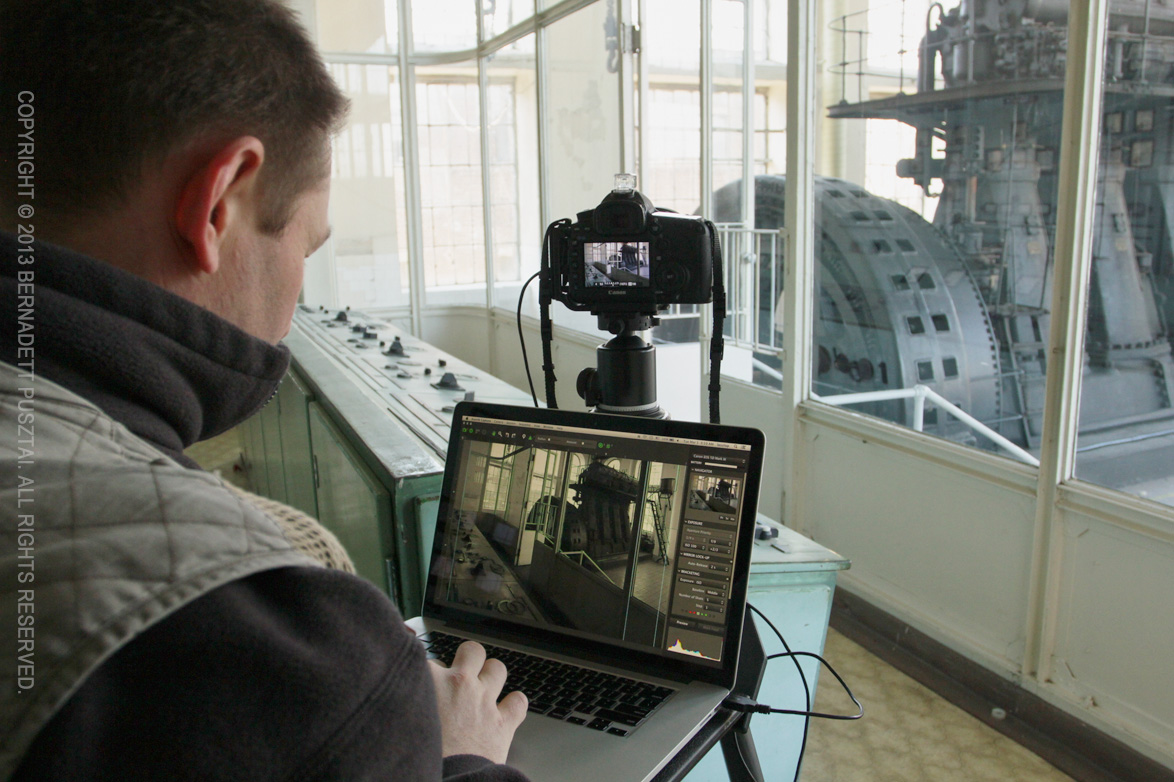
kc-short-reshoot

Me re-shooting Generator Seen from the Control Room with Kuuvik Capture

But for the remainder of this week, I’m going to relax a bit, celebrate my 40th, and play a little with my new Canon 135/2 – of course tethered to Kuuvik Capture.


hdiutil Requires sudo for Read/Write

Another unwelcome surprise from Apple: in some recent OS X update (I don’t know exactly which one as I ran into the problem this morning) they changed how hdiutil behaves when mounting sparsebundles in read/write mode (it is used in my build scripts as a step toward generating the final setup DMG): it now requires sudo-ing when you use the -readwrite flag.

The problem is that sudo by default prompts for a password and silently fails when used from a script. The solution is to remove that password requirement. This is carried out by adding a line to the /etc/sudoers file:

%admin ALL=(ALL) NOPASSWD: /usr/bin/hdiutil

This innocent one-line edit requires lots of command-line gymnastics, however. Permissions on the sudoers file is 440 by default, and the sudo command fails to work with anything other that that.

So you have to boot your Mac in single user mode to do the edit (by holding down Command+S at startup). Then you have to mount the root file system in read-write mode and change the permissions on the file:

mount -o update /
cd /etc
chmod 640 sudoers
vim sudoers

Add the line to the end of the file, save it and restore the file’s permissions:

chmod 440 sudoers

You can now reboot, and sudo hdiutil will not ask for a password any more! So it can be safely used from within build scripts.

  ☕ ☕ ☕

Did this post help you? Consider buying me a coffee if so.



