Focus Stacking with the Otus 1.4/28

Last weekend I had a little time to play with the Otus 1.4/28. I was at Lake Tisza, but the light was suboptimal to put it mildly. So I decided to make a test shot to check how focus stacking will work with the Otus 28.

Why would you need focus stacking in the first place with such a wide angle? Well, if you have a brutal 50 megapixel sensor, with a lens that’s sharper in the corners than most lenses in the center, you don’t want to throw that resolution away by stopping down below the diffraction limit.

For this test I ended up using f/6.3 and taking 6 slices.

Early Spring Pier, Lake Tisza

Early Spring Pier, Lake Tisza

It was a quite a bit windy, and I wanted to smooth out the waves using the 10-stop LEE Big Stopper. I had to realize that I ran out of gaffer tape (unfortunately the Big Stopper on the Otus 28 leaves quite a gap at the sides), so I used my heavy cotton dark cloth to keep unwanted light from hitting the front element.

The dark cloth covered the entire camera, but it was quite easy to focus on the 11″ screen of my MacBook Air using Kuuvik Capture. The images were focus stacked in Photoshop CC.

And the result? Perfect front-to-back, corner-to-corner sharpness. It’s simply amazing.

Kuuvik Capture 2.2 Released with Wi-Fi Support

The latest update to my Kuuvik Capture camera remote control app went online earlier today. Although it looks like a small update on the surface, there’s a huge change under the hood. This version contains the 3rd generation of my digital camera library – with full Wi-Fi and Ethernet connection support.

You may remember that we had dropped the network camera option during the beta, because Apple’s PTP-IP (the protocol used to talk to the camera over Wi-Fi and Ethernet) implementation turned out to be unreliable under heavy load. Not to mention the side effect that Image Capture started every time we connected a camera.

So I took the challenge and developed a completely new PTP-IP transport component, debuting in Kuuvik Capture 2.2. If you think that it’ll appear in other apps in the future, then you’re on the right track… But let’s concentrate on Kuuvik Capture now.

Connecting your camera via Wi-Fi (or Ethernet)

First of all, you’ll need either a Wi-Fi equipped camera (6D, 70D), a built-in Ethernet socket (1D X, 1D C) or a separate Wireless File Transmitter (5D Mark III, 5DS, 5DS R, 7D Mark II, 1D X, 1D C) for this to work. Only Canon’s transmitters are supported, third party Wi-Fi remote control boxes will not work. Please check the tech specs for the full list of compatible equipment.

Canon cameras provide connectivity in several ways. The most complete is the EOS Utility connection mode. For this mode a camera needs to be paired to a given app on a given computer. Using two apps on the same computer? You need to pair the camera to them separately, and only one can be active at a time.

The computer side of this pairing process is dramatically simplified in Kuuvik Capture 2 compared to both version 1 and Canon’s EOS Utility.

Kuuvik Capture now needs to be “pairing mode” to accept a pairing request coming from the camera. This mode is accessible through a new menu item (or by pressing F2).

networkPairing

Pairing can be initiated from the menu.

Kuuvik Capture displays the pairing window (shown below) while in pairing mode. This window also shows your computer’s name, which will appear on the camera’s LCD during the last pairing step, so you can double-check that you are pairing to the computer you were intended to.

networkPairingWindow

The pairing window. Kuuvik Capture is ready to accept pairing request only when this window is displayed.

And that’s all you need to do on the Mac.

Once in discoverable state, you can start the configuration process on your camera. The process consists of three large steps:

  1. Choose a connection mode.
  2. Configure your network.
  3. Do the actual pairing.

They are documented in your camera’s or wireless transmitter’s user manual, but there are a few important points to consider.

First, please don’t start any Canon app that may be mentioned in the manual. You are now pairing to Kuuvik Capture, and not to Canon’s apps.

For step 1, you must use the Connection Wizard on cameras where it’s available (e.g. 5-series, 7-series with the external brick), otherwise you won’t be able to complete step 3. On the 6D and 70D choose the Remote Control (EOS Utility) mode. On other cameras choose EOS Utility mode in the Connection Wizard.

In step 2, the camera will ask for network specific parameters (whether it’s wired or wireless, plus various options and a password specific to your network). This is the most complicated part of the entire process, but Wi-Fi setup is such a thing… I’d recommend to study the camera/transmitter manual beforehand.

Out in the field with no network to connect to? My previous post shows you how to create a fast and secure Wi-Fi network on your Mac!

The last step is the actual pairing. As the LCD indicates, this is your last chance to put Kuuvik Capture into pairing mode. It may take up to 1.5 minutes for the camera and your Mac to find each other.

camerapairing1

This is how the camera’s LCD will look like as soon as they found each other:

camerapairing2

Pairing should be done once (unless in the meantime you paired your camera to another app, another computer, or used another network). To deal with these different scenarios, the very last screen in the process (after clicking that OK button) lets you save up to 5 (3 for 6D/70D) setups into your camera’s memory. But if nothing has changed, Kuuvik Capture will find your camera automatically the next time you turn it on and connect to the network, so the pairing is not necessary every time you want to use a Wi-Fi or Ethernet connection.

When pairing has successfully completed, the camera’s LCD will turn black, the pairing window will disappear, and the camera’s name will show up in Kuuvik Capture’s camera selector.

Notes on Wi-Fi speed

It seems that Canon implements one of the lowest speed classes for each of their Wi-Fi implementations. This is 150mbps for the external 802.11n bricks (using only one spatial stream), and a shockingly low 60mbps for the 6D and 70D (despite they advertise it as 150). So don’t expect miracles and be prepared for 12-15 second downloads on these slower cameras. On the other hand, the external bricks are fast enough to be perfectly usable when the network signal is good.

Well, speaking of bad, flaky networks. While I absolutely hate to add new configuration options (one more thing for you to deal with), this time it was a must.

Wi-Fi networks can become unbeliveably slow (think longer distances and/or interference), causing the camera to disappear from Kuuvik Capture. A longer network timeout (a longer time allowance for intermittent network errors to clear) may solve this, but at the expense of delaying the detection of actual issues (such as when the battery dies). So the Preferences window now has an option to control this.

ntoPreference

The default is 10 seconds, which we found to be suitable for most Wi-Fi networks. You can go as low as 5 seconds or as high as 30 seconds. My personal preference is to go with the lowest number, and raise it in the presence of connectivity issues.

Other new features

There are two of them. Customers have asked for more, longer time options for mirror lock-up auto-release. So we’ve added 8s, 10s and 15s to the palette. Also the new white priority white balance mode introduced with the 5DS/R is now available on the white balance control.

Availability

The update is free for existing Kuuvik Capture 2 customers. New users can download Kuuvik Capture 2 from the Mac App Store.

For more information about the app, please visit it’s microsite, or check out my posts.

Kuuvik Capture 2.1 Released

Version 2.1 of Kuuvik Capture is now available on the Mac App Store. This update brings a handful of new features and a few fixes. Let’s start with the new features.
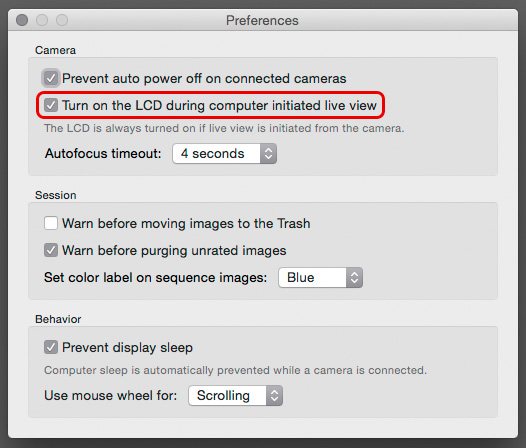
kc21prefsFirst, a new preference is added to control whether the camera’s LCD is turned on when you start live view from within Kuuvik Capture.

If you turn this preference off, the camera’s LCD will remain turned off to conserve battery. But you can turn the LCD on any time with the live view button on the camera.

When you start live view directly on the camera, it’s LCD will turn on regardless of this preference (chances are that you engaged live view on the camera because you want to look at the LCD).

Upon user request, the number of focus bracketing steps had been increased from 30 to 100. And I’ve added hot keys to the Purge Unrated (Cmd-P) and Purge Unrated and Decrease Rating (Shift-Cmd-P) culling commands.

The bug fixes are the following:

  • Live view is now automatically stopped when changing lenses or when the camera is disconnected.
  • Live view navigator zoom labels now display “6x” and “16x” for the EOS 5DS and 5DS R. The navigator frame’s size is also corrected to reflect these zoom levels.
  • ISO 16000 now can be set from Kuuvik Capture on the EOS 7D Mark II, even if using full stop ISOs is set on the camera. This is in line with the camera’s behavior.

Version 2.1 is a free update for existing Kuuvik Capture 2 owners.

Kuuvik Capture 2 Available on the Mac App Store

kc2icon@2xI’m proud to announce that Kuuvik Capture 2 is now available on the Mac App Store!

I’ve added a few features since the Beta 2 (see my previous post about the Beta 2 feature list):

  • Open in Application command to directly open the CR2 files in your favorite RAW converter.
  • Ratings in the CR2 files (set in the camera) are now honored.
  • Added clipping display control menu items to the image area’s context menu.
  • Added ability to work with Canon EOS 5DS and 5DS R images on computers that lack the GPU resources needed to display these images. Images are now downsized to 24 megapixels for display in this case (RAW files remain in their full resolution).
  • Added support for Canon EOS-1Ds Mark III, EOS 750D / Rebel T6i / Kiss X8i, EOS 760D / Rebel T6s / 8000D and EOS 1200D / Rebel T5 / Kiss X70 cameras.

You can download Kuuvik Capture 2 from the Mac App Store for a discounted price until the end of August. This discount serves as an upgrade price for existing users as well as an introductory price.

For the complete list of compatible cameras and computers please visit the tech specs page.

Kuuvik Capture 2 Beta 2 Released

We’ve come a long way since the Beta 1, with some significant departures from how Kuuvik Capture worked in the past. I bet you’ll spot the single most important new feature on the screen shot below.

kc2b2-with-ib

Graphical Image Browser

Session management has been completely rewritten for this beta. It became way simpler, as sessions are now just simple folders. And Kuuvik Capture now lets you quickly browse the contents of the session folder with the help of the Image Browser. You can rate the images with 1 to 5 stars, color label them, and sort according to your preference. Industry-standard XMP metadata files provide workflow integration with XMP-aware RAW converter apps, such as Adobe Lightroom and Capture One. (Well, in theory it should work with Capture One, but my fellow colleagues at Phase One screwed up their XMP parser and 99% of the time can’t load a well-formed XMP. Either ours or Lightroom’s. Even worse, if you enable Full Sync in Capture One, it would corrupt the XMP file… So Capture One is declared incompatible until they fix this.)

As a side effect, Kuuvik Capture can now be used to quickly cull a large number of images. Actually, this was one of the motivations to create the Image Browser. I want Kuuvik Capture to fully and seamlessly support my workflow.

I usually have a mix of images taken with Kuuvik Capture and my cameras alone, so I needed the ability to work on them together. When I’m birding, it’s now uncommon that I return with 2000 images from a single afternoon shoot – 90% of which goes to the trash. But culling with full-featured RAW converters was slow and painful. Now I can sweep through those 2000 images in roughly 1.5 hours – with all the help of the usual Kuuvik Capture tools like sharpening and focus peaking!

Positive Selection Culling

Contrary to the usual “throw out the bad ones one-by-one”, Kuuvik Capture sports a “mark the best & ditch the rest” concept of image culling. During the years, I found the negative approach (throwing out the bad ones) impact my creative process in a very bad way: I’ve been concentrating on the bad images, instead of the standouts. It was a kind of mental torture for me (not surprisingly, I had a huge pile of un-culled or partly culled shoots).

With Kuuvik Capture, I just give stars to the best images, to those that I really like (and those whose technical properties are also good). Then ask the app to trash the others. You also have the option to decrease star rating of remaining images (and start the process all over again). It’s simple, intuitive, and fosters positive thinking about the good images.

Multi-Touch Gestures

This beta also introduces a host of multi-touch gestures. Besides the usual, standard zooming and panning of images, we now support 90 degree image rotation with the flick-rotate gesture (it’s like trying to quickly rotate the image, and Kuuvik Capture detects the direction and rotates the image by 90 degrees).

In live view you can also flick-zoom (both in and out).

Built for the Canon EOS 5DS and 5DS R

The app has been designed and optimized to work with the huge images from the new 50-megapixel bodies. While it’s fast working with them, it became lightning fast on smaller (22 or less megapixel) images. The long delay between beta 1 and beta 2 is partly attributable to this process, as I had to replace a few slow, leaking and generally problematic frameworks with my own implementations. So the complete display engine is new, including the sharpening and peaking filters that now work properly on Retina displays.

Other New Features from the Beta 1

  • Streamlined user interface to give more screen space to your images and to support the new MacBook.
  • New raw decoding engine which is up to 5x faster than the open source library used previously. And consumes way less memory in the process.
  • Improved image display quality.
  • Improved focus peaking visibility in some situations.
  • Exposure information for the currently displayed image below the histogram.
  • RAW label to show when the histogram is generated from raw data (instead of white balanced ‘jpeg’ data).
  • Session information can be overlaid on the displayed image.
  • 11 new guide templates, including golden ratio, a dense 30×20 grid and several aspect ratio lines, such as 1:1, 5:4, 16:9.
  • Selectable guideline color.
  • Color pickers for both peaking and guides allow you to set the opacity.
  • A new menu item and hot key to cycle peaking color presets (yellow, white, green, magenta). Cycling also include your chosen custom peaking color if there’s one.
  • All panels (not just the Navigator) can be quickly revealed.
  • Event Log to notify you about problems that may influence your shoot (such as inability to write to the download folder or interference with other concurrently running remote control apps).

What’s Not In There?

Due to the sheer amount of change in the most basic parts of the app (camera communication, display, sessions), we had to drop two features from version 2.0. First, testing revealed that OS X’s PTP-IP implementation (that was used to drive the cameras through WiFi and Ethernet after dropping Canon’s SDK) tends to corrupt data under heavy load. So I removed network camera support until I roll out my own PTP-IP code.

Second, support for the 1Ds Mark III has been removed as it needs to be operated completely different from modern cameras. We will re-add support as we can put our hands on a 1Ds Mark III for a few days, and only if there’s demand for it (given the limited feature set that camera supports). The 1Ds Mark III is supported in the final release.

Availability

Beta 2 will be released to registered beta testers during the next day. This beta represents the final feature set for version 2.0, and if everything goes as planned, it will be released in the Mac App Store as soon as Apple approves it.

Kuuvik Capture 2 Beta 2: Performance

As Beta 2 of Kuuvik Capture 2 is nearing completion, I felt it’s time to talk about the incredible performance improvements of the product.

Beta 2 switches away from Canon’s EOS SDK in favor of my EOS Extensions library. EOS Extensions powers ShutterCount since its first day, and now Kuuvik Capture uses a heavily expanded version.

This change brings several improvements to the app. It is now 64-bit, sports a more fluid WiFi pairing experience, and occupies less than 10% of the disk space needed for Beta 1. But the most prominent improvements are in the energy consumption and processing speed areas.

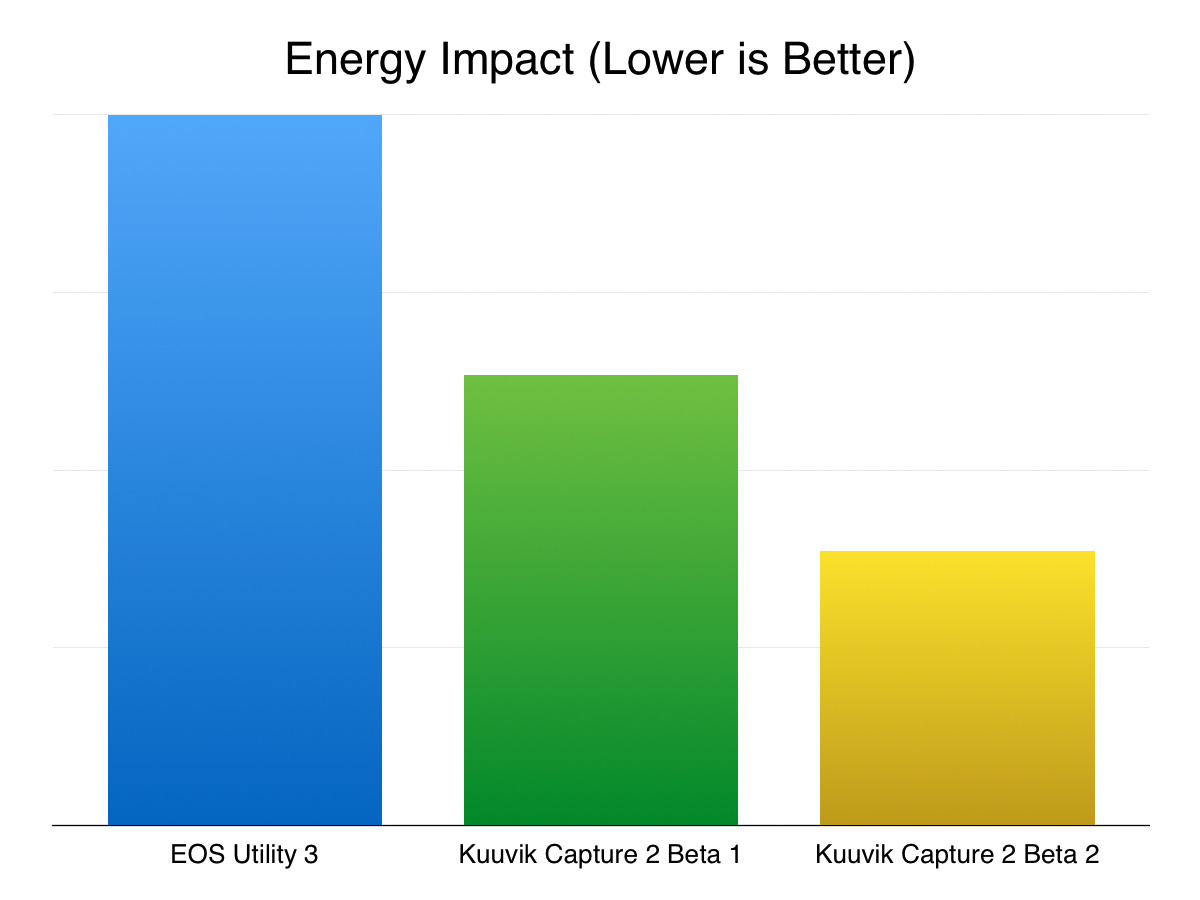
Let’s jump right in. The following chart shows the relative energy consumption of the Beta 1 and the Beta 2 (as well as Canon’s EOS Utility for reference) while running live view. The Beta 1 figure is roughly the same as Kuuvik Capture 1 was.

All performance figures are calculated from measurements done on my 2012 15″ Retina MacBook Pro, and may change in the final product – but I think they are pretty much indicative of what you could expect.

kc2b2-energyimpact

Even the previous Kuuvik Capture incarnations were no slouch, but the improvement in Beta 2 is huge. It’s energy impact (which is a number OS X calculates mostly based on CPU utilization) is a tad less than 40% of EOS Utility! Actual energy consumption may be a little different as other parts of the system also draw power, but I would realistically expect 2x longer battery life on my MacBook than what’s possible with EOS Utility.

Also take into account that Beta 2 does a lot more number chrunching during live view than even the pervious beta: it’s output is visually better and now always color manages the live view stream. Because of the latter, the color management section has been removed from Preferences.

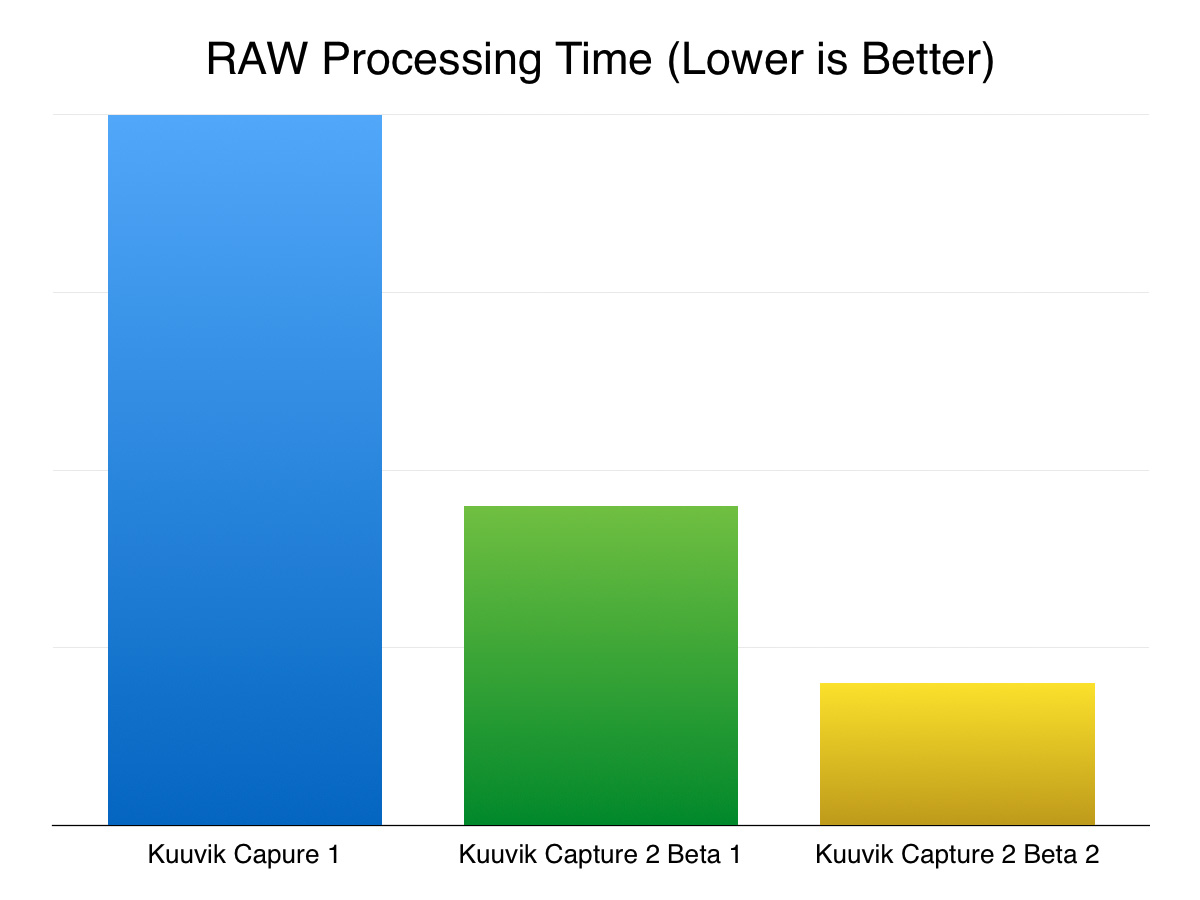
I mentioned that Kuuvik Capture 2 ditched libraw (an open-source RAW processing library), and now uses my own code. I cited some 2.2x processing speed improvements then. I’ve hand-optimized the RAW decoder in EOS Extensions, and image processing is now up to 5x faster than Kuuvik Capture 1.

kc2b2-processingtime

In other words, the Beta 2 loads and processes a huge 5DS R file on my MacBook Pro in about 1.6 seconds.

Yes, Kuuvik Capture 2 will support the 5DS and 5DS R. Raw decoding support is complete, and the cameras will be characterized and enabled as soon as my 5DS R arrives.

We have a few places left in the Kuuvik Capture 2 beta program. If you would like to participate, please download and complete the Beta Application and NDA form, and send it back to beta@direstudio.com. If your application is accepted, you will receive download instructions within a couple of days.