Artist’s Viewfinder 6.3 Released

Continuing today’s iOS 13 compatibility updates, version 6.3 of the Mark II Artist’s Viewfinder is now available on the App Store. It brings full iOS 13 support (again, you must update to this version if you are using iOS 13). Dark Mode is supported in the menu, but the main screen’s color theme is still controlled with the Toolbar Theme preference in the menu.

Along a few new cameras, there’s a notable new feature: Zoom to Active Frame.

Once it’s turned on in the menu, double or triple tapping a frame will not just set the mask or highlight, but will also zoom to the active frame so that it fits the screen (that is, the whole active frame becomes visible, at the largest possible size where the whole frame is on the screen). Clearing the mask or highlight will change the zoom level back to where it was before activating the frame (the original zoom level). There are a few things to keep in mind, though.

If the active frame is too small (it would need a higher zoom level than the maximum possible) or too large (smaller zoom level than possible), then it may not fit the whole screen. This may happen with long telephoto or ultra wide lenses.


Viewfinder forgets the original zoom level (and will not revert to it when the mask or highlight is cleared) if you:

  • 
manually change the zoom level after the app zoomed into the active frame;
  • switch between the wide and tele cameras on the phone; or
  • toggle Wide Mode.

When you activate another frame while still in a previously activated one, the display will change to reflect your new activation. The original zoom level will not change in this case, so clearing the active frame will bring you back to the zoom level used before the first frame activation.

Optical image stabilization and exposure simulation described in my previous posts for Technical Camera are also present in this app (since they share the underlying capture engine).

The Viewfinder Handbook was also updated to reflect the new features.

This update is free for existing users. New users can purchase the app in the App Store.

Technical Camera 1.4 : Exposure Simulation

Technical Camera did support longer exposures (up to a given device’s capabilities, which is usually in the 0.5s-1s range) from day one. And live view frame rate followed the exposure time, resulting in substantial lag when longer exposures were used.

To resolve this issue, version 1.4 introduces exposure simulation.

It works exactly the same way your regular camera’s live view does: we simulate the brightness of longer exposures by increasing ISO instead of dropping the shutter speed. The result is a fluid, high frame rate live view feed under all circumstances.

There’s a limitation, though, that you should be aware of. When light levels drop, simulation may end up showing a darker image when the actual (non-simulated) exposure would also use a very high ISO. Practically this isn’t a big deal, since very high ISOs are unusable on a phone.
Update 10/2/2019: While it’s a version 1.5 feature, the exposure simulation warning should also be mentioned here. It appears when the simulation can no longer show the actual exposure, because it hit the high ISO limit.

In this case an orange dot starts to blink once a second.

Exposure simulation is always on, no way to disable it.

Version 1.4 is a free update for existing Technical Camera owners. New users can purchase the app in the App Store.

Technical Camera 1.4 : Optical Image Stabilization

The latest update to Technical Camera is now available on the App Store. Version 1.4 fully supports iOS 13, so anybody upgrading tomorrow to Apple’s newest operating system will be able to continue to use the app. This includes support for Dark Mode in the menu.

But there are two other prominent features in this version, one of which is the ability to utilize optical image stabilizers found in newer iPhone cameras.

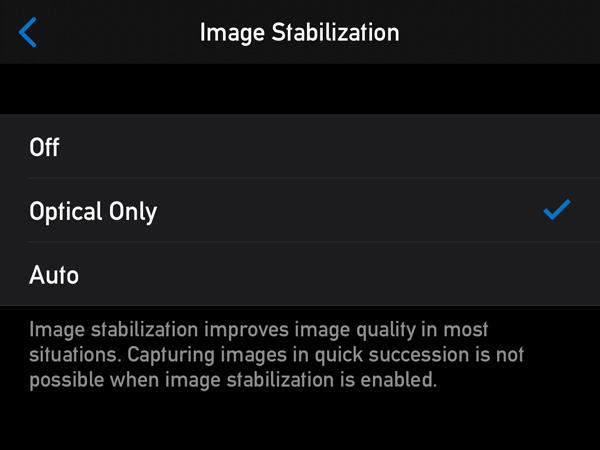
We’ve added a new Optical Only option to the Image Stabilization preference. Honestly, I was never a big fan of Apple’s digital image stabilization (used when Auto is selected), so that’s why we have this option now.


Optical stabilization is available at any shutter speed, as well as when shooting RAW. I routinely shoot one second long exposures handheld at ISO 25 with the wide angle camera on my iPhone XS Max, and the results are pretty good.

Auto stabilization has also been updated. By default it tries to use the digital/optical combined stabilization you are familiar with. But in cases where digital stabilization is not available (such as in case of RAW captures or at shutter speeds longer than 1/20s) it will switch to optical only stabilization. Well, if the currently selected camera supports it.

Starting with this version, manually set ISO and shutter speed values are retained when you exit and relaunch the app. So you can now set ISO 25 and optical only stabilization to have the highest quality RAW captures, and forget about it. Only increasing ISO when needed. This elevates image quality by a huge margin compared to higher ISO captures, and is exactly what I do.

The update is free for existing Technical Camera owners. New users can purchase the app in the App Store.

Kuuvik Capture and ShutterCount Updates

A minor update has been released to my Kuuvik Capture and ShutterCount apps. It fixes a camera detection bug that can surface with a specific Mac configuration (the iOS version of ShutterCount is not affected). The bug was originally discovered in Kuuvik Capture, but since these apps share the same tethering engine, it could also cause a problem for ShutterCount users.

The version numbers of the corrected apps are: 4.3.2 for Kuuvik Capture and 4.0.2 for ShutterCount and ShutterCount Pro. The updates are available through the Mac App Store.

This update also raises the minimum required macOS version to 10.10 for ShutterCount, so it is now the same as Kuuvik Capture’s requirement.

Artist’s Viewfinder 6.2 Released

Version 6.2 of the Mark II Artist’s Viewfinder is now available on the App Store. This is mainly a camera database update, with adding support for the default copyright template (a feature now available in all our apps).

With the default copyright template, you just have to type in your name into the Artist Name field, and the app will generate a copyright info template for you. The format is described in my post that introduced the feature for the first time.

Other that this, the usual slew of newly released cameras were added to the database. Plus the Real Lenses feature now includes ALPA’s just released Switar cine optics and all Hasselblad X and H mount lenses. For the complete list of new stuff I’d recommend to check out the release notes.

The Viewfinder Handbook was also updated, and the PDF is now a 25% smaller download thanks to my move from Adobe InDesign to Affinity Publisher.

This update is free for existing users. New users can purchase the app in the App Store.

New ShutterCount Mobile Pairing Videos

We’ve just released two short videos showing the pairing process between a Canon EOS camera and ShutterCount Mobile (actually the Pro edition). I shot these back in last November for the then current version 3.5, but had no time to prepare them for publication until yesterday.

There are slight variations in the pairing depending on which camera model you use, and I have no time to make a video for each and every camera, but the current set covers the vast majority. And once you get the taste of the process, it’s easy to adapt to these differences.

The first video shows the pairing with an EOS M50. It also applies to most contemporary Canons. As you can see, the pairing takes just a minute (and I also do a Wi-Fi reset on the camera, which isn’t needed later on).

The second one not only walks you through pairing with the EOS 5DS R using the W-E1 card, but also touches other features of the app. This one covers the modus operandi of slightly older Canons.

Yet another variant is covered in an older video, showing the process with the WFT-E7 transmitter and a 7D Mark II.

There’s no sound, because I’m sure you’ll stop the videos a lot while following the process. And sound would just distract.

Hope these videos will make it easier to understand the pairing process. But I strongly recommend to read my former post about the details.




