ShutterCount 7 Released

Preamble

This year’s macOS and iOS releases are my least favorites of all time. Apple’s 1984-esque push to make everything look like translucent goo that can’t stay put is one thing. Although it’s a big thing. It puts way more cognitive load on users as text on translucent surfaces can be extremely hard to read. The general lack of contrast also amplifies this. And unnecessary, battery-draining animations and lighting effects sometimes cause nausea. I find it very depleting to use these new operating system versions.

But these aside, the bigger issue is that the compatibility layer for apps built for previous operating system releases is severely broken, which forced us to move forward to goo-land.

Vive la Résistance!

Since we value our user’s time, and frown upon conformity, the decision was to push back. We do prioritize our design language and don’t want our apps look like ghosts. So we carefully examined each interface element and each use case to keep usability-compromising things out of the apps. There’s some degree of “blend-in” for a seamless user experience where appropriate – this reduces cognitive load. Sometimes the workarounds we applied to stock elements are subtle, but even those proved to significantly lessen the overall visual stress.

Our apps will definitely look different. But being different is a good thing.

Given the sheer amount of our apps, this is still a work in progress. We do release those we are satisfied with one-by-one. And here is the earliest bird…

ShutterCount 7

The most prominent change you’ll encounter is on the iPad. With the new windowing mode ShutterCount became strikingly similar to the Mac variant.
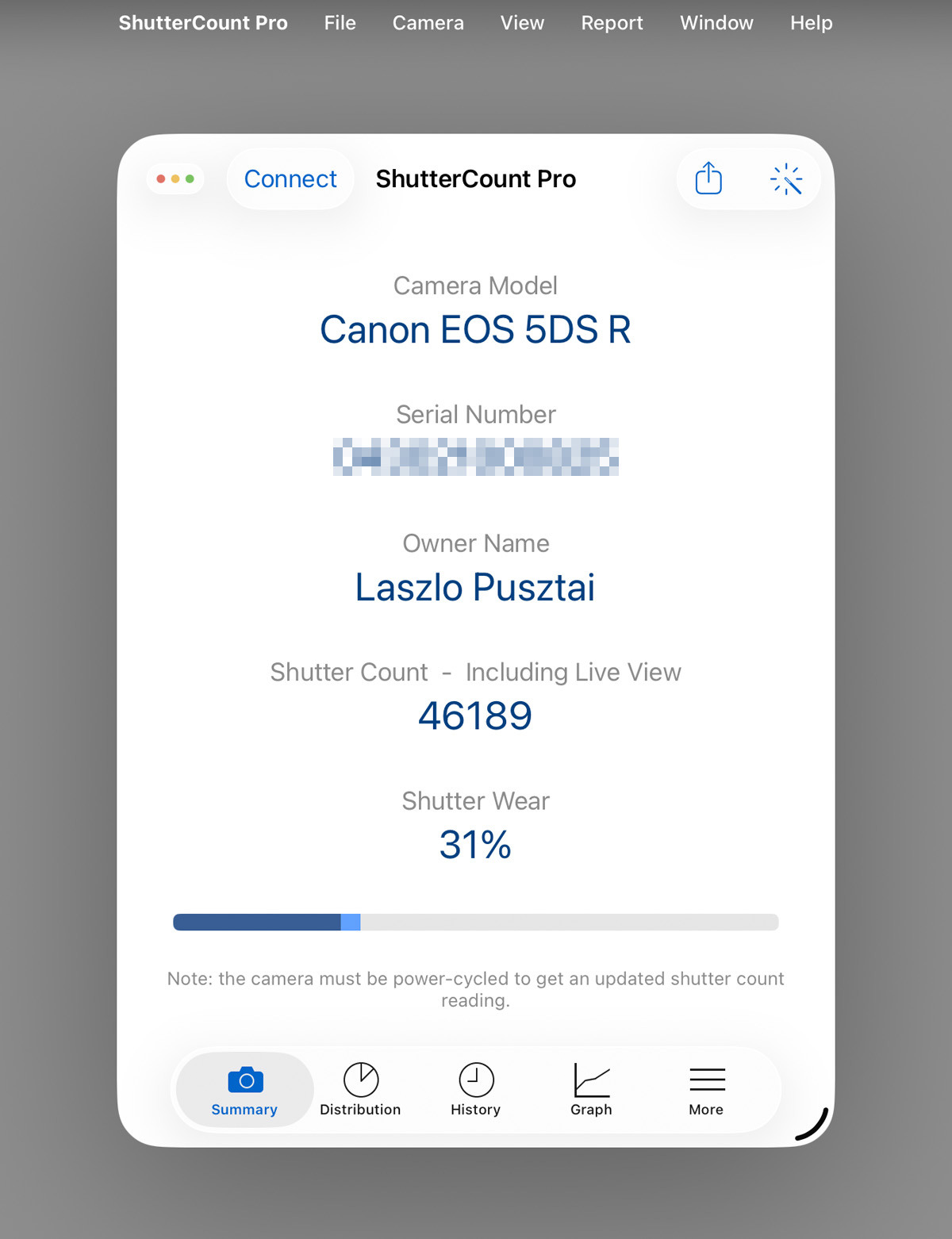
Menus are almost identical to the Mac – as well as keyboard shortcuts. If you are using the iPad with a keyboard and mouse, you’ll find the app quite easy to use. Combined with the fact that iPadOS has a much better USB camera connectivity than contemporary macOS, I wouldn’t be surprised to see iPadOS becoming the premier platform for this app.

The iOS variant retains the former interface even on the iPad. We don’t like to change things around for the sake of change. It upsets professional users. So now you have multiple ways to access the same features: the original touch-oriented ones plus through the menu bar.

Version 7 is a free update to all previous ShutterCount owners. New users can download it from the respective App Store.
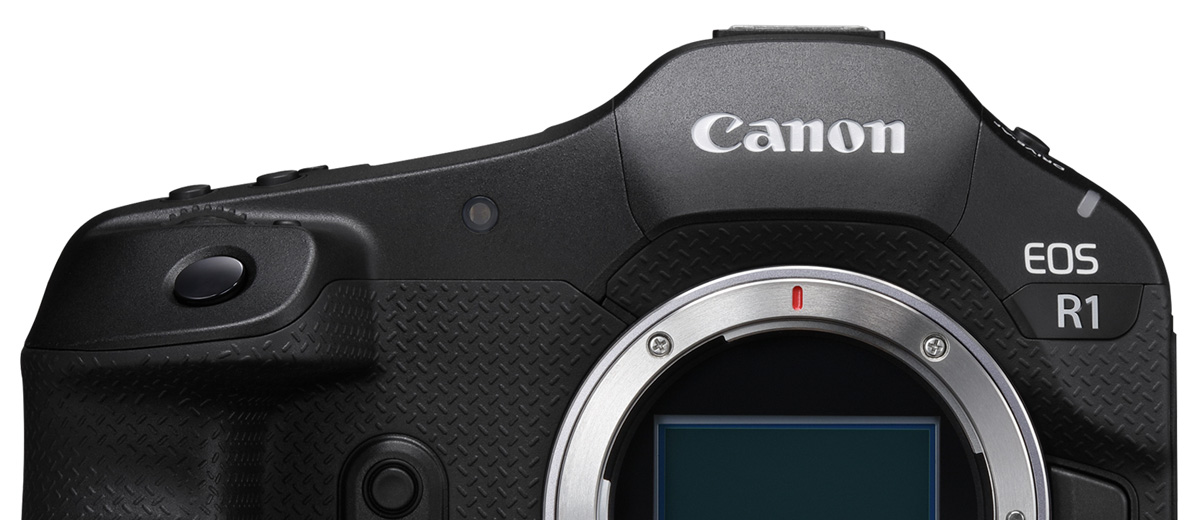
Canon EOS R1 Support in ShutterCount and Kuuvik Capture

ShutterCount 6.7 and Kuuvik Capture 6.7 had been released on Friday with Canon EOS R1 support.

ShutterCount is a step-up from the camera’s rudimentary built-in shutter counter available in the menu: the app provides usage logging even in the standard version; but if you have the Live View Pack or ShutterCount Pro, then you’ll be able to see the number electronic shutter actuations as well on the Distribution Chart.

On the other hand, Kuuvik Capture is not simply a “step-up” from EOS Utility: its in a completely different universe. You’ll want to try this app if you do product photography or need to cull thousands of images (which the R1 will undoubtedly produce for you).

The updates for both apps are free for existing users. They are available in the respective (Mac and iOS) App Store.

Kuuvik Capture : macOS Integration Improvements

There are two macOS integration bits in latest Kuuvik Capture releases I haven’t talked about yet. They proved to be very valuable time savers in my own workflow.

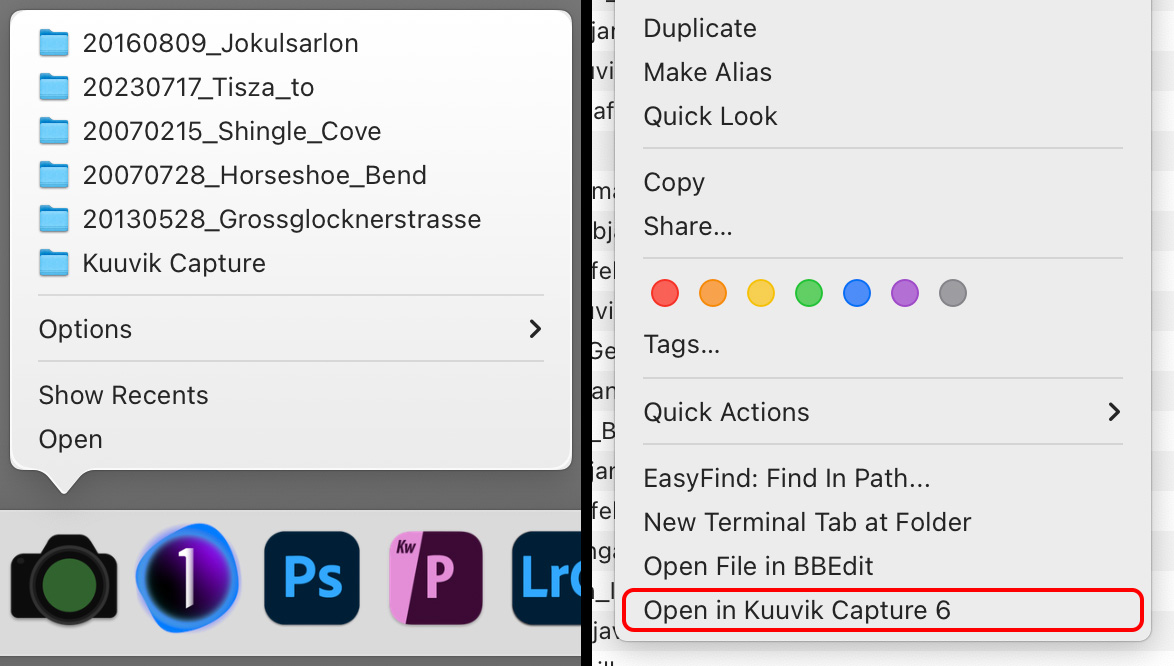
Recents on the Dock Menu

This is available in Kuuvik Capture 6.6 and later. If you are like me, and keep Kuuvik Capture on the Dock, it is a lightning fast way to get into your recent sessions. As expected, it even works when Kuuvik Capture is running.

Note that only newly opened or created sessions are added to this list, previous recents are not migrated.

Left: recents menu on the Dock, right: service on Finder context menu

“Open in Kuuvik Capture 6” Service in Finder

To keep things simple, Kuuvik Capture sessions are regular folders. Beginning with version 6.5, the app adds a service to folders in Finder, which lets you open any session folder directly in Kuuvik Capture right from the Finder context menu.

This transformed my shoot ingest workflow substantially. Now I go into the storage location for the shoot, create a new folder in Finder, right click it and choose Open in Kuuvik Capture 6, then do a memory card import. Somehow I find it way faster and intuitive to create the folder for the shoot in Finder than doing the same in the New Session dialog in Kuuvik Capture.

Mark II Artist’s Viewfinder 7.6 Released

Version 7.6 of the Mark II Artist’s Viewfinder had been released about a month ago. It brings the usual updates for supporting new devices and new operating systems.

My previous post on Technical Camera updates – with the exception of highlight alert changes – also applies to Viewfinder.

But this time I’m bringing some sad news as well.

ALPA eFinder II Is No More

You may have noticed that we put eFinder II updates on hold about a year ago: we were waiting for ALPA to decide whether they are still interested in providing funds for the development of the ALPA-branded variant of our Viewfinder app.

The decision had been made recently: the ALPA eFinder II app is now officially discontinued and had been permanently removed from the App Store.

Important to note that this does not affect the ALPA eFinder Tools included in the Mark II Artist’s Viewfinder: the 3D level and the parallax/shift correction tool. These tools, or some variants of them, will continue to be available in the Viewfinder app for the foreseeable future.

Technical Camera 2.6 : Ultra Wide Zooming, Camera Button, Highlight Alert

The latest update to our Technical Camera app had been released about a month ago. Besides the usual device support updates (for new iPhones and iPads) and iOS 18 related stuff (dark mode icons and so on), there are a couple of things I’d like to talk about.

Ultra Wide Zooming

We use our own ultra wide camera distortion correction solution as it is far superior to Apple’s built in correction. For one, it allows precise simulation required in the Mark II Artist’s Viewfinder, and is behind the Framing Previsor in Tech Camera.

There is one limitation with the better correction, however: if the device’s ultra wide camera is way too distorted, then we can’t do the correction when one zooms in.

Fortunately the latest incarnation of Apple’s ultra wide cameras (in the iPhone 14 Pro, 14 Pro Max, 15 Pro, 15 Pro Max, 16, 16 Plus, 16 Pro and 16 Pro Max) are much better in this regard and thus we can do distortion correction when you zoom in.

Given the very short minimum focusing distance of these ultra wide cameras, this makes a formidable macro shooting solution.

Note however, that zooming is only available with JPG captures. For RAWs, you’ll have to crop afterwards manually.

Camera and Action Button Support

iPhone 16 models introduced the Camera button, which I honestly regard as a marketing gimmick. It reminds me of the Canon EOS R’s ill-designed touch bar… Since we have much better user interface solutions for camera control than this, we are not going to support it except for one thing: capturing images.

Speaking of initiating captures with hardware buttons, if you run iOS 17.2 or later, the Action button can also be used for this purpose. The only requirement is that you must assign the “Open Technical Camera” shortcut to it. But with this assignment, the Action button can be used to launch the app, and subsequently take pictures – without lifting your finger from the button. Pretty neat.

Highlight Alert Adjustment

There is a significant step back with recent iOS versions regarding non-HDR captures: the system lowers the dynamic range by about 10%… For no reason… It just stared to happen with newer iOS versions on more and more devices.

So since this is the new norm, we adjusted the highlight alert’s cutoff point to reflect the lower maximum. It’s sad enough that non-HDR dynamic range is reduced by iOS, but at least you can now see where will the system prematurely blow the highlights.

Capture Button Bonuses

One more thing. There are two minor, but nice things regarding the on-screen capture button. First, it has haptic feedback in case you enabled haptic feedback in both the app’s menu and on your phone in general.

Plus, try what happens if you disable Other Sounds in the app’s menu! Yes, you no longer have to put your phone or iPad into silent mode to avoid the ugly iOS shutter sound. Well, unless you live in Japan, where this feature is not available.

Canon EOS R5 Mark II Support in ShutterCount and Kuuvik Capture

ShutterCount 6.6 and Kuuvik Capture 6.6 had been released two weeks ago with Canon EOS R5 Mark II support. ShutterCount is the world’s first shutter count reader with support for this new camera.

ShutterCount also adds support for the Nikon Z6 III.

With that said, there’s something I have to talk about.

People tend to assume that we get cameras in advance of their official release and start banging on our doors with varying level of arrogance on day one of a camera’s availability.

Let me put this straight.

Canon does not provide us with cameras before their release. We have to cope with the ridiculous (un)availability these days, just like anyone else.

Canon also does not provide any kind of documentation for us. We have to reverse engineer new cameras, develop code for the new features, work around the myriad of surprise firmware bugs, and validate the results against our strict standards. We will not release an update until it functions properly and reliably.

Now this, ladies and gentlemen, does not happen overnight. We have to put in substantial amount of work – not to mention the money camera purchases and rentals burn.

But thanks to our decade-long expertise and advanced technologies, we routinely bring out new updates quickly after a camera’s release.

So instead of complaining about new camera support on day one, please save your energy for thank you emails when new camera support arrives.