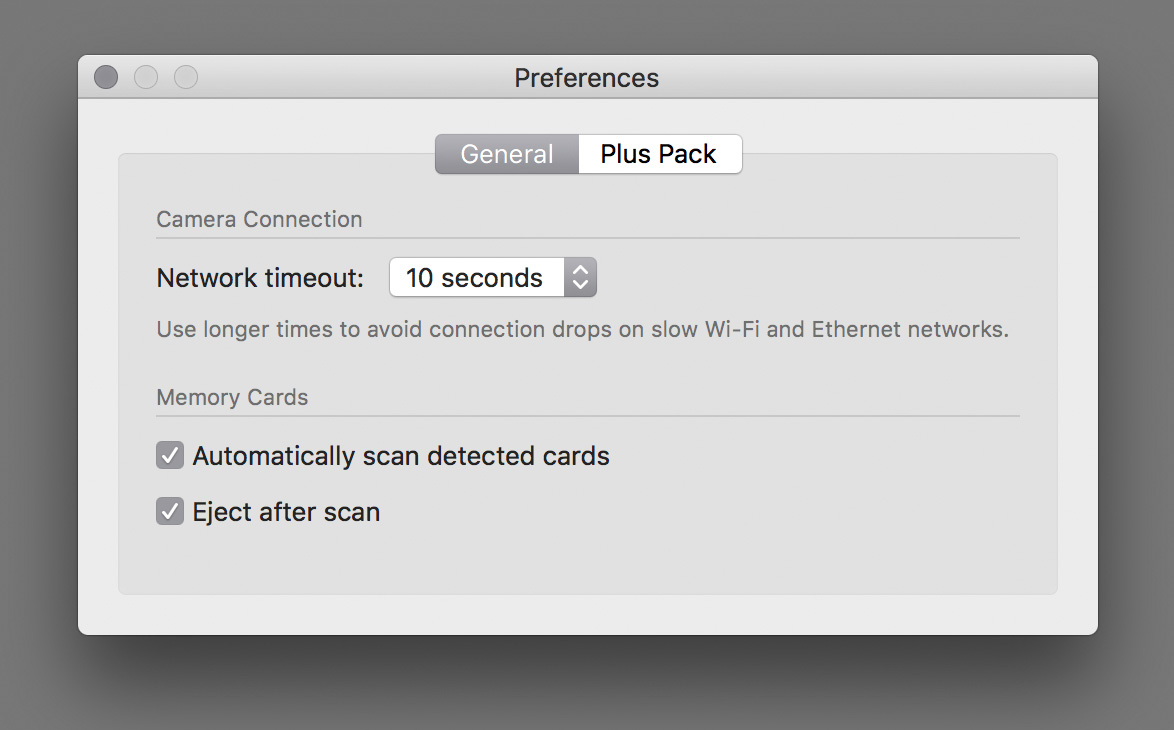
This post is about what you need to do on the camera to pair it to my ShutterCount, ShutterCount Mobile and Kuuvik Capture apps over Wi-Fi.
Why? Because Canon’s cumbersome and ill-designed Wi-Fi user interface is accompanied with an equally bad user guide (the dreaded Wi-Fi Function Instruction Manual). People are struggling with the camera side of the process, and my goal is to help them to overcome the pairing hurdle.
Nevertheless, I recommend everyone to take a look on that manual. First, because some topics, such as entering passwords, are covered there, and second, because you’ll appreciate our simple pairing process (and this post) compared to what Canon has to offer.
Assumptions
- I expect you to follow this guide step-by-step. If something is not clear, re-read. If still not clear, ask.
- Your camera has Wi-Fi. You’d be surprised how many people want to connect a Wi-Fi-less camera over Wi-Fi… Newer models have a built-in transceiver, but the 5DS, 5DS R and 7D Mark II requires the optional W-E1 card. Similarly, the 5D Mark III and 7D Mark II will work with the WFT-E7 brick.
- You have a local Wi-Fi network and your device running ShutterCount or Kuuvik Capture (iPhone, iPad or Mac) is connected to that Wi-Fi. While other configurations (such as camera-created network, and device-created network) are also possible, these are not for beginners. So I assume that both your device and camera will be connected to the same, existing network.
- You read the camera’s user manual at least partly, and know how to enter a Wi-Fi password for example.
- You know how your Wi-Fi network is configured, have a password for it, or have the person who manages your network at hand.
- The camera must be paired directly to our apps. No Canon software should be running. You must quit all Canon apps (as well as others that may connect to your camera) before attempting a pairing, as they will almost certainly cause trouble.
- If it does not work, you are doing something wrong. Or have a faulty hardware (unlikely, but happens). Not joking. Every single “does not work” case over the years boiled down to these causes. So read again and ask.
In the App
You have to do only one thing in the app: put it into pairing mode.
- On iOS tap Connect and tap New Camera Pairing…
- On a Mac click Wi-Fi and Ethernet Pairing… in the ShutterCount (or Kuuvik Capture) menu. Or press F2.
That’s it. The app will automatically come out of pairing mode once the camera is successfully connected.
On the Camera
Different Canons have different Wi-Fi configuration screens. Most new ones have a consistent user interface, but still, there are minor variations. To avoid a hundred page post detailing each camera model separately, I’ll describe the common process, pointing out differences (this is denoted by /a and /b after the step’s number).
The Wi-Fi menu is called either Wireless communication setting or Built-in wireless settings (and is tucked under Communication settings). Older models, and the W-E1 card doesn’t have a top-level Wi-Fi menu item, just Wi-Fi function.
The paring process have four phases: preparation, mode selection, network connection and finally the actual pairing.
Phase 1 : Preparation
This phase is about preparing the camera for using a Wi-Fi connection. Since I don’t want to deal with any previously created configuration mess, you’ll need to reset the camera’s Wi-Fi configuration to the factory default.
 Step 1/a : Cameras having either a Wireless communication settings or Built-in wireless settings menu, the Clear settings item is on that menu.
 Step 1/b : Older models hide the clear function in a different place: go into the Wi-Fi function menu and press the INFO key. The resulting General sett. screen will have it. Note that the camera’s network (MAC) address is also displayed here. If you use MAC address filtering on your Wi-Fi, you should enable access for this address.
After the reset you can begin setting up the camera: besides enabling Wi-Fi, you may need to give it a nickname.
 Step 2 : First choose Wi-Fi settings (or Wi-Fi/NFC settings) from the menu.
 Step 3 : Choose Enable to enable Wi-Fi support. Be aware that enabling Wi-Fi may disable the USB port on the camera, so if USB stops working after this, you need to come back here and disable Wi-Fi. NFC is not supported on Apple devices, so I recommend to turn it off when your camera has that option.
 Step 4 : The camera may ask for a nickname. There’s no other option here, but to confirm that you will provide one. It doesn’t matter what the actual nickname is. Our apps does not use it for anything at the moment. I usually recommend to accept what the camera offers.
Phase 2 : Mode Selection
Canon cameras offer a bunch of different network communication modes, and only one of those is suitable for our apps. Choosing a wrong one is a recipe for connection failure.
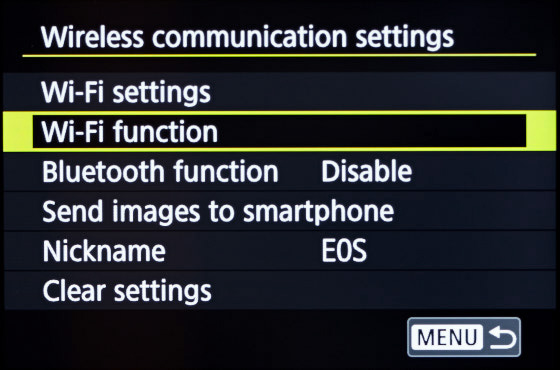 Step 5 : Choose Wi-Fi function to begin. Note that the location of the Wi-Fi function menu differs from camera generation to generation.
 Step 6 : You must choose Remote control (EOS Utility), even if the app is running on an iPhone or iPad. The camera will think it’s talking to EOS Utility, when in reality it will talk to our apps. Pressing the INFO button on this screen will show the network (MAC) address of your camera. If you use MAC address filtering on your Wi-Fi, you should enable access for this address.
 Step 7 : Newer devices will show you this screen. Since you are connecting for the first time, choose Register a device for connection. Later on, you can recall specific settings here to quickly re-connect with different apps on different devices (but that’s a topic for another post). If the screen is skipped by the camera, don’t worry.
Phase 3 : Network Connection
Newer Canons create a Wi-Fi network by default. You should never ever use this one for anything. Really. It’s extremely slow, unreliable crap. You’ll want to select your good old, existing Wi-Fi network.
 Step 8/a : On newer Canons, choose Switch network at this point.
 Step 8/b : Older models will present the Connection method screen, where you should choose the Select a network option. Even more older ones will call the Select a network option as Infrastructure mode. On these more older cameras you will also need to choose Find network on the subsequent screen.
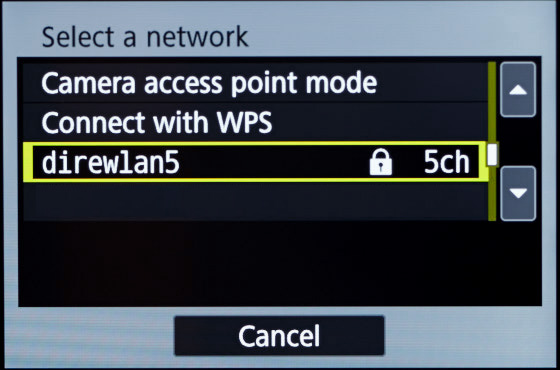 Step 9 : Choose your existing Wi-Fi in the next step. Forget about Camera access point mode (described just above) and WPS/PBC. Choose the network your iPhone, iPad or Mac is connected to. A word of caution though. Canon’s Wi-Fi implementation is unable to handle Wi-Fi roaming (that is when you have multiple Wi-Fi access points in the house). Each access point will appear as a different network here, and chances are that the camera will pick a wrong one even if you are selected the correct one. Try the pairing procedure close to each access point to see which one the camera sticks to if you experience connection issues.
 Step 10 : Older models will bother you with a question about the key format. I’ve never seen a Wi-Fi network in my entire career that hasn’t used a textual password, and Canon also realized the uselessness of this option and eliminated it from newer cameras. But you should choose Enter 8-63 ASCII characters if the camera insists.
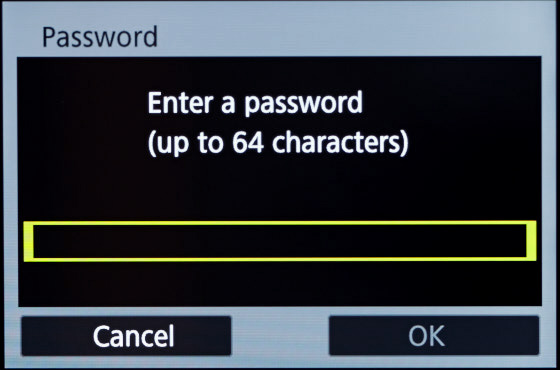 Step 11 : Enter the password for your Wi-Fi network. Again, if you use MAC address filtering, you will need to allow access for the camera’s MAC address, otherwise this screen will not appear or the password will not be accepted.
 Step 12 : Choose Auto setting to get the IP address (and other basic networking parameters) from your router automatically. Just line your phone does.
Phase 4 : Pairing
If you made it this far, the camera is now successfully connected to the Wi-Fi network and can start communication with the app. If not, the problem is with your Wi-Fi network or camera, not our apps.
 Step 13 : This is a “this page is left blank intentionally” kind of screen… Choose OK.
 Step 14 : The camera now entered pairing mode. If you haven’t done so, put ShutterCount or Kuuvik Capture into pairing mode. Don’t let the message fool you, do not start EOS Utility – it’s not needed, and would just cause trouble. The camera will think that it talks to EOS Utility when it talks to our apps.
 Step 15 : This last screen confirms that the camera found the app. Choose OK and enjoy the app! Again, don’t let the message fool you. The camera seems to think that everything is a PC. If your camera prompts for saving the newly created Wi-Fi settings at this point, choose SET1.
Bob’s your uncle – as the British say. Normally the pairing process should be done once, and the next time you use the same app on the same device, it will re-connect to the camera (if Wi-Fi is active). Change the device or even the app, and a re-paring has to be done. But this is a topic for another day.
☕ ☕ ☕
Did this post help you? Consider buying me a coffee if so.
 The app provides the three shortcuts you see on the screen shot.
 These enhancements are also allow us to detect when someone attempts pairing in the wrong pairing mode.