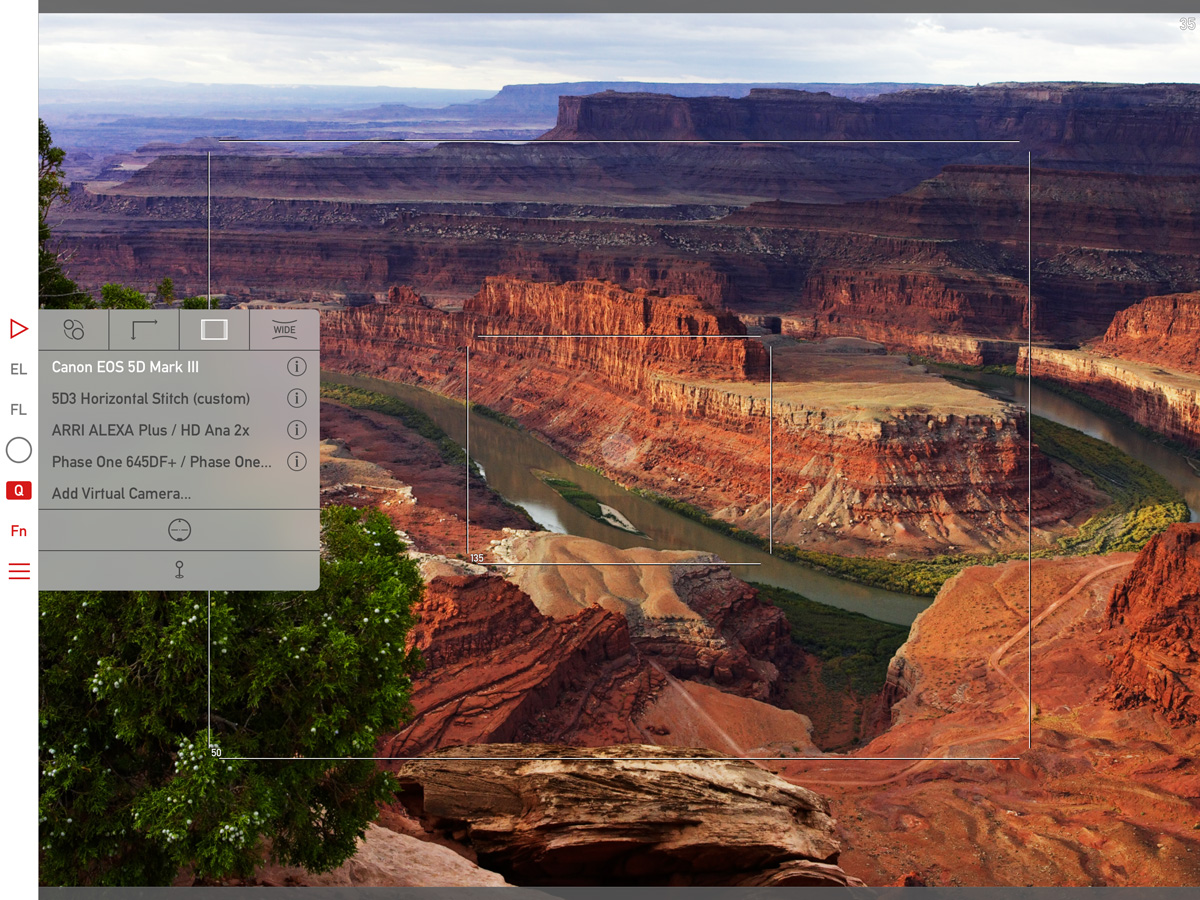
Mark II Artist’s Viewfinder 4.7 Released

IMG_0050My Mark II Artist’s Viewfinder app is now available on the App Store.

The major new feature is the ability to create a custom wide converter, on which I posted recently.

Other than this, we have added support for a few newly released cameras:

• Canon ME20F-SH
• Fujifilm X-T2
• Hasselblad X1D-50c
• Pentax K-70
• Sony A6300, SLT-A68

This is a free update for existing Mark II Artist’s Viewfinder owners.

As you can see on the left, we offer upgrade bundles for former Viewfinder Basic/Pro/Cine edition owners, so they can upgrade for a reduced price.

Please note that if you have ALPA eFinder II, the custom wide converter feature, as well as the new cameras are only available if you also purchased the Camera Pack.

Custom Wide Converters in Viewfinder 4.7

My Mark II Artist’s Viewfinder app has a unique feature from day one. Something that no competitor managed to copy: real-time distortion correction for wide converter lenses. In the past distortion correction was available through the profiles we made for all the wide converter and device combinations the app supports. Creating these profiles involves tedious measurements, and of course a purchase of each and every converter lens and iPhone/iPad we support.

The profile approach was good a few years ago with a limited set of converters on the market, but these days you can find at least a dozen different converter lenses at online retailers. This, together with the product lineup splits Apple already implemented with the Plus phones and Pro iPads, renders the previous modus operandi financially unsustainable.

So we decided to address this situation in a way that is beneficial for both our users as well ourselves: by allowing users to create a custom wide converter. And of course we do support simple distortion correction with this! Being a simple correction, it does not always produce the almost perfect results the profile-based approach is capable of, but as you’ll se in the examples later on, very capable nevertheless.

We’ll continue to support the profile-based approach for existing combinations, but will add new profiles only if:

  • we already have the converter and the device in the lab, or
  • we receive several customer requests to support a converter – as it was the case with the Moment Wide lens, or
  • we cooperate with the converter’s manufacturer.

OK, with all that said, let’s see how it works. Once you select Custom for the wide converter, a new menu item – Custom Converter Setup – will appear on the menu.

cwc-setupTapping it will bring up the converter setup screen that you can see on the left.

You can set the converter lens’ actual conversion factor with the first slider. Since this is almost always different from what the manufacturer says, you’ll definitely need to fine tune it for your actual phone (since the conversion factor also depends on the phone’s lens as well as the distortion correction amount – be prepared for a little trial and error). We support converters with factors between 0.45 and 0.7.

The second slider is used to specify how much distortion the converter lens has. It is an arbitrary scale from 0 to 30, zero meaning that you will not want to correct the distortion (suitable for well-corrected lenses such as the Moment Wide).

The setup procedure

Here’s how I recommend to do the setup. Set distortion correction first (if needed at all). I’d recommend 15 as the starting point for 0.65x-class lenses and 20 for 0.5x-class lenses. Check how the main screen looks, and watch for overcorrection in the corners. In case you still have barrel distortion, go back to the menu, and increase correction. If the corners are overcorrected, back off a little. A tiled wall, a window or a tall building are good test targets.

Once you’re happy with the correction, mount the phone steadily, turn off Wide Mode, and set the main screen so that you have some objects or markings at the edges of frame lines. Now turn on Wide Mode and check whether the objects/markings are still at the frame lines. Go into the menu and adjust the conversion factor if not. Repeat until you are satisfied with the result.

You can create only one custom wide converter, so it is advised to take note of the parameters in case you need to restore them later.

Correction examples

Walked up to Hallgrímskirja in Reykjavík to make some examples with my iPhone 6s Plus and two olloclip converters. Here is how the 4-IN-1 Wide lens looks with no correction.

olloclip 4-IN-1 Wide on iPhone 6s Plus - No Distortion Correction

olloclip 4-IN-1 Wide on iPhone 6s Plus – No distortion correction

As you can see below, this lens has a simple spherical distortion, which can be corrected almost perfectly with the custom converter setup. My experience is that most 0.65x lenses behave the same way and would only marginally benefit from a profile. Note that I set the conversion factor ad-hoc in these examples, so you may see some discrepancy in frame line positions.

olloclip 4-IN-1 Wide on iPhone 6s Plus - Custom wide converter with distortion setting 13

olloclip 4-IN-1 Wide on iPhone 6s Plus – Custom wide converter with distortion setting 13

Now to the olloclip Ultra Wide. Distortion is huge, and without correction renders the lens pretty much unusable for viewfinder purposes.

olloclip Active Ultra Wide on iPhone 6s Plus - No distortion correction

olloclip Active Ultra Wide on iPhone 6s Plus – No distortion correction

And this is how it looks with the custom wide converter’s correction. You see some mustache-like corners as the simple correction is not able to eliminate complex distortions (which profiles can do), but the lens becomes usable.

olloclip Active Ultra Wide on iPhone 6s Plus - Custom wide converter with distortion setting 22

olloclip Active Ultra Wide on iPhone 6s Plus – Custom wide converter with distortion setting 22

Just like with profiles, the simple distortion correction works only with wide and ultra wide lenses – not with fisheyes.

When will this be available? The feature is currently in testing in version 4.7, and is planned to be released later this summer. In the meantime, comments are welcome.

The updated app is now available for download.

Kuuvik Capture 2.4 Released

The latest update to Kuuvik Capture is now available on the Mac App Store. First and foremost, we’ve added support for the brand new Canon EOS-1D X Mark II. This seems to be a great camera with a few quirks – more on the camera itself in a later post. You can connect it to Kuuvik Capture with USB, using the built-in Ethernet connection or via the WFT-E6 or WFT-E8 Wi-Fi transmitters.

We also changed the way shadow and highlight clipping warnings look. In the past we had a hatched pattern that become denser as more channels got outside the exposure range of the camera. The problem was severe moiré and aliasing when you zoomed in and out. Beginning this version the exposure warnings are solid colored, getting more opaque as more channels are affected.

Multi-channel highlight clipping warning

This is an image from last fall, and shows how channels get clipped towards the sun in the frame. First green (the largest patch), then blue and finally red. The more channels are overexposed the less chance to do effective highlight recovery.

Last but not least, I’ve continued the multi-platform code removal process (mentioned in my former post), which brings performance improvements (and battery usage improvements) here and there. For example loading 20 megapixel images from the 7D Mark II got up to 0.1 seconds faster on a 11″ MacBook Air. And overall camera communication is a bit faster and smoother.

The update is free for existing Kuuvik Capture 2 customers. New users can download Kuuvik Capture 2 from the Mac App Store.

For more information about the app, please visit it’s microsite, or check out my posts.

Artist’s Viewfinder 4.6 Available

iphone_se_wideconvThe latest update to the Mark II Artist’s Viewfinder adds complete support for the iPhone SE.

This means two things. First, we’ve measured the angle of view of the SE’s camera. Second, since the SE takes iPhone 5s cases, we’ve created a distortion correction profile for each and every wide converter that we support on the 5s. You see the complete list on the left.

As usual, we’ve added a bunch of new cameras to the app’s database. I’d encourage you to take a look on the release notes for the detailed list.

Version 4.6 is a free update for existing Mark II owners. Users of former Viewfinder Basic/Pro/Cine editions can upgrade for a reduced price.

Kuuvik Capture 2.3 Released

kc2icon@2xVersion 2.3, bringing Canon EOS 80D support to Kuuvik Capture 2 is now available on the Mac App Store.

Since Canon introduced quite a few changes with this body, I had to update both the camera control and the RAW decoder in my Digital Camera Library.

And at this point let me add a few personal comments on the 80D.

While the improved low ISO dynamic range is a welcome addition, this camera is a step back in a few regards. First, it’s not fast enough to support multi-point live view (formerly known as split view). It’s an unfortunate trend with Canon’s newest mid-range cameras: both the 70D and 700D were multi-point live view capable, and none of their replacements/successors are.

Second, the removal of the shutter count feature (it does not affect Kuuvik Capture per se, but indeed affects my ShutterCount app).

Third, Wi-Fi is still on the verge of being unusable. I’ve already mentioned sub-par 70D/6D Wi-Fi transfer speeds in the version 2.2 release announcement post. With the 80D, I was enthusiastic about the Easy Connection option, that is designed to create the camera’s own access point, and to allow using EOS Utility mode with no existing network needed. The idea is something you would expect in 2016, but the implementation is crap. And I’m not talking about the inability to specify a password for this network, but the extremely slow transfer speed. I measured speeds south of 30mps – which is half of the already slow speeds of the mid-range bodies.

Thus, I recommend to stick with using an existing Wi-Fi network and to avoid the Easy Connection option completely. Fortunately using an existing network is not slower than the 70D was (but it’s not faster either).

I took over Kuuvik Capture last year, and decided that I will not release a Windows version. This allowed me to remove former platform independent code and to do Apple-specific optimizations and speed up the app considerably. The code base is large, so this optimization process is still in progress – and this release also includes a few. They are not user visible, but you might notice them here and there. (For the technically inclined – I had eliminated a bunch of memory copy operations between the Digital Camera Library and the user interface.)

On the user-visible changes front, Split View had been renamed to Multi-Point Live View. I think it’s more clear what the feature does this way, plus Apple introduced a completely different Split View into OS X – and wanted to avoid any confusion.

The update is free for existing Kuuvik Capture 2 customers. New users can download Kuuvik Capture 2 from the Mac App Store.

For more information about the app, please visit it’s microsite, or check out my posts.

ShutterCount on iPhone and iPad

My ShutterCount app is now available on iOS!

It runs on 64-bit devices running iOS 9 or later (that is: iPhone 5s or later, iPod touch 6, iPad Air or later, iPad mini 2 or later, iPad Pro).

Since Apple does not provide a way to control a camera via USB from an iOS device, ShutterCount Mobile relies on Wi-Fi or Ethernet connection and thus supports cameras having one of those. Either built-in, or utilizing an external Wireless File Transmitter.

So at the moment it will work with the following Canon EOS cameras: 6D, 70D (using built-in Wi-Fi); 5D Mark III, 7D Mark II (using WFT-E7 transmitter); 1D X, 1D C (using built-in Ethernet or WFT-E6 transmitter).

Feature-wise it is equal with the Mac version – besides a simple reading it sports history logging, with the ability to copy the logs into Apple’s Numbers or Microsoft Excel. Plus you can access these logs through iTunes file sharing.

Because of the network connection required to the camera, you’ll need to do an extra step before the reading – pair the app and the camera. ShutterCount relies on the camera’s more advanced EOS Utility connection mode (and thus will not work with the simple smartphone connection mode). Mind this when establishing the connection.

I’ve recorded a short video showing the entire pairing and reading procedure between an iPod touch and my EOS 7D Mark II. The camera is connected through a Canon WFT-E7 transmitter using an Ethernet cable to our office network, while the iPod is connected to the same network via Wi-Fi.

Click here to watch the video on our YouTube channel.

Towards the end of the video I make three test shots and power cycle the camera to show the updated shutter count. Note that the camera needs some time to register itself on the network, and that pairing needs to be done once – the next time the app will automatically recognize the camera.

This automatic connection remains in effect until you either pair the camera to another app (Kuuvik Capture for example), turn off the network connection on the camera, or quit (I mean force quit, pressing the Home button is not enough) the app on the iPhone/iPad.

You may want to read my previous post on Canon EOS camera pairing and the ShutterCount FAQ for additional pairing tips.

ShutterCount Mobile is available on the App Store.