iPhone 12 Pro Max Support Added to Artist’s Viewfinder and Technical Camera

Updates to fully support iPhone 12 Pro Max cameras in Mark II Artist’s Viewfinder and Technical Camera are now available on the App Store. This includes both lab-measured angle of views as well as Wide Mode support for the ultra wide camera.

But since the telephoto camera is longer than all other iPhone telephoto cameras were (2.5x vs 2x), the user interface of both apps had to be adapted to the new situation.

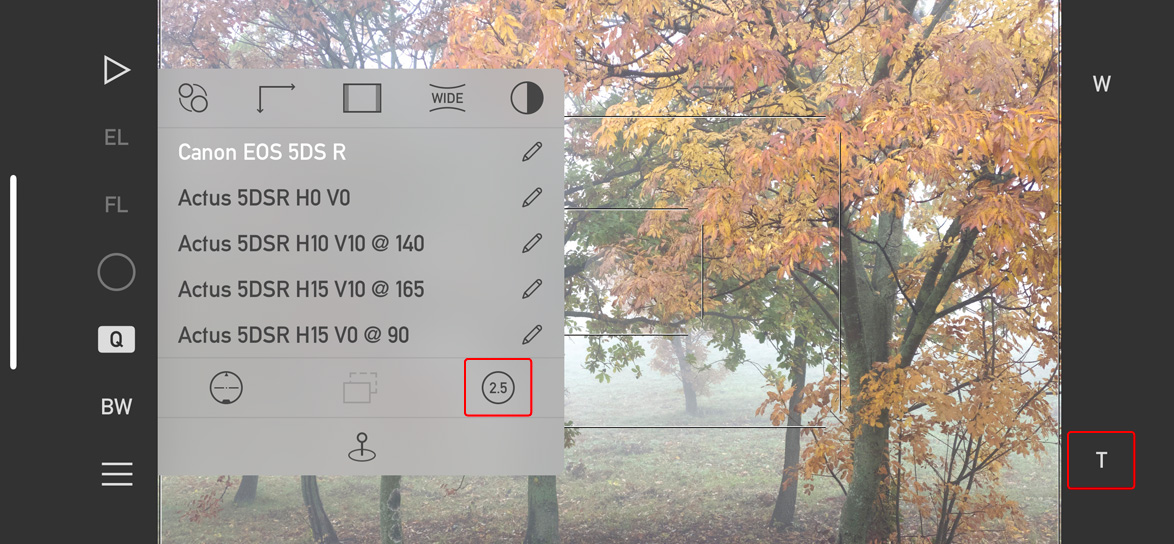
Changes in Artist’s Viewfinder to accommodate the 2.5x camera of the 12 Pro Max

The changes are consistent across both apps. First, the 2x icon on the Quick Control Screen in Artists Viewfinder and on Camera Options in Technical Camera changes to 2.5 in case your device sports the longer telephoto camera.

Second, the Smart Function Key formerly known as Switch Wide/Tele Cameras is now named Toggle Telephoto Camera, and the associated key label has been changed from 2x to T to be angle of view neutral. Well, the name change was long overdue since the old one was rather ambiguous on triple camera devices…

The Viewfinder Handbook has also been updated to reflect these changes.

And that’s it for now. Mark II Artist’s Viewfinder 6.8 and Technical Camera 1.9 are free updates for existing users.

Kuuvik Capture 5.4 Released

The latest update to my Canon EOS tethering app, Kuuvik Capture, is now available for both Mac and iPad.

With this release, we’re starting to roll out a new focus bracketing engine. Building on new features of the DIGIC 8 and DIGIC X processors, Kuuvik Capture can now execute focus brackets with the mirror locked up during the entire bracket (on DSLR cameras), saving time and reducing mirror wear. The new engine is initially available for the EOS-1D X Mark III and 250D/Rebel SL3/Kiss X10/200D Mark II. Of course we’re planning to bring it to other cameras as well in the future.

The new engine also drives focus bracketing for the EOS R5, much faster than the old one did. Electronic shutter is supported for focus brackets with both the 1D X Mark III and the R5, resulting in minimal shutter and mirror wear, and rather quick operation.

Firmware for DIGIC X-based cameras unfortunately still full of bugs hindering proper tethering operation. A newly discovered one is that once depth of field preview is engaged, you won’t be able to move around the point of operation (that is, can’t move around in live view when zoomed in, or can’t jump to a marker). This is a rather serious oversight from Canon.

We’re mitigating this issue by automatically turning off DoF preview when it would break the operation you are going to perform. For example, one typically uses DoF preview with the jump to marker feature to be able to assess depth of field with the current focus placement. We faced a choice here, either a) jumping to a marker would silently fail when DoF preview is on; or b) turn off DoF preview and do what you asked for. B is a clearly better solution here, and we consistently do the same in case of all other operations where the bug would cause a problem.

On the 1D X III this bug also causes issues with multi-point live view, so we completely disable DoF preview during multi-point live view.

The update is free for existing Kuuvik Capture 5 users. We also offer an upgrade from 2.x-4.x to version 5.

Big Sur Display ICC Profile Handling Bug

Before updating our production machines I always test a new macOS release (even point releases) on a dedicated test MacBook. Software-wise this notebook is a close match to productions ones.

After the upgrade to Big Sur 11.0.1 finished, I was greeted with this (don’t read the image’s title if you don’t like spoilers):

Spoiler: macOS Big Sur fails to properly use table-based v4 ICC profiles…

It was suspicious even during the upgrade that something wrong is going on: there was no difference between checked and unchecked states of the presented check boxes.

Now, I have installed Big Sur betas and even the final release on the very same MacBook on an external disk countless times, with no such issue.

It turned out pretty quickly that the cause is the custom ICC display profile. I do profile each display on production machines, as we’re doing color-critical work on them. And I also think that all monitors are color-important, so they have to be properly calibrated and profiled.

Interestingly, some older profiles exhibited this issue, others showed the regular Catalina “blue cursor” issue, while a few were OK. After an afternoon’s worth of debugging and work, here’s what I found.

  • With matrix-based profiles (v2 or v4) Big Sur fails to color-manage the cursor (mouse pointer, etc), which looks odd blue (D50 and 5300K are our standard color temperatures, so a 7000-8000K cursor stands out like a sore thumb). This is the exact same bug that plagued Catalina.
  • Big Sur is unable to handle v4 LUT-based profiles properly. The dock, the background, and most window manager stuff is totally washed out, as you can see on the screen grab. Interestingly, content in apps (like Safari) is OK, so I guess that this is just a Dock/window manager bug.
  • v2 LUT-based profiles work as expected! And this is the solution for now: use v2 profiles… In i1Profiler LUT-based profiles are called table-based.

Speaking of i1Profiler, I’m still using an oldish i1Pro v1 spectrophotometer, and the latest version of i1Profiler that supports this instrument is 3.1.1. I have found no issues with this version for display profiling on Big Sur (just don’t install the HASP drivers).

And the important takeaway: re-profile your monitor to create a v2 profile before upgrading, otherwise you won’t see your checkbox choices during the upgrade!

More to come on solving other issues to make Big Sur livable…

Kuuvik Capture 5.3 : JPG Only Download Option

The latest update to my Kuuvik Capture tethering app is now available for both the Mac and iPad.

This is the first Canon remote control solution that offers native Apple Silicon support, and is also optimized for macOS Big Sur.

Regarding new functionality, we’ve added an option to allow downloading just the JPG from a RAW+JPG pair. This ensures a much faster image display in cases where the download is slow – for example when using the camera’s built-in Wi-Fi transmitter.

Download options when shooting RAW+JPG

Of course the camera will store both the RAW and the JPG to the memory card, so you can process RAW files later.

With the release of iPadOS 14.2, Apple fixed the USB tethering bug that rear up its ugly head with iPadOS 14.0. So this very convenient and fast connection option is back in business. But they also took care of another bug report of mine, which makes a pretty neat little feature possible.

iPadOS 13 immediately suspended all USB camera communication when you put the app into the background, for example to write a note, or check a message. With iPadOS 14.2 and Kuuvik Capture 5.3, the connection will stay alive for 30 seconds. Your sequence, or download will continue to run in the background. After 15 seconds you’ll get a notification, that the communication will be suspended soon, but you have plenty of time to return to the app – the easiest way being to tap the notification. This is the same behavior you get when using Wi-Fi/Ethernet connections.

The update is free for existing users. New users can buy the app in the respective App Store. Don’t forget that the Mac and iPad versions are sold together – buy any of them and you’ll get the other for free!

Enjoy!

ShutterCount 4.7 Released

The latest update to my ShutterCount app became available on the App Store earlier this week.

Newer Canon cameras, such as the EOS R and 1D X Mark III, feature a fully electronic shutter. Since it’s fully electronic, using it doesn’t count as “real, proper” shutter actuation. But as the cameras report the number of images taken with it, we thought letting you know that number would be a fun little addition to the app.

Mechanical and electronic shutter actuation counters on the Distribution Chart

The Distribuiotn Chart is the only place where the electronic counter is displayed, all other tabs use just the mechanical counter that actually contributes to shutter wear. As a consequence, you need either the Pro edition or the Live View pack for this feature to work. Cameras that provide this info are the 1D X Mark III, R, and “partially” the R5.

Partially, because there’s one more bug in the R5 firmware… Customers started reporting problems with the R5’s counter not being properly updated. We begun investigating these issues, and then suddenly the counter of my own R5 dropped from 3000 back to 1000.

Further analysis discovered that the camera fails to properly update or even corrupt the counter value. So now the app displays a warning if this is detected, and instead of the mechanical only counter, the value we display will include electronic actuations.

Handling the shutter counter bug found in the EOS R5 firmware

Yes, it may show a bigger number, but much better than having nothing at all. We sincerely hope that Canon will address this in a future firmware update.

Speaking of camera firmware bugs, we’ve added an interesting new feature that allows you to display the raw copyright information as appears in the camera’s memory. I was surprised to discover that Canon EOS firmware fails to properly handle this personal data, leading to potential leaks. Read my former post for full explanation.

Besides displaying raw copyright information, you now have a tool to properly, securely wipe owner name, author name, copyright and (if the camera supports it) IPTC information before selling a camera, for example. Both of these features are available from the Camera menu on a Mac and on the Camera Settings screen (available from the More tab) on iOS. Both require either the Pro edition or the Plus Pack, and can be used while a camera is connected.

I would like to note that in iOS 14.2 Apple finally fixed the non-operation USB connection bug introduced with iOS 14.0, so you can use this convenient connection method again.

Version 4.7 is also optimized for macOS Big Sur and runs natively on Apple Silicon Macs. The update is available on the respective App Store for your Mac, iPhone or iPad.

All Our Apps Run Natively on Apple’s M1 Silicon

Apple’s event is over, and now you have an idea what the M1 silicon can do in terms of performance and power efficiency.

Following the event’s theme, I’m thrilled to announce that our Mac apps are optimized for the new chip, and the updates that bring this to you are available on the Mac App Store right now.

While it’s just a nice touch for ShutterCount, as it isn’t a demanding app in terms of performance, the picture is completely different for Kuuvik Capture.

Kuuvik Capture was always lightning fast and gentle to the battery, leaving other apps literally in the dust. But with the M1, it found a new soul mate. It feels much snappier on the new chip, and I’m sure will save even more time for you on the new Macs than ever before.

Of course the updated versions (ShutterCount 4.7 and Kuuvik Capture 5.3) are also optimized for macOS Big Sur.

Enjoy!