Privacy Issue With Canon Copyright Info Setting

I work with Canon cameras a lot as a developer, and sometimes discover nasty things in their firmware. Most of the time these are just annoyances that delay or block some feature’s availability, but what I recently found may have a serious impact on every Canon EOS camera user’s privacy.

To demonstrate the issue I’ll use my ShutterCount app, which among many other things, can display camera data in question.

The Problem

You are a photographer who cares about intellectual property rights and thus properly set up copyright info in the camera. This consists of four fields: owner name, artist name, copyright and (on newer pro cameras) IPTC info.

Now, you are also privacy-conscious, and delete these before selling a camera to a used equipment dealer. You use the camera’s Delete copyright information menu item, thinking that it will remove everything. Unfortunately this isn’t the case. Besides not touching owner and IPTC fields at all, it only replaces the very first character of the author name and copyright fields with a zero, leaving your previously set copyright information in the camera.

ShutterCount‘s new Raw Copyright Information feature reveals deleted data.

Moreover, setting a shorter-than-previous author or copyright using the camera’s menu will just overwrite the newly entered characters, leaving part of the previous longer text unmodified.

Red characters mark the leftover, black characters are legitimate, currently active text. Zero memory values are displayed as spaces for better legibility.
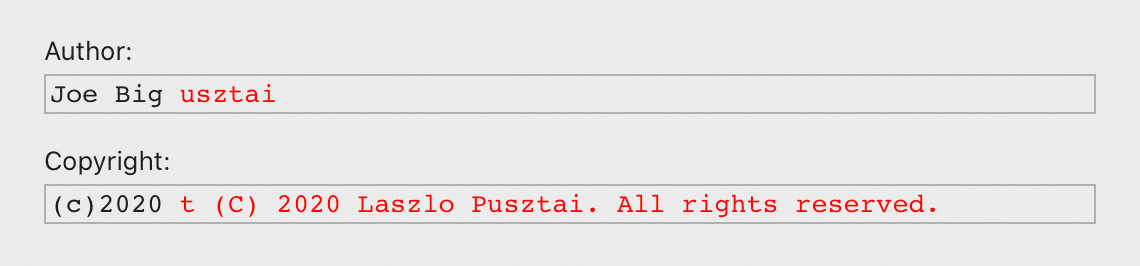
Leftover after setting shorter text in-camera.

The remote control interface is also affected. Using EOS Utility (and possibly many other remote control apps) will fill the remainder of these fields with arbitrary memory contents of the camera. Actually this is what triggered my research into the issue: I saw part of my address from the IPTC info in the author field.
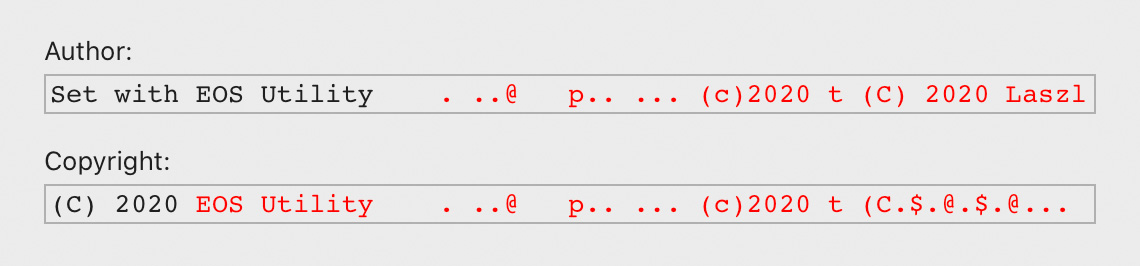
The garbage EOS Utility leaves. Note parts of the previous values!

As far as I know, this behavior is exhibited by every single Canon EOS digital camera model announced since 2007.

Consequences

Your identity may be exposed to anyone who buys your camera through a used equipment dealer. I don’t know about you, but the idea that some camera-illiterate idiot will bug me after buying my old camera through a shop makes me uncomfortable.

Or worse, your long-sold camera may be found on a crime scene, and CSI finds the copyright info that accuses you being connected with the crime. Creepy, isn’t it?

Yeah, private information leaks are creepy. But this bug is double-edged sword, and may be terribly useful every once in a while.

Suppose your camera was stolen, and the thief deleted your copyright with the aforementioned menu command. Law enforcement will be able to reveal that it actually belongs to you.

Used equipment dealers may also benefit from it, being able to double-check the camera’s owner.

Mitigation

There’s a zero-cost method, which takes some time, but there’s also an automated method, which costs a few bucks.

The zero-cost method is to first delete both the owner and and IPTC info with EOS Utility, then go into the camera’s menu and completely fill the author and copyright fields with spaces, or X characters (or anything you would like), and save them. Then use the Delete copyright information menu item.

If you prefer the automated method, ShutterCount‘s Wipe Personal Data command will securely wipe all ownership and copyright information from the camera. This feature is available in the Pro version, or after you purchased the Plus Plack in the regular version.

I’d like to mention that the Copyright Information Template in both my ShutterCount and Kuuvik Capture apps will set the author and copyright fields properly, removing any previous leftover.

Ultimately I hope Canon will step up and address this issue by properly zero-padding the author and copyright fields, regardless of whether they were set in-camera, or remotely.

Exploiting It for Good Purposes

As you know by now, ShutterCount can reveal the extraneous information contained in the author and copyright fields, and can be used by anyone who has a reason to peek into that. It displays the dialog box what you see on the screen shot above.

I’m sure used camera shops and law enforcement agencies will find this feature rather useful. And hope that camera shop personnel will go through their used assets now, wiping personal data from every single one of them as a courtesy to previous owners.

The mentioned features are available in ShutterCount 4.7 or later. The Raw Copyright Information and Wipe Personal Data commands are on the Camera menu on macOS and under Camera Settings on the More tab on iOS.

First Batch of iPhone 12 Support Updates

Artist’s Viewfinder 6.7 and Technical Camera 1.8 now support three of this year’s four iPhone models: 12, 12 Pro and because it shares its camera system with the regular 12, the 12 mini. Due to camera differences between the 12 Pro and 12 Pro Max, we’ll issue another update once we have a 12 Pro Max in the lab and completed all the measurements.

Compared to 11-series devices, the new camera systems bring both a positive and a negative change. The ultra wide camera has optics that can be corrected more precisely than last year’s, but in exchange the wide camera has more distortion (clearly visible in the corners). You can’t have it all… Other that these, there’s nothing worth mentioning – the ultra wide inherited most of the flaws and limitations of its predecessor (no RAW, no AF, requires software distortion correction).

As usual, we’ve added a few new cameras to the Viewfinder Camera Database, including the Canon C70 and RED KOMODO 6K (for the complete list see the release notes).

iOS 14 Compatibility and Device Support Updates

During the last week we had issued updates to all our apps. These cover compatibility fixes with iOS 14 as well as new iPad and camera support. All apps will work on the new iPad Air, for example.

Bad news first: due to the fact that USB camera control is still completely broken in iOS 14.0.1, we advise Kuuvik Capture and ShutterCount users to defer updating from iOS 13 until Apple fixes the issue. People using only Wi-Fi connections to their cameras are not affected. We’ve added a message when a non-operating USB connection is detected, so you can see whether Apple’s bug affects you.

Update (November 6): The just-released iOS 14.2 finally fixes this bug.

Now the good stuff…

Both Artist’s Viewfinder and Technical Camera was updated with added functionality to be able to use the volume down button as a shutter release, and support the ultra wide camera in this year’s iPad Pro models. Artist’s Viewfinder’s camera database was also expanded with 23 new models.

ShutterCount as well as Kuuvik Capture 5 received a new progress indicator on iOS, displayed when connections take longer than a second. Connections may take a long time if you have numerous images on the memory card, and thus it is a good practice to have an empty card in the camera when using these apps on iPhone or iPad. We’ve also improved Wi-Fi pairing problem detection in all variants and platform versions.

Camera-wise, Canon’s 850D/Rebel T8i is now supported in both apps, and ShutterCount is also certified to work with Nikon’s D780 and Z5. Speaking of cameras, Kuuvik Capture 5 finally gets EOS R5 support!

Since the R5 firmware is still a bug farm, be prepared for some serious limitations. For example, multi-point live view is not available and the snail-fast Wi-Fi is not supported. We are continuously monitoring new firmware versions to see whether these issues are fixed. Honestly, we were waiting for v1.2.0 promised to be released in early September, but since it haven’t materialized yet, we’ve decided to release the app with these limitations.

If you noticed a theme that large companies, such as Apple and Canon, release manure-quality software these days, well, you are not alone…

Kuuvik Capture 5 also got a surprisingly useful new feature on both Mac and iPad: beep when a sequence or a bulb exposure is finished. It is on by default, but can be turned off in the app’s preferences.

These updates are available free of charge for existing users, and can be downloaded from the respective App Store.

iOS 14 Breaks USB Tethering

WARNING: iOS and iPadOS 14 that is going to be released later today completely breaks USB camera remote control on iPad and iPhone.

Customers relying on USB connections for Kuuvik Capture and ShutterCount Mobile MUST NOT upgrade to iOS 14.

We had reported the problem to Apple on July 23, and it is still not yet resolved as of today despite our numerous attempts to get Apple to fix it. I will not add further comments right now, I think the facts speak for themselves, but I’m not amused. Not remotely amused.

Update (October 2): Apple confirmed that this is a bug in iOS 14, with no workaround, and they “anticipate a fix getting included in an upcoming iOS release”. Stay tuned.

Update (November 6): The just-released iOS 14.2 fixes the bug.

ShutterCount 4.5 Released with EOS R5 Support

The latest update to my ShutterCount app is now available for both Mac and iOS on the respective App Store. The headline feature is Canon EOS R5 support.

Since the app supports Wi-Fi connections in EOS Utility (Remote control) mode, it’s time to bring another gross R5 fault to the spotlight: glacially slow Wi-Fi connections.

Normally a Canon EOS camera would establish a Wi-Fi connection in a second or two, but for the R5 it may take 40-60 seconds. The same happens with Canon’s own EOS Utility 3 software, just its badly designed, slow-to-operate user interface covers most of this time. Slowness kicks in after the last step of the pairing is done on the camera, as well as in case of all subsequent connections. So if you must use Wi-Fi, then be prepared to brew a coffee while the camera connects. This is one of the many R5 bugs that Canon should urgently fix with a firmware update, but for now I would recommend to forget Wi-Fi and use USB instead – it works even on iOS. Update: firmware 1.1.0 is still unusable for Wi-Fi.

Speaking of bugs, we’ve fixed a crash that could happen when IPTC information is set to a camera having no IPTC set before, and another one in the iOS version’s copyright info template editor.

With this release the iOS version gains a few new features. History logs can be accessed via the Files app on both iPhone and iPad, and ShutterCount now fully supports slide over and side-by-side multitasking on iPads. The latter is a great way to have the app and the Getting Started Guide open side-by-side while you’re doing your very first Wi-Fi pairing, for example.

To use USB tethering on iPhone and iPad, iOS/iPadOS 13.4 or later is required. During the last couple of months we’ve received a few support requests complaining about non-working USB tethering. The cause in all cases was the cheap aftermarket Lightning to USB or USB C-to-A adapter the customer tried to use. We continue to recommend only Apple’s adapters as well as Apple, Canon or TetherTools USB cables.

The version 4.5 update is free for existing users.

Kuuvik Capture on iPad : Gestures

Being an iPad app, gesture support in Kuuvik Capture takes center stage. Let’s dive right in!

Long Press

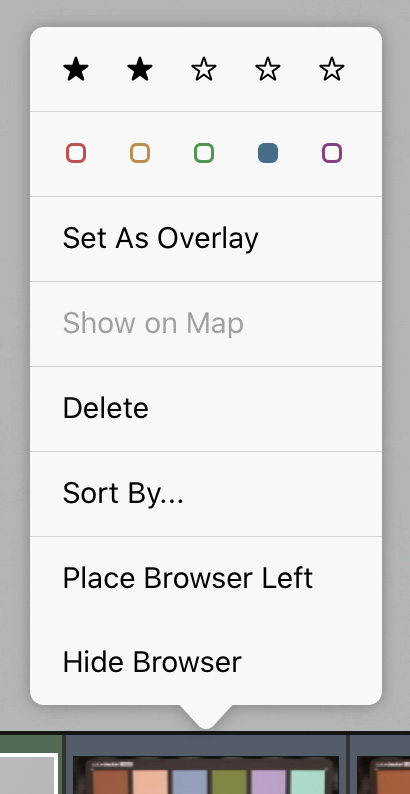
Where you normally would right-click in the Mac version, use a long press on iPad. It brings up context menus on browser thumbnails (shown on the screen shot), on the displayed image, on live view and on the bracketing monitor. It opens the corresponding option panel for the Live View, Clipping Warning, Marker, Sharpening, Focus Peaking, Guide and Image Overlay icons on the toolbar. Long pressing the camera selector in the top right corner will show the Wi-Fi and Ethernet Pairing dialog.



In Pan (Hand Tool) Mode

While an image is displayed, double tapping will toggle between 100% and Fit zoom levels. Otherwise use pinch and spread to zoom in and out. Drag the zoomed image around with a single finger, or flick it for faster movement. Swipe left or right with two fingers held together to show the next or previous image in the session, respectively. Note that the app will change the image when you lift your fingers.

In live view things work a bit differently. You can use flick-zoom (a fast, flick-like pinch and spread) to change zoom levels. And then drag the zoomed image around with a single finger. What a double tap does can be configured in the menu: initiate AF or toggle medium or high magnification levels. Swiping up and down with two fingers will pull focus. Step size for focus pulling depends on the magnification: Kuuvik Capture uses small steps for zoomed-in levels and medium steps at Fit zoom level.

Use the rotate gesture to rotate both displayed images and live view (the latter when live view auto-rotation is disabled). Rotation happens at 90 degrees. Once the app recognizes the rotation gesture, it will highlight the corresponding rotation icon on the toolbar. Let the screen go at this moment, and the image will be rotated.

In Marker Tool Mode

Tap the image/live view to place a marker, and tap an existing marker to remove it. A single-finger left or right swipe can be used to move between the markers. Two finger swipe is also recognized in this mode, just like in pan mode.

In Reposition Overlay Mode

You can resize and rotate the overlaid image with two fingers, and drag it with a single finger. Simple as that. Double-tapping the displayed image will toggle between 100% and Fit zoom levels, to facilitate precise overlay placement.

Guide Dragging Takes Precedence

When you tap a guideline (and it becomes a dashed line), then all other gestures are ignored while you hold or move that line around, regardless of the current tool or mode.