ShutterCount 3.2 Released

Version 3.2 of my ShutterCount app for both macOS and iOS was released yesterday. This version adds a few new features and improves others. Camera makers were quiet recently, so the only new camera we certified the app with is the Nikon D850 (for the Mac version).

From the new features, let’s discuss the Usage Meter first. For several cameras the manufacturer publishes an “official” shutter durability rating. Sometimes these are key selling points for the camera, in other cases the numbers are buried deep in a web page or document. We’ve gathered these ratings for all supported Canons, and most Nikon and Pentax models. Both the percentage display after the count and the Usage Meter bar are relative to these ratings.

Usage Meter showing still photo and live view counts

The dark blue part indicates still photos, the light blue live view actuations (the latter is available when you purchased the Live View Pack). Percentage display was formerly available in the Plus Pack, but now it’s in the base app.

Of course these ratings are not hard limits, so your camera may go well over 100% – I’ve seen several ones with 300% or more. If yours is over 100%, an orange indicator will appear on the Usage Meter marking the 100% position.

We’ve received quite a few requests to allow photo count only display even if you have the Live View Pack, and to separate these values. So now you can toggle between photo only and photo + live view display via the menu (as well as the More tab in the iOS version), by clicking/tapping the “Shutter Count” title on the Camera Summary tab and via a dedicated check box/switch on the Graph tab.

Just like the Usage Meter (and the Distribution Chart), the Graph now displays live view actuations in light blue.

New live view count graphing

In case you have live view counts for part of your history data – just like on the above screen shot showing my 7D Mark II – the live view count graph will only appear for the respective part. And forecasting will only take into account history entries having both counters. The trend line also indicates this: with a dashed section marking ignored history data and a dot showing the forecasting start date.

Speaking of history data, that tab was also beefed up. Gray text indicates entries with no live view count (in case you have the Live View Pack) and red text indicating entries with a lower value than a previous one.

The above features are available on both macOS and iOS, but now let’s talk about something that’s Mac only: File Mode changes.

Due to a bug in OS X 10.7 and 10.8 we had to disable automatic memory card scanning on these operating systems. Apple corrected it in 10.9, so contemporary versions are not affected. And while I was working on this, added a preference to turn automatic scanning off if you don’t like it.

New is the Eject after scan preference – which is a huge time saver. With this and automatic scanning on, just pop a memory card into your reader while the app is running, and it will scan the card, do the reading from the latest image and also eject the card properly. The fastest way to get the counter from your Nikon or Pentax. Automatic scanning is on, while ejecting is off by default.

Memory card scanning preferences

Version 3.2 is a free update for existing users on both operating systems. New users can purchase the app in the respective App Store. Live View Pack and Plus Pack are available as in-app purchases.

Kuuvik Capture 3.3 : Monochrome Mode

Kuuvik Capture had a mono peaking mode from day one. But in some situations it’s preferred to have just monochrome viewing without the addition of focus peaking. This is exactly what Monochrome Mode does in version 3.3. The image and live view will be converted to monochrome, while everything else (the image browser, navigator) will remain in color.

Monochrome Mode active in Kuuvik Capture 3.3

It is not just similar to the Mono peaking mode, but in fact they both display the luminance channel (the L in Lab mode) of the image. The only difference is that Monochrome mode does not activate peaking.

They are interconnected, though. Turning on Monochrome mode when peaking is active, and is in Color mode will switch peaking into Mono mode. Turning off Monochrome mode when peaking is active in Mono mode will switch peaking into Color mode. If peaking is active in Color mode when Monochrome mode is turned on, it will switch into Mono mode. Choosing the Color peaking mode will turn off Monochrome mode.

Monochrome mode is also available during live view and movie recording. But unlike the Monochrome picture style, it only converts the image into grayscale for display. Recorded images and movie files are not affected.

Monochrome mode can be toggled from the menu (View > Monochrome) or by pressing Ctrl+Cmd+M.

Kuuvik Capture 3.3 is available on the Mac App Store. It is a free update for users who purchased the app earlier from there. You can see the complete list of new features and changes in the release notes.

Change Your Canon’s Daylight Saving Time Easily

I prefer to keep the clock in my cameras set correctly, so I have to go through all of them twice a year to set and reset the daylight saving time setting (which they don’t do automatically for some strange reason). At this time I manage five Canon DSLRs we use exclusively for software development and testing in addition to my three cameras that I also use for my photography – and updating this setting was always a royal pain for me. This is why the Synchronize Date/Time function was born in my apps.

It is available in Kuuvik Capture as well as the Plus Pack add-on for ShutterCount (both the Mac and iOS versions). Just turn the synchronization on in Preferences, and the next time you connect a camera all time-related settings will be updated to reflect that of your Mac (or iPhone/iPad).

My previous posts (here and here) discuss time synchronization for both apps.

Kuuvik Capture Inside Out Updated

It took a while to update all the screen shots and stuff, but I’m happy to announce that the long awaited update to my eBook Kuuvik Capture Inside Out is now available.

It covers all new features introduced in Kuuvik Capture 3.2 and 3.3.

It is distributed in a PDF file, optimized for viewing on iPads. Because it’s a PDF, you can read it on any device, be it a tablet, a Mac or a PC, and in numerous PDF reader applications.

As usual, you can download it free of charge from the Kuuvik Capture web site.

Enjoy!

Kuuvik Capture 3.3 : Live View Performance

Performance is a feature. This is something I take very seriously and strive to maintain the highest performance and power efficiency possible. In this post I’ll show the huge gains attainable with carefully crafted code, and hopefully shed some light on why one wants to spend money on Kuuvik Capture, despite Canon has a free tethering app. Well, if the myriad features wouldn’t be enough reason…

What you are going to see is the comparison of processor utilization and power consumption during a live view session between Kuuvik Capture and EOS Utility. Live view is one of my favorite performance test cases, since the continuous picture stream stresses image decoding and display components.

Let’s begin with the processor utilization figures. They were obtained with Activity Monitor on my Mid-2012 15″ Retina MacBook Pro (2.6GHz, 16GB, dual graphics) running macOS 10.12.6. The camera was a Canon EOS 7D Mark II, connected via USB 3. All tests used the same scene under the same lighting and same exposure. Live view windows were maximized to occupy as much screen real estate as they possibly could. 100% means one of the processor cores is fully utilized, 200% means two cores, etc. Since the values oscillate a bit, what I show is an average of several minutes.

Kuuvik Capture had sharpening, focus peaking and clipping warnings enabled, while EOS Utility have no such features at all.

OK, it’s a brutal difference, but how does this translate to battery life? Power consumption was measured with coconutBattery 3.4. Again, you see an average of several minutes.

The orange line at 10 watts is the idle power consumption of my MacBook Pro (you know, display, SSD and stuff when the computer does nothing useful).

Live view in EOS Utility burns through your battery in less than half of the time that it would last with Kuuvik Capture.

And if you turn off sharpening, focus peaking and real-time clipping warnings in Kuuvik Capture (just to be fair), it’s power consumption drops to a mere 16 watts. This is at the level of lightweight web browsing with Safari.

In real world situations it means that you could work all day on a single charge with Kuuvik Capture. A happy user recently told me that one day he forgot the charger at home, and had to do the whole-day architecture shoot on battery. His 13″ MacBook Air not just accomplished that, but it had some charge left at the end of the day.

Performance and power consumption are important for those who would like to tether their cameras away from power. And for those who care about our planet. We invest a lot into optimizing performance and efficiency, and the above figures reflect all that effort – and make me incredibly proud.

Kuuvik Capture 3.3 is available on the Mac App Store. It is a free update for users who purchased the app earlier from there. You can see the complete list of new features and changes in the release notes.

Kuuvik Capture 3.3 : Block Artifact Reduction

When displaying RAW files, Kuuvik Capture uses the preview JPG embedded into the file. Unfortunately, these preview JPGs aren’t the highest quality – cameras try to save space by lowering JPG compression quality. The downside is that when one sharpens such an image, 8×8 pixel JPG compression block boundaries may become visible, as you can see on the magnified image below. It is especially distracting on large homogenous dark and light surfaces, and makes judging image quality a harder task.

JPEG compression block artifacts

To combat this, Kuuvik Capture 3.3 introduces a new function, block boundary artifact reduction. Let’s see first what it does.

Block artifact reduction active

Most of the artifacts are gone. Of course permanent damage done by low quality JPEG compression can’t be reversed completely, but the magnified image is certainly less problematic this way.

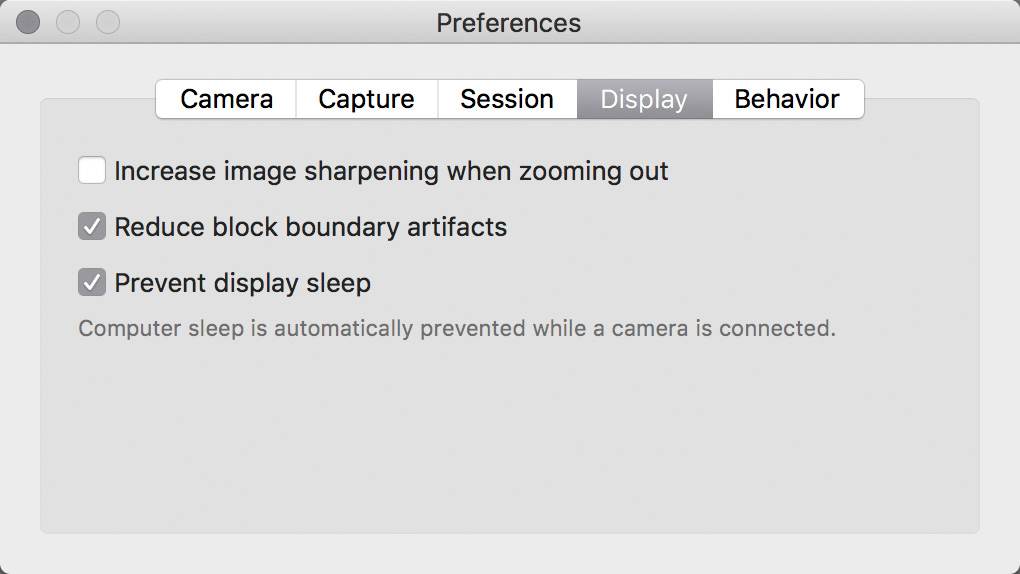
The function is active by default, but can be turned off in Preferences if you don’t need it. Yes, there are situations, like hard straight edges in architecture and product photography, where the reduction might introduce its own artifacts. It is a tool useful in most situations, and not useful in some. Use it accordingly.

When turned on, the function activates for RAW files between 75% and 100% zoom levels and if sharpening is also active – block boundaries are eliminated by the interpolation process, and not visible at all when you zoom out. It is automatically disabled for JPG files and live view.

Kuuvik Capture 3.3 is available now on the Mac App Store. It is a free update for users who purchased the app from there. You can see the complete list of new features and changes in the release notes.