ShutterCount on iPhone and iPad

My ShutterCount app is now available on iOS!

It runs on 64-bit devices running iOS 9 or later (that is: iPhone 5s or later, iPod touch 6, iPad Air or later, iPad mini 2 or later, iPad Pro).

Since Apple does not provide a way to control a camera via USB from an iOS device, ShutterCount Mobile relies on Wi-Fi or Ethernet connection and thus supports cameras having one of those. Either built-in, or utilizing an external Wireless File Transmitter.

So at the moment it will work with the following Canon EOS cameras: 6D, 70D (using built-in Wi-Fi); 5D Mark III, 7D Mark II (using WFT-E7 transmitter); 1D X, 1D C (using built-in Ethernet or WFT-E6 transmitter).

Feature-wise it is equal with the Mac version – besides a simple reading it sports history logging, with the ability to copy the logs into Apple’s Numbers or Microsoft Excel. Plus you can access these logs through iTunes file sharing.

Because of the network connection required to the camera, you’ll need to do an extra step before the reading – pair the app and the camera. ShutterCount relies on the camera’s more advanced EOS Utility connection mode (and thus will not work with the simple smartphone connection mode). Mind this when establishing the connection.

I’ve recorded a short video showing the entire pairing and reading procedure between an iPod touch and my EOS 7D Mark II. The camera is connected through a Canon WFT-E7 transmitter using an Ethernet cable to our office network, while the iPod is connected to the same network via Wi-Fi.

Click here to watch the video on our YouTube channel.

Towards the end of the video I make three test shots and power cycle the camera to show the updated shutter count. Note that the camera needs some time to register itself on the network, and that pairing needs to be done once – the next time the app will automatically recognize the camera.

This automatic connection remains in effect until you either pair the camera to another app (Kuuvik Capture for example), turn off the network connection on the camera, or quit (I mean force quit, pressing the Home button is not enough) the app on the iPhone/iPad.

You may want to read my previous post on Canon EOS camera pairing and the ShutterCount FAQ for additional pairing tips.

ShutterCount Mobile is available on the App Store.

Zeiss Distagon 2.8/15 After the Surgery

I bought the 2.8/15 last December with the specific intention to use it with my LEE filter system. The stock lens doesn’t allow this, because of the integrated, non-removable hood. The plan was to get the lens, play a little with it, and send it back to Zeiss for a hood removal surgery if it turns out to be a keeper.

As I wrote in my first impressions piece, it was a love at first use. So the lens went back to Zeiss in January. They offer the hood removal modification for 250 Euros (+VAT).

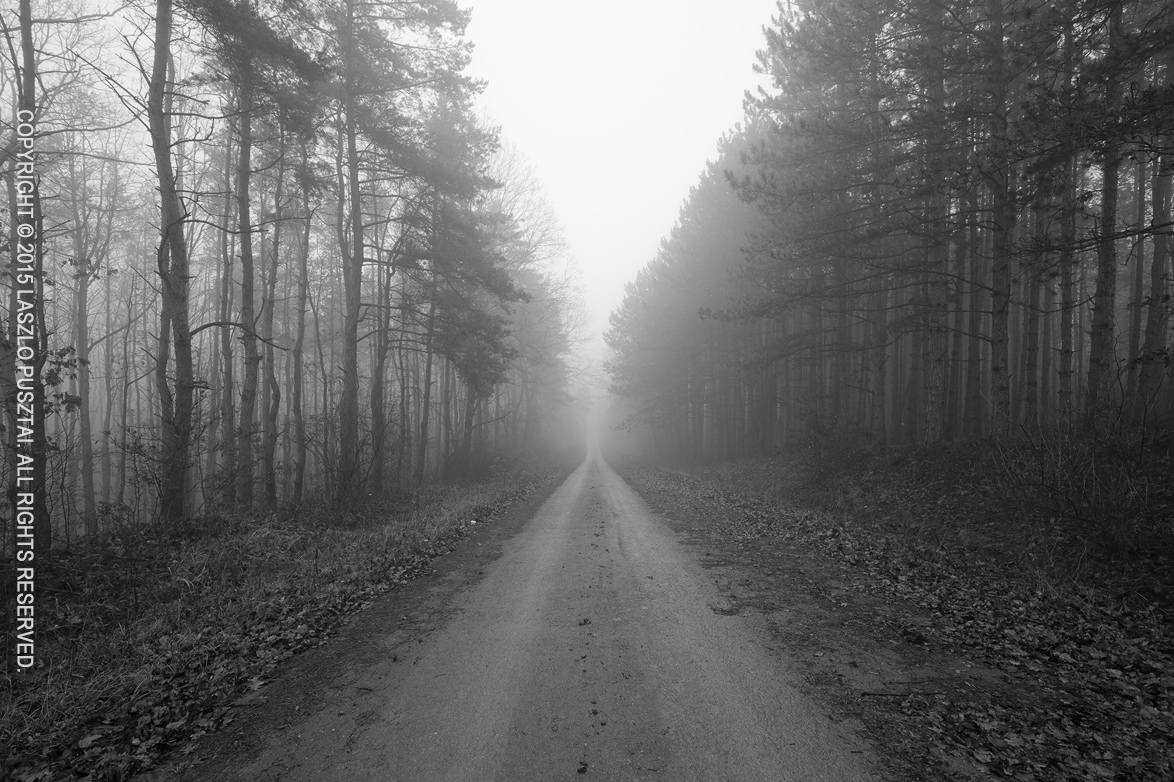
Snowless Winter

Snowless Winter

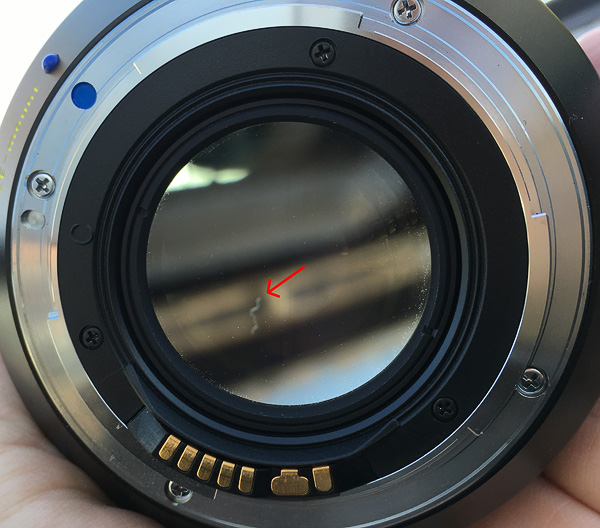
A couple of weeks later I got the modified lens, but I noticed during the very first test that left side performance has dropped considerably. I know, the 5DS R is a merciless beast, but I also knew that the lens could perform better. So immediately contacted Zeiss about the issue.

What followed is a story of exemplary customer service. I’ve sent a few test images, and after a bit of discussion they recommended a focal flange distance adjustment to let the lens focus a little beyond the otherwise hard infinity stop.

A short technical explanation why this was a good idea: all my Zeisses have pronounced field curvature – ie. when I set the focus for the image center, sides may become soft, and when focusing for the best corner performance, the center goes out of focus. This is business as usual with the 5DS R and high performance lenses.

The 15mm Distagon’s image field is arching away from the camera on the sides, meaning that I would need to focus beyond infinity to bring the corners into focus. But the hard infinity stop did not allow this. This is something you won’t see on twenty-something megapixel cameras, but the 5DS R is more than demanding.

The lens went back to Zeiss again, and after some more discussion we agreed to stick with the original plan: adjust the focal flange distance. During which I received way more information than a usual service would ever send. Focus variation test results from their lab and such. The goal was to extract every last bit of performance possible while obeying the laws on physics and the realities of manufacturing tolerances.

With the fine-tuned lens in my hand, I was curious to find out the results.

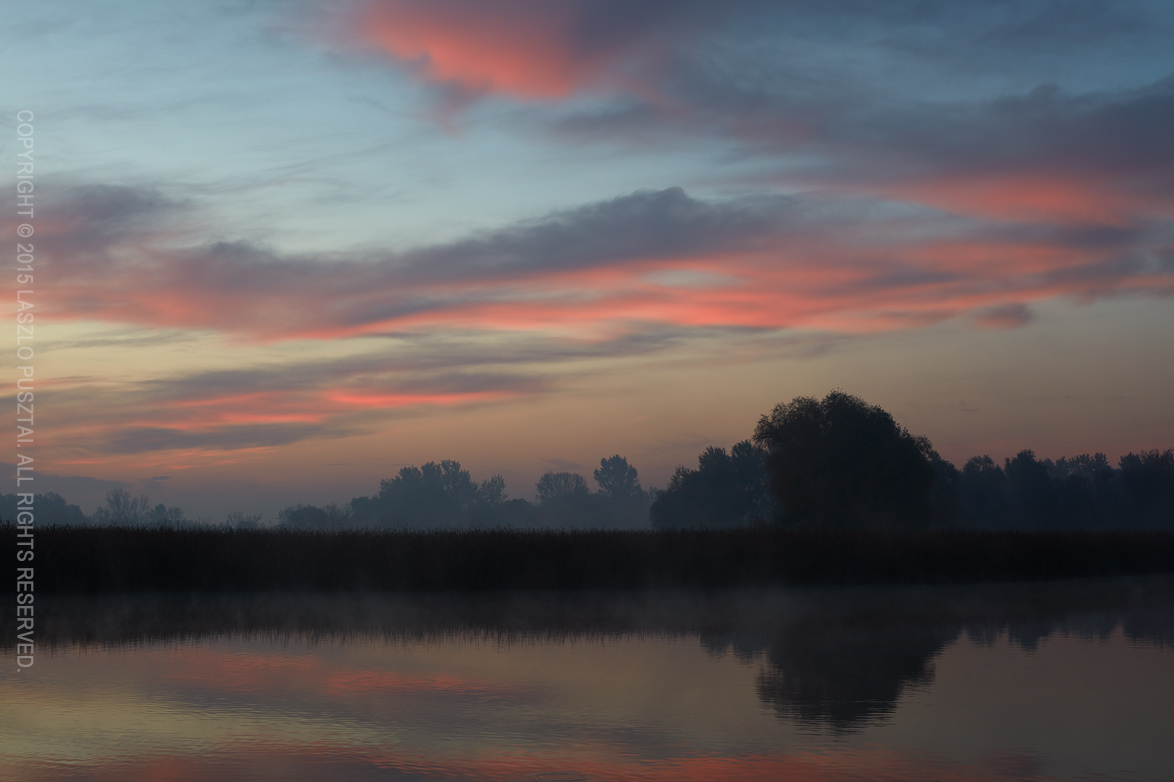
Distagon 15mm with no hood

Distagon 15mm with no hood

Honestly, I’m impressed. Left side performance is better than ever. Although there’s still a bit of difference in optimal focus distances between the left and right, that’s nothing I can’t mitigate with proper depth of field selection and focus bracketing. What surprised me is that peak center performance is also higher now.

The moral of the story: when you approach a service with such a claim, they usually tell you that the lens performs “within specifications” (which is a polite way of saying that they don’t care). Been there, done that. But not Zeiss. They were keen to provide me the best possible instrument for my ultra wide angle photography – and they succeeded.

Oh, and regarding the surgery – the hoodless lens have some 6mm smaller diameter than the original. It’s a better fit in my bag now. A screw-in metal front lens cap was also included in the modification package, but I’m using a 95mm Otus lens cap instead. It’s much easier to handle, and the risk of scratching the front element is way less with a plastic lens cap.

  ☕ ☕ ☕

Did you enjoy this post? Consider buying me a coffee if so.

My Epson 4900 Starved to Death

4900-head-errorWhen I turned on my Epson Stylus Pro 4900 a few days ago to do the regular maintenance cycle, the dreaded fatal error 1A39 appeared on the LCD. Kudos to Epson for these descriptive error messages. Not.

A quick search on the net as well as phoning the service and I had a complete diagnosis: the print head went dead. Replacement (including the pump unit) would cost about 80% of a new printer. Oops.

This is the fourth occurrence of such a problem in my circles. The urban legend says that when left turned off for a while, ink dries up from the head and since it is also used for cooling, being inkless repeatedly (no cooling at startup) will fry something in the head assembly. This seems to affect Epson’s current TFP heads (used in the 4900/7900/9900 – those models me and my acquaintances had issues with). The legend also tells that in newer heads (the ones that you get if you go the replacement route or buy a x900 printer these days) had been redesigned and free of this problem.

This theory is somewhat supported by the fact that most of the printers having this problem were used sporadically. I had no issues with the 4900 during the 3 years I used it heavily, but during the last one and a half years it had been sitting mostly idle, only doing a small print every two to four weeks.

In other words, it’s been starved to death.

Since my printer already made much more profit than it’s cost, I’m just mildly irritated. But saying that it’s not irritating to run into a design flaw (in case the legend holds true) that costs me money would be a lie.

Anyway, I’ll need a new printer. My use in the future will continue to be light, so I’m not going the TFP route again. Yes, the legend says that this problem had been fixed in the new heads, but Epson also publicly stated several times that new printers are not susceptible to clogging – which was far from truth with the 4900. So no TFP, thank you.

I’m looking into two printers now: the 17″ Epson P800 (which uses the previous generation AMC head), and Canon’s 24″ iPF6450 PRO 2000. The 17″ PRO 1000 had been quickly ruled out by not having a straight paper path, not supporting some heavy media I use, and it’s ridiculous margin handling (I can’t print a 30×45 on an A3+ paper). Epson’s new P7000 was considered for a fleeting moment, but it uses a TFP head, so I stopped thinking about it.

Fortunately I’m not in a hurry to get a printer immediately, so I’ll have time to do some evaluation before making the decision. I’ll start with a first look on the P800 towards the end of next week.

But there’s a gift in every problem: since the only thing I used Windows for was printing, I could finally eliminate the very last (albeit virtual) Windows machine in the company! And man, this is a huge time saver. Based on this, I’ll take the opportunity to reimplement my printing workflow purely on OS X. I badly needed this, but there were always more excuses important things. Now I ran out of them.

Postscript: I’m selling the remaining consumables (inks, cutter blade, maintenance tank) as well as fully operational parts (roll spindle, roll unit, paper tray, or any other parts you may need) from the dead printer. Please let me know if you are interested.

  ☕ ☕ ☕

Did this post help you? Consider buying me a coffee if so.

Focus Stacking with the Otus 1.4/28

Last weekend I had a little time to play with the Otus 1.4/28. I was at Lake Tisza, but the light was suboptimal to put it mildly. So I decided to make a test shot to check how focus stacking will work with the Otus 28.

Why would you need focus stacking in the first place with such a wide angle? Well, if you have a brutal 50 megapixel sensor, with a lens that’s sharper in the corners than most lenses in the center, you don’t want to throw that resolution away by stopping down below the diffraction limit.

For this test I ended up using f/6.3 and taking 6 slices.

Early Spring Pier, Lake Tisza

Early Spring Pier, Lake Tisza

It was a quite a bit windy, and I wanted to smooth out the waves using the 10-stop LEE Big Stopper. I had to realize that I ran out of gaffer tape (unfortunately the Big Stopper on the Otus 28 leaves quite a gap at the sides), so I used my heavy cotton dark cloth to keep unwanted light from hitting the front element.

The dark cloth covered the entire camera, but it was quite easy to focus on the 11″ screen of my MacBook Air using Kuuvik Capture. The images were focus stacked in Photoshop CC.

And the result? Perfect front-to-back, corner-to-corner sharpness. It’s simply amazing.

Kuuvik Capture 2.2 Released with Wi-Fi Support

The latest update to my Kuuvik Capture camera remote control app went online earlier today. Although it looks like a small update on the surface, there’s a huge change under the hood. This version contains the 3rd generation of my digital camera library – with full Wi-Fi and Ethernet connection support.

You may remember that we had dropped the network camera option during the beta, because Apple’s PTP-IP (the protocol used to talk to the camera over Wi-Fi and Ethernet) implementation turned out to be unreliable under heavy load. Not to mention the side effect that Image Capture started every time we connected a camera.

So I took the challenge and developed a completely new PTP-IP transport component, debuting in Kuuvik Capture 2.2. If you think that it’ll appear in other apps in the future, then you’re on the right track… But let’s concentrate on Kuuvik Capture now.

Connecting your camera via Wi-Fi (or Ethernet)

First of all, you’ll need either a Wi-Fi equipped camera (6D, 70D), a built-in Ethernet socket (1D X, 1D C) or a separate Wireless File Transmitter (5D Mark III, 5DS, 5DS R, 7D Mark II, 1D X, 1D C) for this to work. Only Canon’s transmitters are supported, third party Wi-Fi remote control boxes will not work. Please check the tech specs for the full list of compatible equipment.

Canon cameras provide connectivity in several ways. The most complete is the EOS Utility connection mode. For this mode a camera needs to be paired to a given app on a given computer. Using two apps on the same computer? You need to pair the camera to them separately, and only one can be active at a time.

The computer side of this pairing process is dramatically simplified in Kuuvik Capture 2 compared to both version 1 and Canon’s EOS Utility.

Kuuvik Capture now needs to be “pairing mode” to accept a pairing request coming from the camera. This mode is accessible through a new menu item (or by pressing F2).

networkPairing

Pairing can be initiated from the menu.

Kuuvik Capture displays the pairing window (shown below) while in pairing mode. This window also shows your computer’s name, which will appear on the camera’s LCD during the last pairing step, so you can double-check that you are pairing to the computer you were intended to.

networkPairingWindow

The pairing window. Kuuvik Capture is ready to accept pairing request only when this window is displayed.

And that’s all you need to do on the Mac.

Once in discoverable state, you can start the configuration process on your camera. The process consists of three large steps:

  1. Choose a connection mode.
  2. Configure your network.
  3. Do the actual pairing.

They are documented in your camera’s or wireless transmitter’s user manual, but there are a few important points to consider.

First, please don’t start any Canon app that may be mentioned in the manual. You are now pairing to Kuuvik Capture, and not to Canon’s apps.

For step 1, you must use the Connection Wizard on cameras where it’s available (e.g. 5-series, 7-series with the external brick), otherwise you won’t be able to complete step 3. On the 6D and 70D choose the Remote Control (EOS Utility) mode. On other cameras choose EOS Utility mode in the Connection Wizard.

In step 2, the camera will ask for network specific parameters (whether it’s wired or wireless, plus various options and a password specific to your network). This is the most complicated part of the entire process, but Wi-Fi setup is such a thing… I’d recommend to study the camera/transmitter manual beforehand.

Out in the field with no network to connect to? My previous post shows you how to create a fast and secure Wi-Fi network on your Mac!

The last step is the actual pairing. As the LCD indicates, this is your last chance to put Kuuvik Capture into pairing mode. It may take up to 1.5 minutes for the camera and your Mac to find each other.

camerapairing1

This is how the camera’s LCD will look like as soon as they found each other:

camerapairing2

Pairing should be done once (unless in the meantime you paired your camera to another app, another computer, or used another network). To deal with these different scenarios, the very last screen in the process (after clicking that OK button) lets you save up to 5 (3 for 6D/70D) setups into your camera’s memory. But if nothing has changed, Kuuvik Capture will find your camera automatically the next time you turn it on and connect to the network, so the pairing is not necessary every time you want to use a Wi-Fi or Ethernet connection.

When pairing has successfully completed, the camera’s LCD will turn black, the pairing window will disappear, and the camera’s name will show up in Kuuvik Capture’s camera selector.

Notes on Wi-Fi speed

It seems that Canon implements one of the lowest speed classes for each of their Wi-Fi implementations. This is 150mbps for the external 802.11n bricks (using only one spatial stream), and a shockingly low 60mbps for the 6D and 70D (despite they advertise it as 150). So don’t expect miracles and be prepared for 12-15 second downloads on these slower cameras. On the other hand, the external bricks are fast enough to be perfectly usable when the network signal is good.

Well, speaking of bad, flaky networks. While I absolutely hate to add new configuration options (one more thing for you to deal with), this time it was a must.

Wi-Fi networks can become unbeliveably slow (think longer distances and/or interference), causing the camera to disappear from Kuuvik Capture. A longer network timeout (a longer time allowance for intermittent network errors to clear) may solve this, but at the expense of delaying the detection of actual issues (such as when the battery dies). So the Preferences window now has an option to control this.

ntoPreference

The default is 10 seconds, which we found to be suitable for most Wi-Fi networks. You can go as low as 5 seconds or as high as 30 seconds. My personal preference is to go with the lowest number, and raise it in the presence of connectivity issues.

Other new features

There are two of them. Customers have asked for more, longer time options for mirror lock-up auto-release. So we’ve added 8s, 10s and 15s to the palette. Also the new white priority white balance mode introduced with the 5DS/R is now available on the white balance control.

Availability

The update is free for existing Kuuvik Capture 2 customers. New users can download Kuuvik Capture 2 from the Mac App Store.

For more information about the app, please visit it’s microsite, or check out my posts.

Preventing Photos Auto-Start

If you are a photographer using anything but an iPhone for your work, chances are that the Photos app drives you nuts. I mean its aggressive nature to jump on any media or camera connected. Although you can disable this auto-start for cameras one by one, CF and SD cards are still an issue, as there’s no way to disable the auto-start for them on the user interface.

So here’s the trick: disable it globally. Open Terminal and copy & paste the following commands:

On OS X 10.10 (Yosemite):

defaults -currentHost write com.apple.ImageCapture2 HotPlugActionPath -string ""

defaults -currentHost write com.apple.ImageCapture2 LastHotPlugActionPath -string ""

On OS X 10.11 (El Capitan):

defaults -currentHost write com.apple.ImageCapture disableHotPlug -bool YES

You may need to log out and back on for the changes to take effect.