Kuuvik Capture 6.5 : New Video Features

Kuuvik Capture 6.5 is now available on the App Store. This release sports a couple of features developed specifically for video shooters.

Let’s begin with the most-requested thing: audio level indicators. As you can see on the screen shot on the right, the audio meters occupy the place of the RAW histogram in video mode. We’ve put it there, because there is no RAW histogram in video mode, and because I strongly think that the image area is sacred and not willing to pollute it.

Audio metering is a complete mess on the latest Canons (R8 and such), so we did stick with the properly labeled and equidistant scale that was used on the R5 and older bodies, each step representing a 2dB difference.

Going downward on the screen shot, the Record/Stop button now turns red during recording. This was also requested by a couple of our users. Think of it as tally lamp, informing everyone on set that recording is in progress.

With the arrival of the EOS R series, Canon decided to make the internal 1/8-stop aperture handling available to users in video mode – and is actually the default.

Fun fact: every single Canon EOS camera ever made handles apertures in 1/8-stop increments, it’s just not available to users.

Now Kuuvik Capture fully supports displaying and setting aperture in these fine increments in video mode.

The last feature I’d like to mention is something I made for myself, but you can benefit from it as well. I’m shooting an increased volume of CRM video files with my R5C, and working on to build and optimize my workflow with these. So the Mac version of Kuuvik Capture can now import CRM files from memory cards (including automatically renaming them using a filename template), and can display the embedded 2K preview image from the videos.

Kuuvik Capture 6.5 is a free update for version 5.x and 6.x owners, and can be downloaded from the respective App Store.
Kwiketta for Adobe Photoshop 1.1 is Out

My “quickly open Photoshop using Rosetta” app, Kwiketta, has been updated to fully support macOS 13.

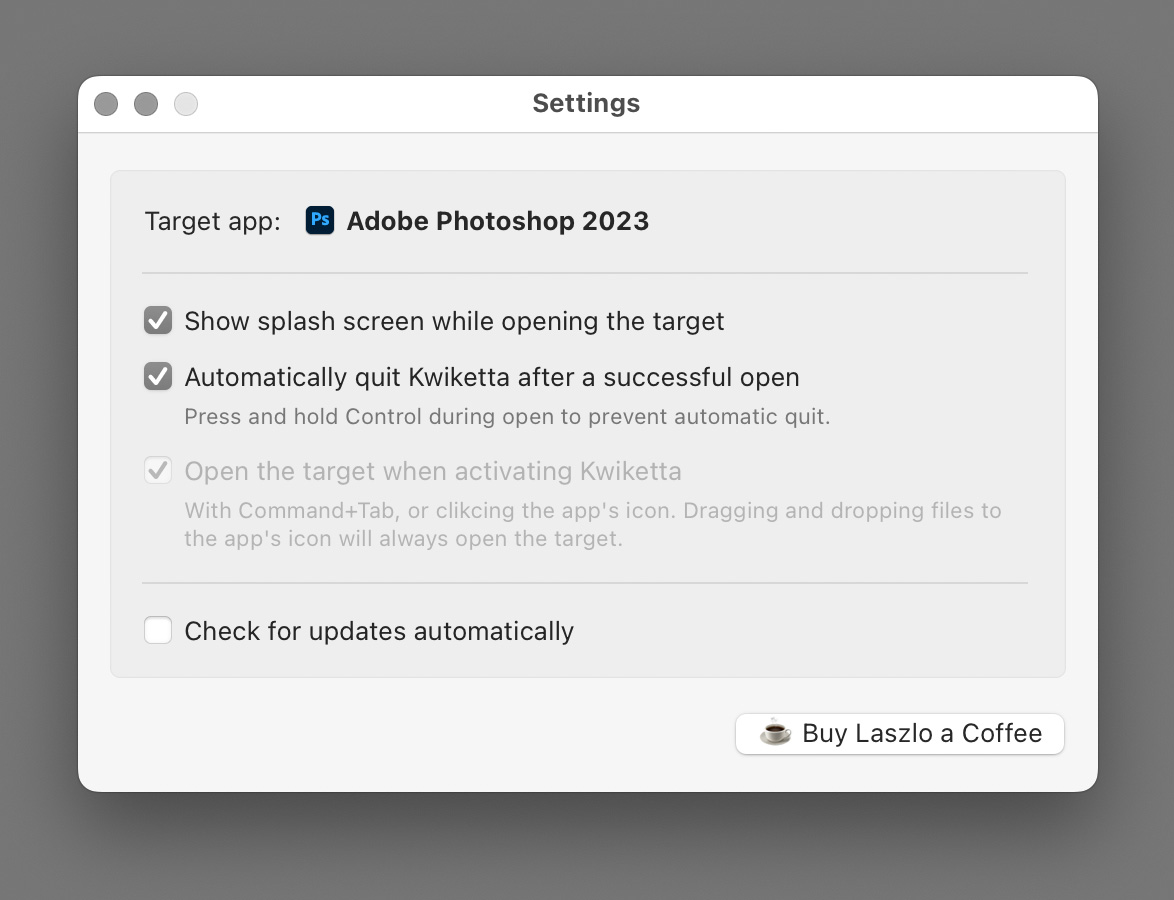
Part of this is that Preferences is renamed to Settings to reflect macOS 13’s new nomenclature. Of course it’s adaptive, and on previous OS versions it stays the old way.

Preferences is named Settings under macOS 13

And as you can see on the screen shot above, the app works perfectly with the latest and greatest Adobe Photoshop 2023 as well.

Version 1.1 can be downloaded from the app’s web site, or by clicking Kwiketta for Adobe Photoshop > Check for Updates… in the menu.

The update – and the app itself – is free. But consider buying me a coffee if it helps you in your work.

  ☕ ☕ ☕

Kuuvik Capture 6.1 Available Now

We’ve released a minor update to Kuuvik Capture earlier this week. It brings Canon EOS R7 support and mostly OS compatibility updates.

On the Mac the app follows the system-wide renaming of Preferences to Settings in macOS 13. Plus, you can now set the app’s appearance (that is, light or dark) independent of your Mac’s system setting.

The new Appearance setting in the Mac version

On iPadOS 16 this release restores the ability to use the actual device name during pairing.

In the new operating system Apple finally fixed the severe issues that plagued multi-touch in iPadOS 15, so we’ve updated our touch detection code to take advantage of the corrected behavior.

The iPadOS bug where the OS may fail to properly close the app before updating it, and subsequently, not knowing which one to run, greets users with a pitch black screen, affects Kuuvik Capture as well. The fix is quite easy: force quit and restart the app (both copies) to wipe corrupted state information. See our knowledge base article for detailed instructions.

The update is free for existing users, and is available on the respective App Store.

Introducing Kwiketta for Adobe Photoshop

Kwiketta is a new group of little utilities that launch their associated targets directly under Rosetta, the Intel processor emulation on Apple Silicon Macs. And while doing so, they pass all files dragged to their icons or passed to them other ways, like using the Open With menu item in Finder, to the target.

That is, a Kwiketta app works and acts exactly like its target, allowing you to selectively launch either the native, Apple Silicon version (using the target directly) or the Intel version (using Kwiketta) of the target.

Why is This a Big Deal?

I still rely on PhotoKit plugins for Adobe Photoshop. Unfortunately PixelGenius closed its business and ceased further product development years ago.

So, to be able to use these plugins, I have to launch the Intel version of Photoshop on my shiny new M1 Max Macbook Pro. There are two problems with that. First, I don’t always want the Intel version, because it’s slower, etc. Second, switching between the native Apple Silicon and Intel versions is a royal pain in the back: open the Get Info panel for Photoshop and toggle the Open using Rosetta checkbox.

I wanted a solution that, unlike fiddling with the aforementioned checkbox, doesn’t completely destroy my creative workflow. And this is why the first Kwiketta app, Kwiketta for Adobe Photoshop, was born.

How To Use

As you can see on the screen shot above, I put Kwiketta for Adobe Photoshop right next to Adobe Photoshop on my dock. If I click the Photoshop icon, the Apple Silicon Photoshop will launch. If I click the Kwiketta for Photoshop icon, then the Intel version of Photoshop will launch, complete with my Intel-only plugins. Simple as that.

Or you can drag files to the Kwiketta icon and they will pop into the Intel Photoshop. You got the idea.

A Kwiketta item also appears on Finder’s Open With menu of all file types that Photoshop supports.

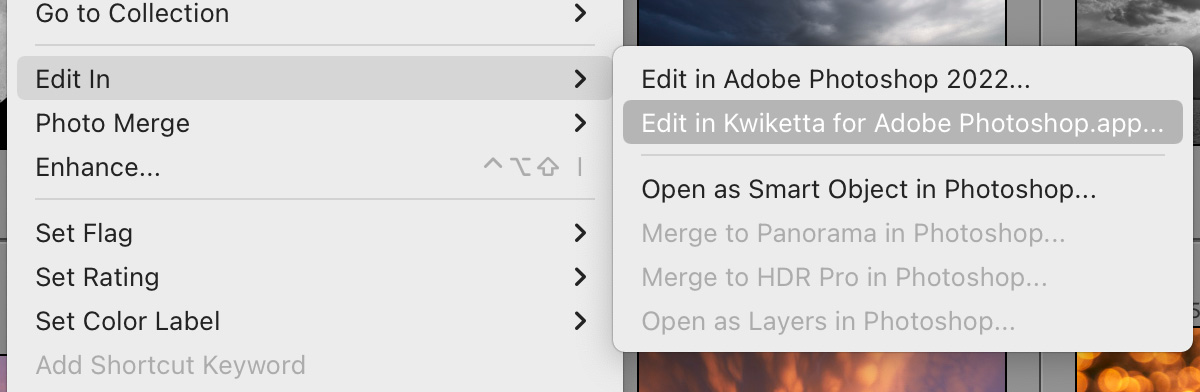
You can use Kwiketta for Adobe Photoshop almost everywhere you would be able to use Adobe Photoshop. For example you can set it as an external editor in Lightroom Classic.

This is what I do because my regular export to web workflow relies heavily on Intel-only plugins, and this way I can initiate it right from Lightroom Classic.

Configuration

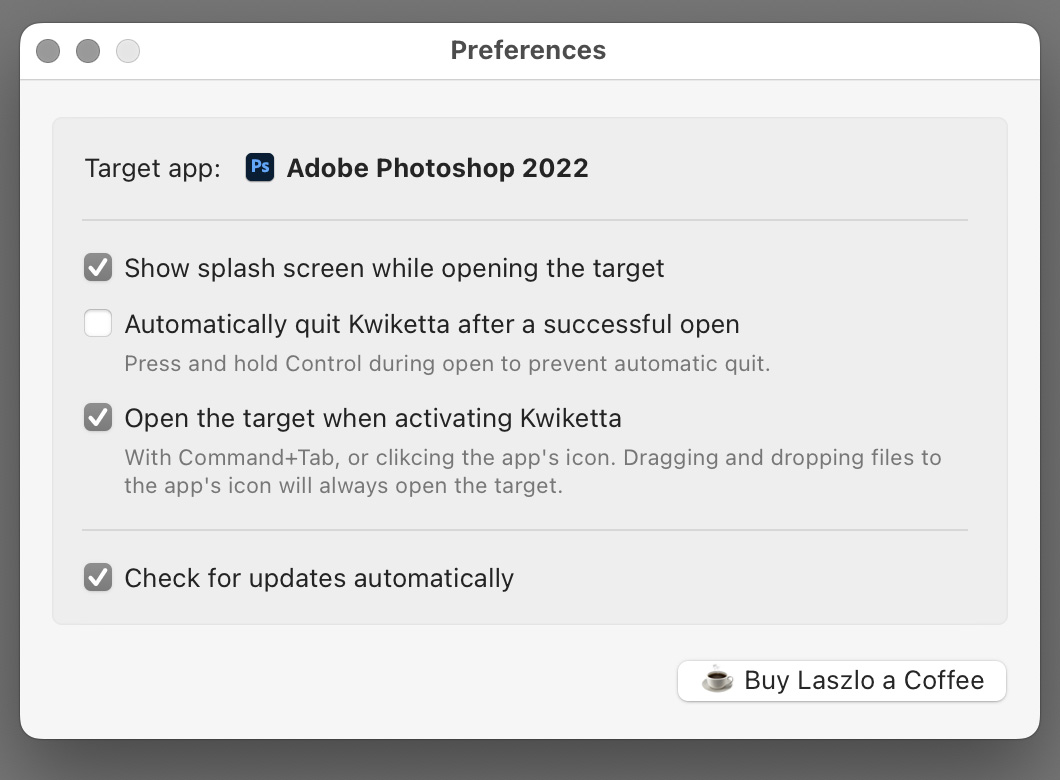
There are a few things you can set on the app’s Preferences dialog. The splash screen and automatic updates speak for themselves.

But I have to talk about the other two options.

Kwiketta can operate in two modes: it can remain running after the target has been launched (the default behavior out of the box), or it can automatically quit. The Automatically quit Kwiketta after a successful open option controls this.

In the default, remain running mode, Kwiketta will automatically relinquish control to Photoshop when you activate it. In my view this ensures a natural workflow (since the sole purpose of Kwiketta is to open the Intel target and the pass control to it). But if that bothers you, uncheck the Open the target when activating Kwiketta option.

You can always get into the Preferences dialog by right clicking the Kwiketta icon on your dock and choosing Preferences… from the menu.

Support for Apps Other Than Photoshop?

Photoshop was what I needed this app for, so naturally it was my first choice. But let us now what other app(s) would you like to get supported.

Availability

Kwiketta is available for free from DIRE Studio’s web site. You heard that right: it is free. DIRE Studio bears the costs associated with the app’s distribution.

But software does not grow on trees, and I had invested a lot of time into the development of this app. So consider honoring my work with buying me a coffee if Kwiketta helps you.

  ☕ ☕ ☕

Improved Wi-Fi Pairing in ShutterCount and Kuuvik Capture

The recently released Kuuvik Capture 6 and ShutterCount 6 brings a very convenient feature for those who use both apps on the same Mac or iOS device with Wi-Fi connection to a Canon camera.

Previously only the Mac’s/iPhone’s/iPad’s name was programmed into the camera’s menu by default, and in case you used multiple wireless tethering apps with the same camera, you had to manually edit the names to be able to distinguish between the apps.

Now we prefix the device’s name with an app identifier. Kuuvik Capture is referred to as “KC”, ShutterCount as “SC” and ShutterCount Pro as “SCP”.

App and device names as programmed into the camera’s menu by our apps.

These names are generated and programmed into the camera’s menu during the pairing process, but as always, you can change them in the camera afterwards.

Kuuvik Capture 6 and ShutterCount 6 are available for your Mac and mobile device in the respective App Store. These updates are free for existing ShutterCount (all versions) and Kuuvik Capture (5.0 or later) customers.

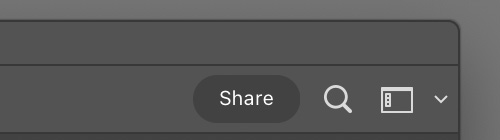
Getting Rid of Photoshop’s Blue Share Button

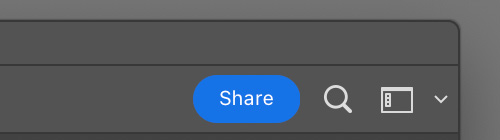
Some genius at Adobe recently came up with the idea that smacking imaging professionals, who typically prefer to work in a neutral environment to preserve color vision, in the face with a huge, non-removable, blue share button is good thing. For a function that most of us never ever uses…

Then they added the Neutral Color Mode preference, which changes the button to an outlined gray one, but it still represents a huge visual mass and causes my eye to snap to the button. I suspect the reason behind this whole thing is aggressive cloud storage marketing… Fortunately there’s a way to change this mess into something that blends in nicely and won’t drive you nuts:

Here’s how to do it on your Mac.

First, quit Photoshop. Then start the Terminal app, and type the following command:

sudo nano "/Applications/Adobe Photoshop 2022/Adobe Photoshop 2022.app/
Contents/Required/UIColors.txt"

Make sure to remove the line break before “Contents” if you copy and paste from above. The entire command must be on a single line. You’ll have to enter your password for the command to complete.

Once the nano text editor appears with the file opened in it, press Ctrl+W, type ShareButton and press Enter. Replace the color codes in the ShareButton section with the following:

        ShareButton:
                [ 
                [ 219, 219, 219, 1.0 ],
                [ 163, 163, 163, 1.0 ],
                [ 66, 66, 66, 1.0 ],
                [ 38, 38, 38, 1.0 ]
                ],

Press Ctrl+O and Enter to save the file, then Ctrl+X to exit the editor.

And that’s it. The share button is now unobtrusive neutral gray in all color themes. Note that you have to do it again after updating Photoshop.

  ☕ ☕ ☕

Did this post help you? Consider buying me a coffee if so.