Today is EOS R day. We’ve released ShutterCount 3.4 with EOS R support in the morning, and now I’m happy to announce that Kuuvik Capture 4.1 is also available on the Mac App Store with full Canon EOS R support.
The EOS R is a special camera – having the fastest multi-point live view among the whole Canon repertoire, it is eminently suitable for use with tilt/shift lenses or view cameras. Pictured below is the R on my Cambo Actus-G digital view camera.
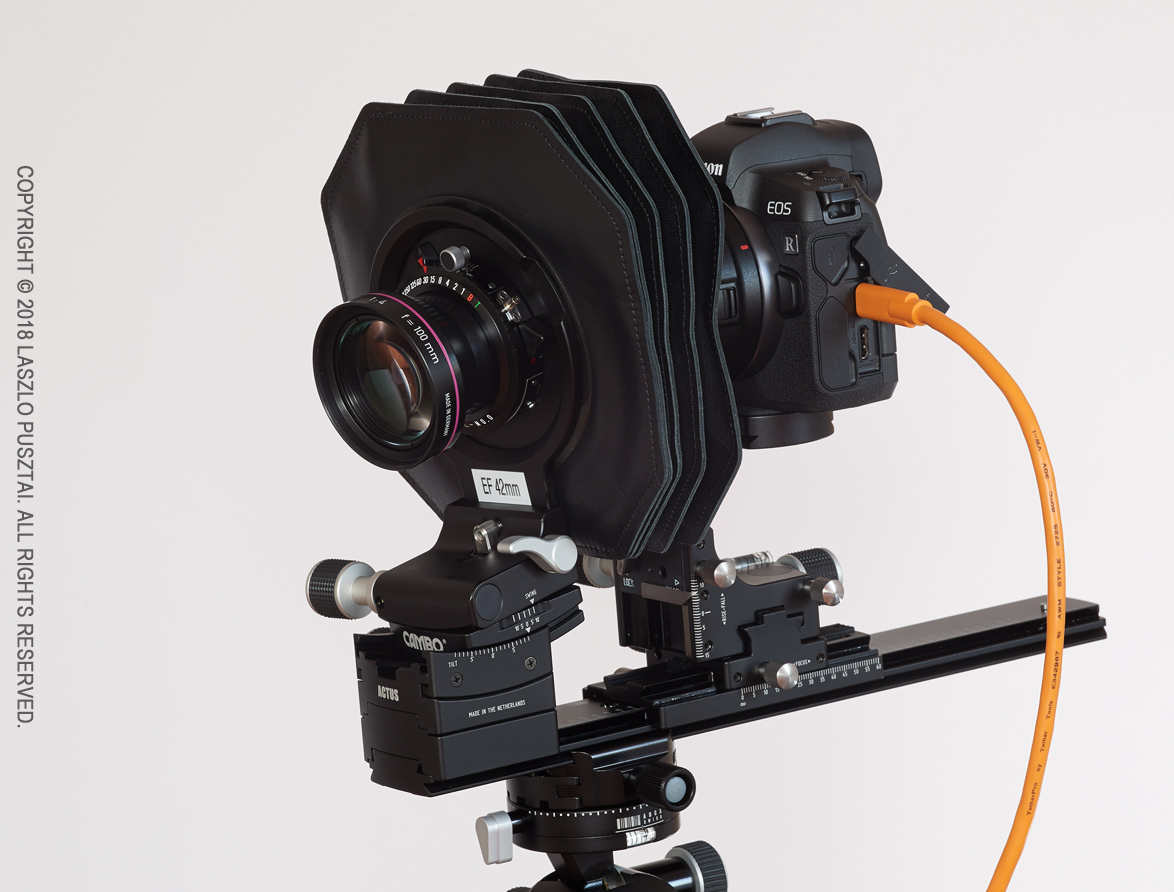
Canon EOS R on a Cambo Actus view camera
It’s not just the speedy multi-point live view that makes the R a great companion to the Actus-G, but the RF mount’s reduced flange focal distance (20mm instead of 44mm for the EF mount) allows you to use shorter lenses. A Rodenstock HR Digaron-S 60mm f/4 for example. Well, it will once Cambo starts selling an RF bayonet holder.
For those of you who aren’t aware of multi-point live view in Kuuvik Capture: it’s a unique feature (that is, no other app offers such a thing) allowing you to select up to three points on the live image and display them simultaneously in 5x magnification. An indispensable tool for product photographers.
Below is a screen shot of a the app showing multi-point live view in a typical scenario where you want to place the focal plane along the plane of the subject (the desk in this case).
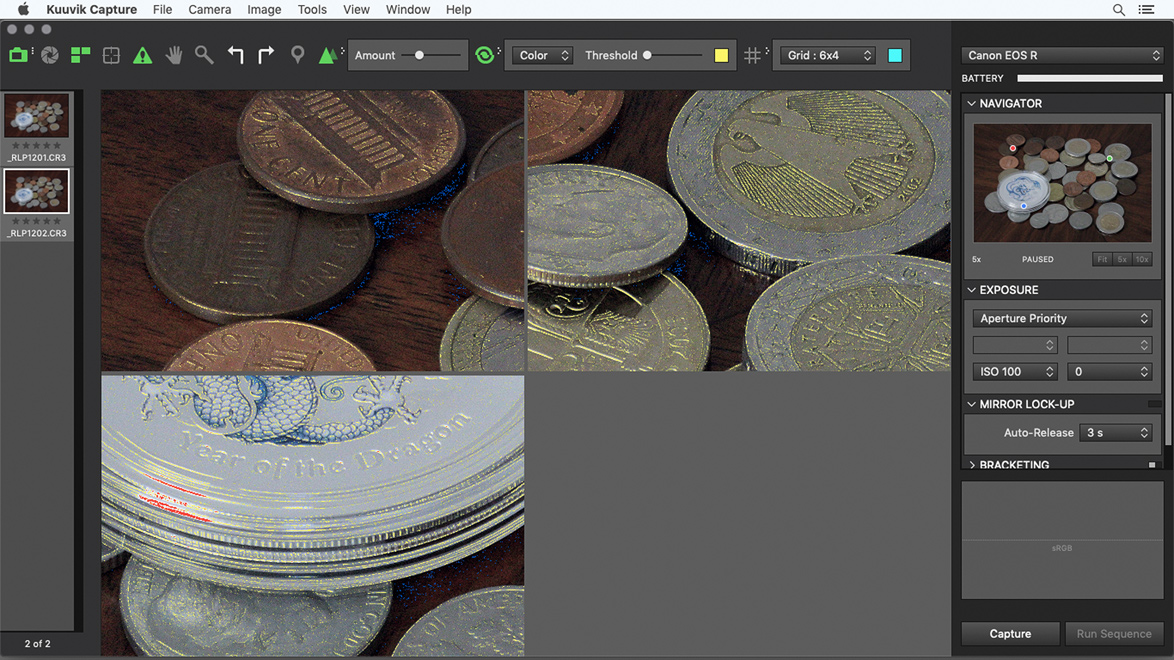
Multi-point live view in action
It was shot with the Actus-G and a Rodenstock HR Digaron-S 180mm f/5.6 lens stopped down to f/8, with around 10 degrees of front tilt.
You can learn more about the multi-point live view in my free eBook, Kuuvik Capture Inside Out.
Besides EOS R support, there are a few fixes and support for macOS Mojave’s Dark Mode in this release.
Kuuvik Capture 4.1 is available on the Mac App Store. It is a free update for users who purchased the app earlier from there. You can see the complete list of new features and changes in the release notes.

 The tool I’m referring to is called extended metadata tooltips.
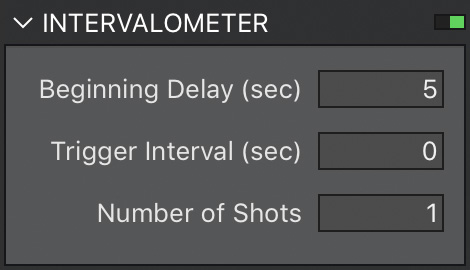 The app’s implementation is accessible through the intervalometer. In version 4 we’ve lowered the minimum for the Number of Shots field to 1 (it was 2 in previous versions). In this case Trigger Interval is ignored, and the app waits the time specified in Beginning Delay before capturing an image. It also works for brackets, and mirror-lock up (even in auto-release mode) just like the normal intervalometer functionality. Since this is an exposure sequence, you have to use the Run Sequence button (Cmd+R) instead of Capture. This is the method we recommend to use.
 A circular progress indicator on the RAW histogram’s panel lets you know how the loading goes forward. With the exception of a few operations (such as image deletion and purging) you are allowed to do anything during RAW loading. If you move to another image or capture a new one, loading is automatically cancelled, so you don’t have to waste your time on waiting for something that will be instantly thrown away.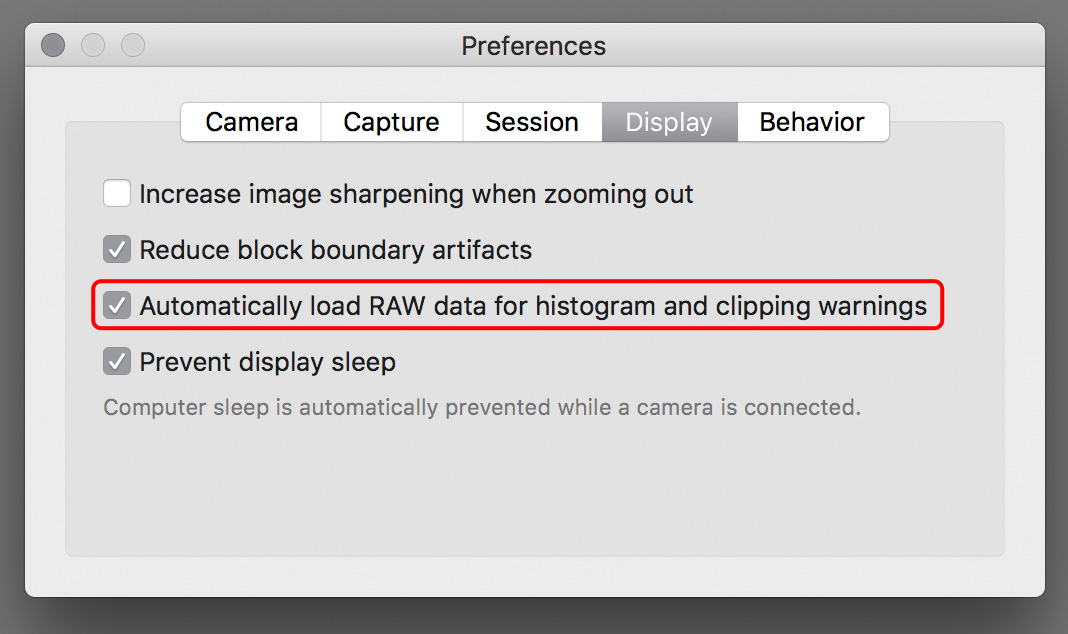
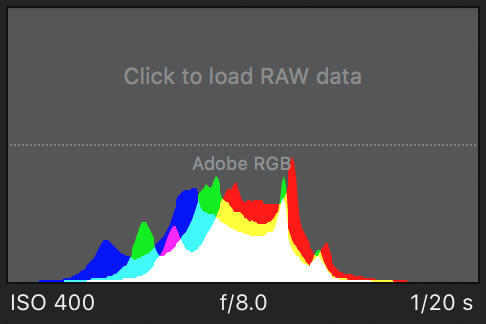 Should you need the histogram or the warning layers later on, you always have the option to load the RAW data manually. Just click the placeholder on the RAW histogram, or choose the Load RAW data command from the menu, or press Cmd+L.