Kuuvik Capture 5 Coming to iPad

This isn’t a big surprise if you followed what I have been doing lately: a high performance imaging pipeline for Technical Camera, and then USB support in ShutterCount Mobile a month ago. I have technologies at my disposal that nobody else has, so it would be silly not to make it happen.

So I’m pleased to formally announce the development of the iPad version of Kuuvik Capture 5.

Let me stay for a moment with the prerequisites. In 2015 I had re-acquired the rights for Kuuvik Capture, and started paying royalties to my original business partners. But as the app evolved, keeping the old code separate from new (so that I can calculate the amount to be paid) became a headache and a roadblock to innovation. To resolve the situation, I did redeem all future royalty payments in February, opening the door for improvements across the board. You can already enjoy these in the Mac version of Kuuvik Capture 5.

Now on to the exciting stuff!

We’re aiming for the full Kuuvik Capture 5 feature set. Complete with overlays, dual histogram, multi-point live view, and so on. Of course a few things will work differently, since there are vast differences between how you interact with an iPad and a Mac. But the basic principles will remain the same.

Both USB and Wi-Fi connections will be supported. Actually, the complete camera control and sequence automation machinery is already working. I’m going to reiterate: at the time of writing nobody else in the world has the tech required to support pro-level USB and wireless tethering with Canons on iPadOS. Period.

The iPad and Mac versions will be offered as a universal purchase. That is, if you already purchased (or upgraded to) Kuuvik Capture 5, the iPad version will be a free download.

It will require an iPad running iPadOS 13.4 or later. This is a requirement for USB tethering, plus older iPads that can’t run iOS 13 simply aren’t powerful enough for the app. If you happen to have one of those, it is a great time to upgrade quickly, because…

It is planned to be released during the summer. If I were hard pressed, I would say June, but there are way too many things that can delay a development project.

I’m currently working 7 days a week on this project, and you could encourage me to push even harder by purchasing the Mac version right now. The iPad version will be yours for free soon.

Kuuvik Capture 5 – Leaner and Meaner

I’m proud to announce the immediate availability of Kuuvik Capture 5, our premium Canon EOS tethering app for macOS!

Kuuvik Capture saw the light of day on April 2, 2013, and some of its features are still unmatched after 7 years. Version 5 is by far the biggest update, elevating the app to a whole new level, all the while shrinking it to an almost unbelievable 3.9 MB.

I’ll cover the new stuff in separate posts, but let me go trough the most important bits in a nutshell. I also recommend to check out the release notes, plus the brand new Features and Screen Shots pages on the web site.

Adds the Most Requested Features

Number one is overlays. You can place an image overlay on top of both live view and captured images. It can be repositioned, resized, rotated, and of course can be made less or more transparent. And it works in magnified live view, helping in precise alignment. Overlays use our high-performance graphics engine, so you can expect the same swift and smooth operation as you are accustomed to with images.

Number two is hideable screen elements. While you were able to hide the browser in previous versions, people had asked for more. So now you can also hide the sidebar, the toolbar, and the rulers. Separately. Or you can quickly toggle the visibility of all bars (browser, sidebar, toolbar) by pressing Ctrl+Tab. Screen element visibility is remembered separately for full screen mode (where the default shows the info overlay with no bars and rulers). Ideal for culling or presenting images to a customer.

Number three is live view auto-rotation. Turning the camera to portrait orientation will automatically re-orient live view to match it. Well, it works in any of the four possible orientations. Manual rotation is disabled when auto is active, so auto is off by default. You can activate it from the View menu or by pressing Ctrl+A.

One Big, Plus One and a Half Dozen Smaller Things

Variable-step (or inhomogeneous) exposure bracketing allows you to disable individual frames. Just click the corresponding green (or yellow/red) square on the bracketing monitor. And click again to re-enable. This is a real time-saver in situations where you would only throw out frames in a part of the bracket.

Then there’s the AF feedback on the point of operation indicator – turns green on success, red on failure. Just like on the camera. And improved sliders with precise numeric display and entry. And the ability to disable user interface animations. And on and on…

Again, I would recommend to go through the release notes for the whole list.

Farewell to Legacy Technologies

There are times when legacy technologies get in the way of progress, and need to be eliminated. This is such a time.

The app no longer supports tethering with the 5D Mark II, as well as the previously obsoleted 1Ds Mark III and 50D. Files created with them can still be opened. These cameras used incomplete and buggy tethering interfaces that littered the code with – well – crap. On a side note, I got a mail from Canon a few months ago, noting that they no longer service the 5D Mark II. So its heydays are pretty much over.

We also moved forward with the minimum macOS version required, to 10.14. Mojave is a stable release (unlike Catalina), and works with each Mac released since 2012.

This is a Paid Upgrade

Free upgrades until eternity is unfortunately not a sustainable business model for professional apps. So to be able to provide the usual stream of new features and camera support updates, we had to change the model. But instead of going the “popular” and much hated subscription route, we decided to stick with good old-fashioned upgrades.

From now on, major versions will be a paid upgrades. We’ll continue to add new features to point releases, and these will be free updates. Without pre-announcing anything, I can tell you that very cool things are coming to Kuuvik Capture 5.x!

Kuuvik Capture 2.x-4.x users can upgrade with the Kuuvik Capture 5 Upgrade bundle on the Mac App Store. This is the usual “fair” upgrade provided by the App Store: the price is calculated from how much you paid for the previous version.

Kuuvik Capture 4.5 remains on the Mac App Store as it is required for upgrades to work. The price is reduced to make it a cost-effective solution to new customers needing 5D Mark II or older macOS support.

Kuuvik Capture 4.5 : CR3 and M6 II Support

Version 4.5 of Kuuvik Capture, my premium Canon tethering app, is now available on the Mac App Store. Besides the usual camera support updates (this time for the M6 Mark II and EOS Ra), there are a few noteworthy things.

RAW Histogram and Exposure Warnings for CR3 Files

Proper support is finally here for Canon’s new RAW format. Initially I wasn’t a fan of the new format as it wastes a lot of space for unnecessary things (like duplicated metadata parts and an embedded, smaller resolution RAW image), but there’s one single feature that changed my view entirely. And this is the actual organization of the RAW image data.

My biggest gripe with the CR2 format is that the RAW data must be processed serially, on a single processor. No matter how many cores you have in your machine. But CR3 allows parallel processing! My very first CR3 decoder is roughly 2.3x faster compared to a same megapixel CR2 (EOS R vs 5D Mark IV, 0.22s vs 0.51s on my 8-core 2019 MacBook Pro). And I’m investigating architectural changes in Kuuvik Capture to allow extracting even more of the inherent parallelism in the new format.

Please note that like with sRaw/mRaw CR2, Kuuvik Capture doesn’t support the RAW histogram and exposure warnings for lossy compressed C-RAW CR3 files. I don’t think that in the age of dirt cheap storage, trading a little space for increased processing time and lower quality does worth it.

New Sequence Controller

Until now, exposure sequences were controlled by a variant of the original Kuuvik Capture 1 controller. But we had recently discovered a situation where actual exposure values could slip, resulting in two identical frames. Unfortunately the cause was the app’s architecture interfering with Canon’s exposure control mechanism, and the only solution was to completely rewrite the sequence controller.

The new code also allowed to resolve a long-time issue with the inability to stop sequences while the app waits between intervalometer shots. And there’s another pretty neat thing coming in a future release!

Tethering on macOS Catalina 10.15.2 and Later

Simply put: Apple made a huge mess, so we added extensive in-app guidance about what (seemingly unrelated Photos and Removable Volumes) access permissions you have to grant to ensure that macOS lets the app communicate with USB connected cameras. Failure to do so will prevent the app from doing its job.

Of course we had filed a bug report to Apple, proposing the way that it should be done: macOS should ask for a Tethering access permission. Their current solution is not just misleading, but poses a security risk as users must grant much wider permissions than it would be necessary, grossly violating the principle of least privilege. This is a prime example that security done the wrong way actually results in a less secure system… Just sayin’… If anyone at Apple happens to listen.

Availability

The update can be downloaded from the Mac App Store free of charge for existing Kuuvik Capture 2+ users. My eBook was also updated to reflect the changes in this release.

There’s one thing you must be aware of, though: the app now requires macOS 10.12 or later. This change allowed us to modernize parts of the code, and to get rid of the OpenCV dependency, which was only used for one purpose: resizing the RAW exposure warning layer on some old Macs. Removing it reduced the app’s size by 35%, to a mere 5.3MB. In comparison, Canon’s EOS Utility is a 75MB behemoth.

Kuuvik Capture 4.3 Released

The latest update to Kuuvik Capture is now available on the Mac App Store. First and foremost, version 4.3 brings support for all recent Canon EOS cameras: EOS RP, 250D aka Rebel SL3/Kiss X20/250D II, 4000D aka Rebel T100/3000D and the previously forgotten X90. (I agree, Canon went completely insane with camera naming…)

There’s more, though. Camera info management (should I say housekeeping?) was always a pain in the back for me. Setting the owner’s name for new cameras, updating copyright information each year (not to mention updating the copyright part of IPTC metadata) was a tedious process. Since I want to keep metadata in my cameras up to date (so that all images could carry the proper one from the beginning), it’s something mandatory for me.

Previous Kuuvik Capture (as well as ShutterCount) versions brought automated date/time/daylight savings time setting, and now we’ve extended it to copyright metadata. But let’s talks about the owner name first.

Setting the Owner Name

The camera owner’s name cannot be set from the camera itself, its only available to tethering/remote control apps. Why? Because if your camera gets lost (or stolen), chances are that the new “owner” had no chance to change it. So the device could be identified. This name is also embedded into all the images made with the camera, extending the ability to identify the original owner. It is not a perfect anti-theft measure, but might be helpful when recovering your lost property.

It’s pretty straightforward to set or change the owner name in Kuuvik Capture. Connect your camera, and click Camera > Settings > Edit Owner Name… in the menu.

The Copyright Information Template

While you can set both the author (aka artist in EXIF) and copyright properties from the camera, keeping the copyright info up to date when a new year comes takes some time. If you ever noticed a previous year’s copyright notice only when exporting the image from Photoshop – then this feature will be golden for you.

I always set the author to my name, and the copyright notice is something like:

Copyright (C) 2019 Laszlo Pusztai. All rights reserved.

This satisfies the requirements of several countries (some require the copyright symbol, others the “copyright” word to be present in the notice, and even some require to declare that you reserve your rights) and is something I have been using for decades. As you can see, the problem is keeping the year current.

The copyright information template can set both the author property and the copyright notice in new cameras, as well as keep the notice updated when a new year comes. You just have to connect your camera and it’s done automatically.

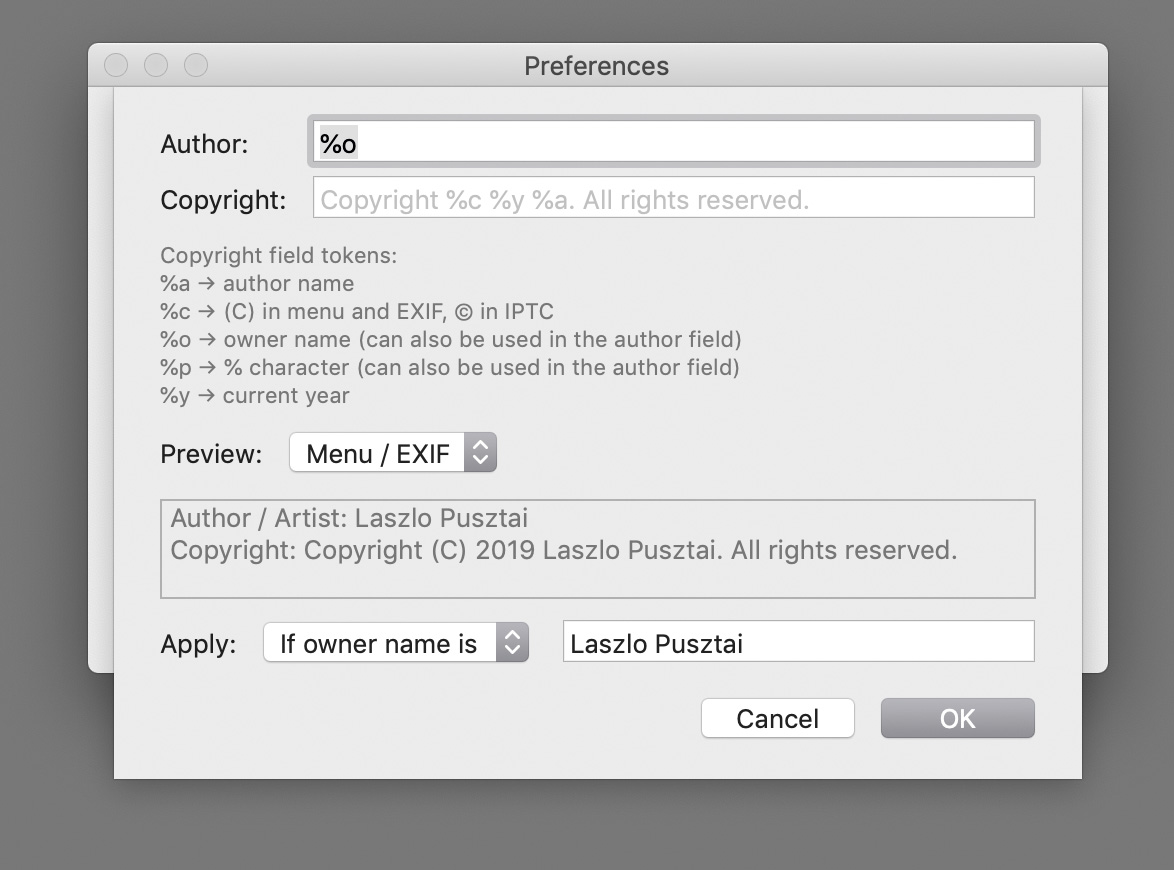
But you have to create a template first and instruct the app to apply it when a camera is connected. To create your template, bring up Preferences, and click Edit after the check box titled Apply copyright information template on the Camera tab. If you turn on the check box on for the first time it will automatically display the editor. Here’s how my template looks in the editor.

The Copyright Information Template Editor

The easiest way to set up your copyright info is to type your name in the Author field and click OK. The defaults will take care of creating the appropriate copyright notice in the format shown above. But you can also customize it.

One of the several tokens you can use is %o, which will be replaced with the owner name currently set in the camera. That is, I prefer to set the author to be the same as the camera owner (me). I leave the copyright field at its default. But if you have a long name, you may need to change it, as Canon cameras have a limit on how long the copyright notice could be. Jean-Baptiste Emanuel Zorg will definitely need to use a customized template… The Preview section will give you a live preview of how the expanded template will appear in the camera.

If your camera is IPTC capable (EOS R, 5D Mark IV, 1D X Mark II), then the app will also set up and activate IPTC metadata in the camera.

Let me stop here for a second. IPTC information you set must be separately activated with turning Add IPTC information on in the camera’s menu. Kuuvik Capture does it for you. But it always activates IPTC, and if you don’t want this, then you have to turn off applying the copyright information template.

If you already have IPTC metadata in place, then the creator and copyright fields will be updated. You can see how the IPTC fields will look like by changing the preview type to IPTC (instead of Menu / EXIF). The most important difference is that you can use accented characters in IPTC fields, but only ASCII is allowed for the camera menus (that will be written as EXIF fields into files). The app will automatically convert any non-ASCII characters entered into the author and copyright fields for the menu, including the copyright symbol itself. But will keep the accented ones in IPTC fields.

The template can be applied to all cameras unconditionally, or you can set up a filter limiting the application of the template to camera having a matching owner or artist name field. In case you regularly connect other people’s cameras and don’t want to mess up their copyright info. So I limit the template to my own cameras (where my name is the owner name). With this template, if I have a new camera, then only set the owner name, and the copyright info template takes care of everything else.

IPTC Export/Import

Speaking of IPTC info, you have the ability to export and import IPTC information from/to the camera. This function uses the same XMP files EOS Utility uses for its similar function, so you can freely mix and match the two apps to manage IPTC information. There’s an addition in Kuuvik Capture, though. While importing IPTC info, the copyright information template is applied to the imported file if the Apply copyright information template preference is set. So you can’t inadvertently import copyright info that’s inconsistent with the template.

The export and import functions are available under the Camera > Settings sub-menu.

I have a “default” IPTC info file, one that sets contact information in addition to the copyright related fields. I import this file to each new IPTC capable camera, and let the copyright info template take over after that.

Focus Bracketing with the EOS RP

The EOS RP introduced in-camera focus bracketing. Kuuvik Capture handles it as another type of camera controlled bracket. The camera’s focus bracketing settings are displayed in the app, but you can change them only on the camera. When camera controlled focus bracketing is active, hitting the Capture button will run the entire bracketing sequence. Note that the images are captured with electronic shutter, that is, they are prone to severe rolling shutter effect.

But since Kuuvik Capture has real, proper focus bracketing, I’d highly recommend to use that instead.

Availability

The update is free for existing Kuuvik Capture users. New users can purchase it in the Mac App Store.

I’ve also updated the eBook, which is available free of charge.

IMPORTANT: Please update to version 4.3.1 to resolve camera connection problems you may encounter with the original 4.3 release.

Kuuvik Capture 4.2 Released

Version 4.2 of my premium Canon tethering app, Kuuvik Capture, is now available on the Mac App Store.

The headline feature is that the app is localized to French. Localization is much more than simple translation, and Agnes did a great job here: the app has a slightly different personality than the English version, but I quite like it. Click the image below for a larger view.

Although I don’t speak French, after spending weeks with the development and my cameras switched to French, I’ve learned quite a lot. It was an exciting and fun experience, I hope you’ll like the outcome!

It was also a good opportunity to revise a few messages (mostly error messages that you seldom encounter). The most prominent change is that the former “manual” white balance mode(s) are now named “custom” to be in sync with contemporary camera menus.

The other new feature is the C-Log mode indicator.

Once a camera is switched to C-Log recording mode, picture styles get disabled. So we reused the picture style selector control to display the C-Log mode and bit depth (on the EOS R, for example, where you can choose to use 8bit or 10bit recording).

Note that in 10bit mode the EOS R can’t record to a memory card (only to an external recorder), so just like the record button on the camera, the record button in Kuuvik Capture will have no effect.

The update is free for existing Kuuvik Capture users. New users can purchase it in the Mac App Store.

My eBook, Kuuvik Capture Inside Out, has also been updated to cover the new version. It is available as a free download from the Kuuvik Capture web site.