We have received numerous requests to make purchasing the whole ShutterCount package (the base app plus the Live View and Plus packs) easier.
Here it goes, the new ShutterCount Pro (for macOS) and ShutterCount Pro Mobile (for iOS) editions contain the complete functionality right out of the box.
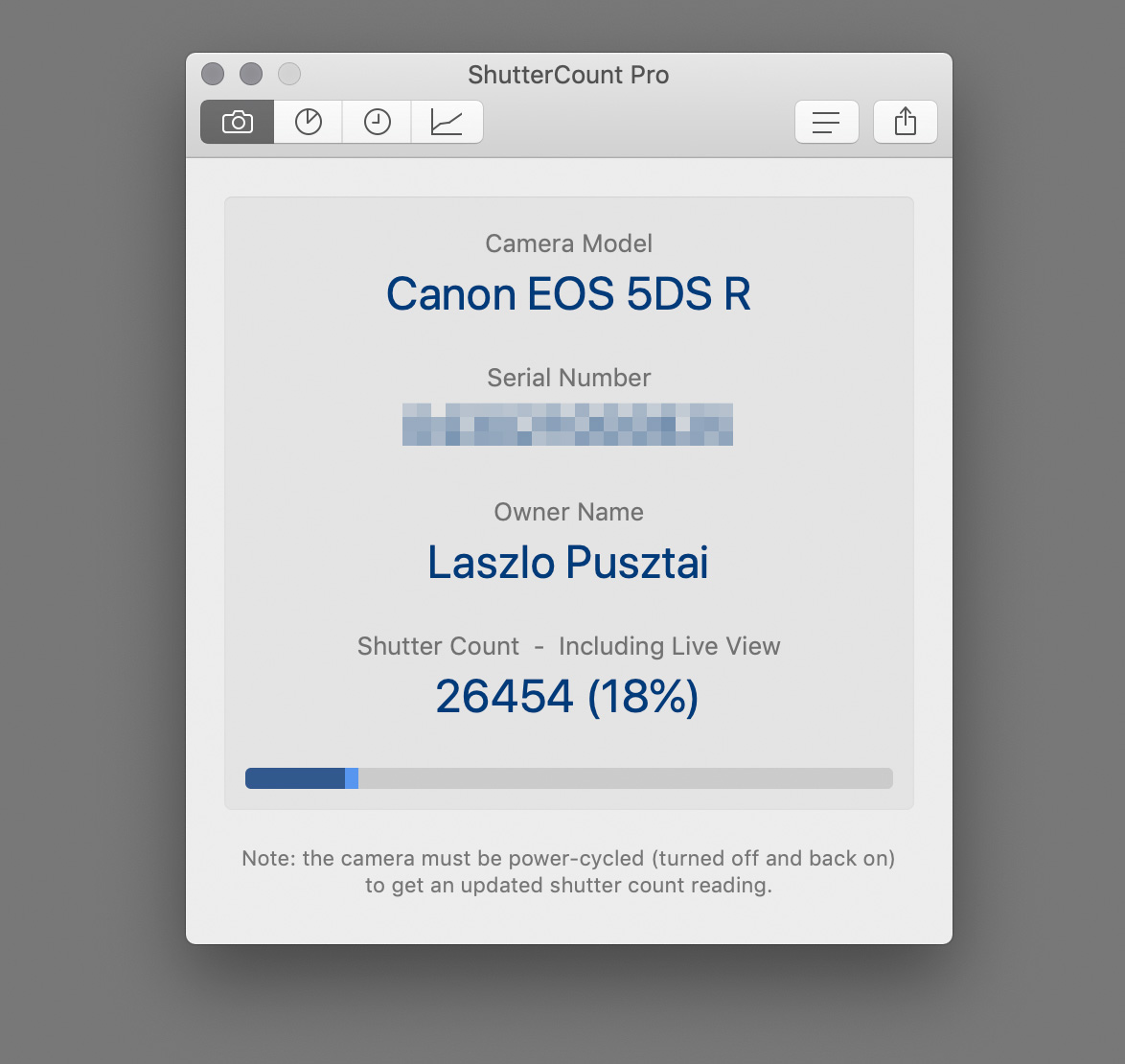
That is, you get live view actuation counts and the Distribution Chart (for supported cameras), and all the goodies from the Plus Pack: from graphing and forecasting, to additional niceties, such as Canon camera date/time sync and outdated firmware warning.
If these features sound new to you, then I’d recommend to read my former posts: this one about the Usage Meter and the Graph, and this other one about the Distribution Chart and live view counters in general.
Having purchased the original app, you can make it fully equal to the Pro edition by purchasing the Live View and the Plus packs in ShutterCount’s in-app store.
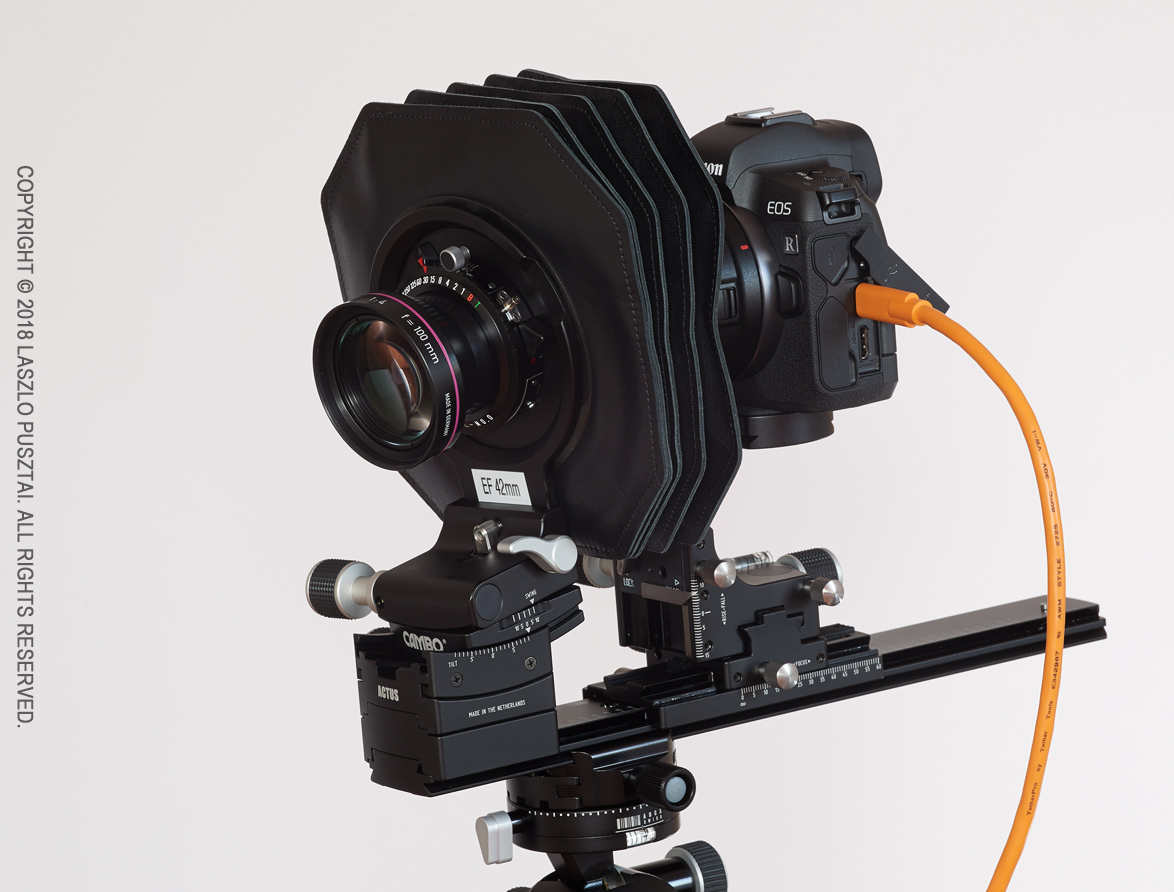
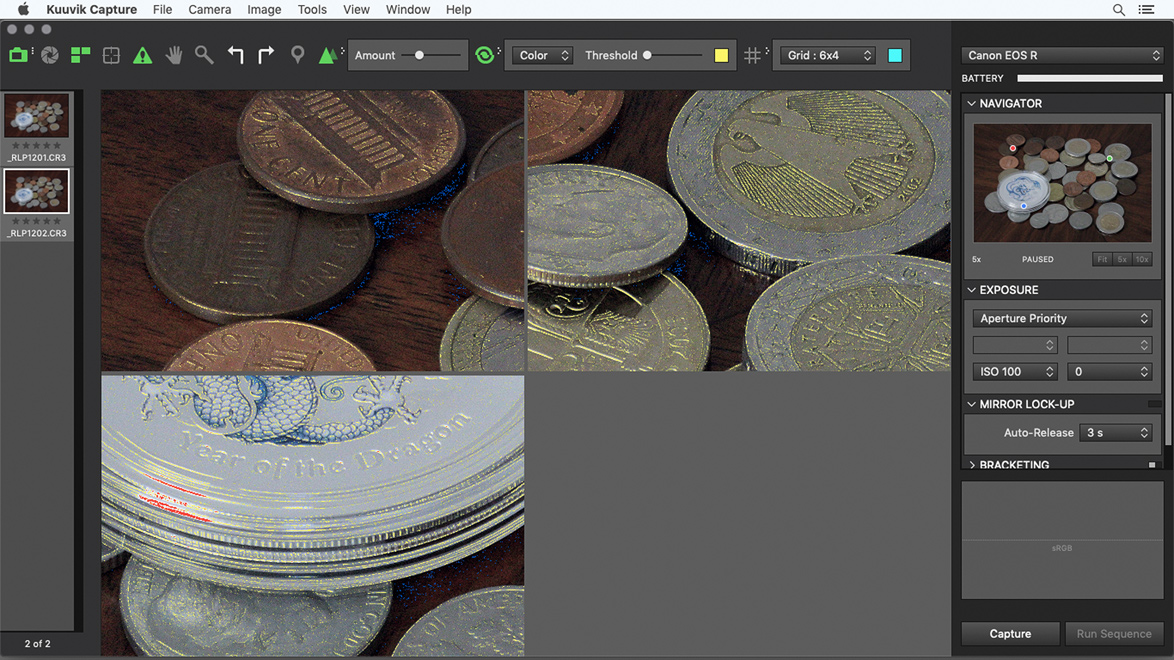

 The tool I’m referring to is called extended metadata tooltips.
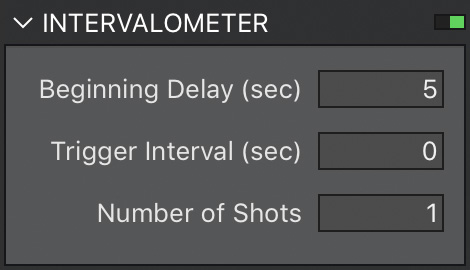 The app’s implementation is accessible through the intervalometer. In version 4 we’ve lowered the minimum for the Number of Shots field to 1 (it was 2 in previous versions). In this case Trigger Interval is ignored, and the app waits the time specified in Beginning Delay before capturing an image. It also works for brackets, and mirror-lock up (even in auto-release mode) just like the normal intervalometer functionality. Since this is an exposure sequence, you have to use the Run Sequence button (Cmd+R) instead of Capture. This is the method we recommend to use.
 A circular progress indicator on the RAW histogram’s panel lets you know how the loading goes forward. With the exception of a few operations (such as image deletion and purging) you are allowed to do anything during RAW loading. If you move to another image or capture a new one, loading is automatically cancelled, so you don’t have to waste your time on waiting for something that will be instantly thrown away.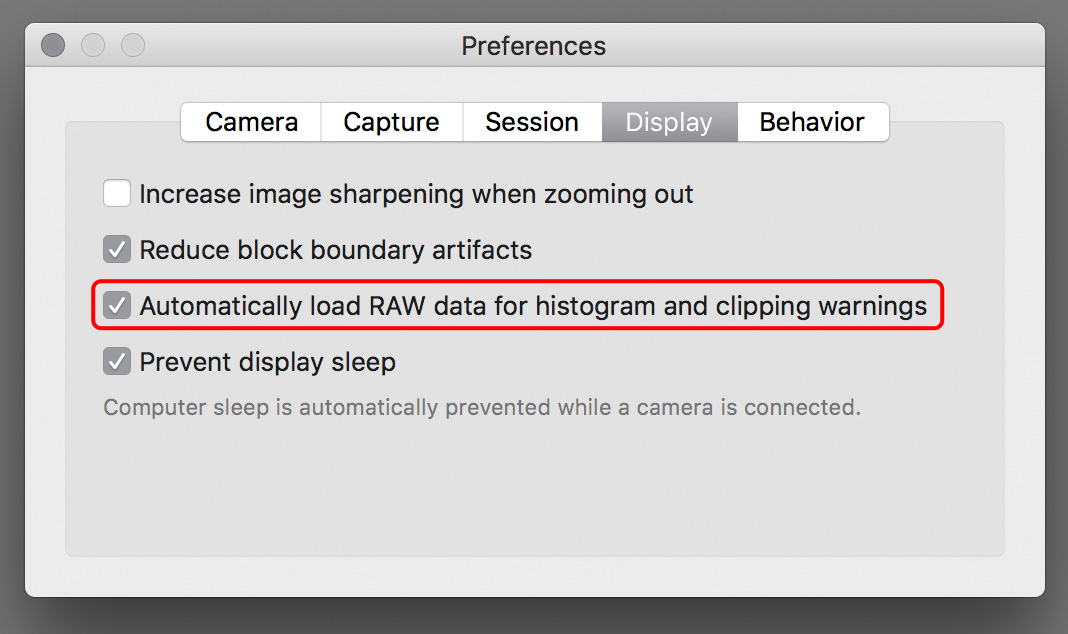
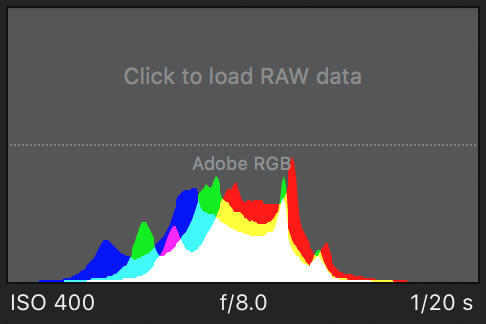 Should you need the histogram or the warning layers later on, you always have the option to load the RAW data manually. Just click the placeholder on the RAW histogram, or choose the Load RAW data command from the menu, or press Cmd+L.




